Chapter 5: Working with Phantom CineMags | 29
SAVING AN INDIVIDUAL CINE FROM A CINEMAG
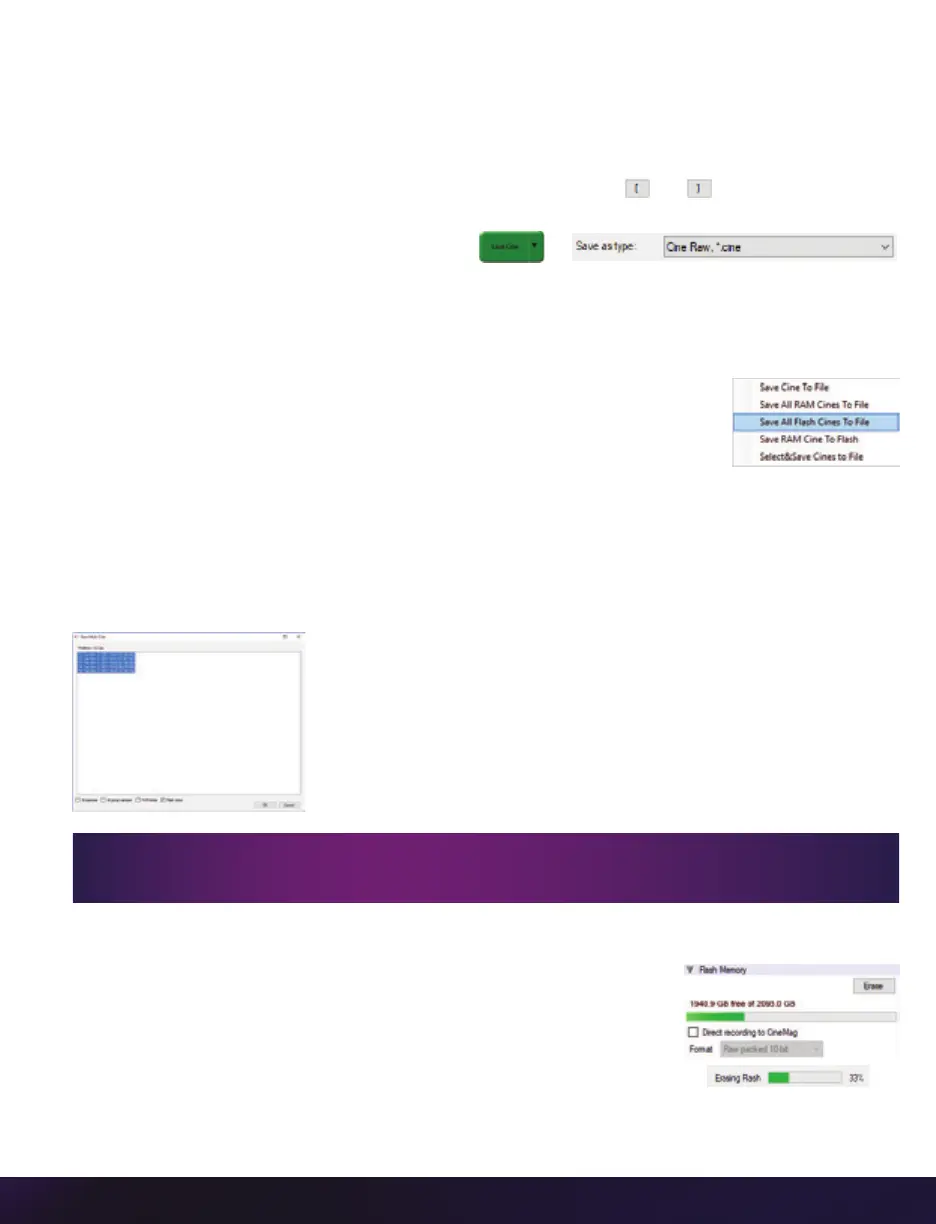
From the ‘Play’ tab in PCC, select the Cine you want to save from the ‘Cine:’ pull-down menu.
You will see all clips in the RAM as well as the CineMag in this list. Once you’ve selected a
clip, you can mark an in and out point if desired by clicking the and buttons respectively.
Or use Phantom Video Player (PVP) Software in a similar manner when using video playback.
Then click the green ‘Save Cine…’ button.
In the ‘Save Cine’ dialog box, choose ‘Cine Raw’ as the file format, navigate to the folder
where you wish to save the clip and click ‘Save.’
SAVING ALL CINE FILES FROM A CINEMAG
In the ‘Play’ tab, click the triangle to the right of the ‘Save Cine…’
button and, from the pop-up menu, select ‘Save All Flash Cines To File.’
In the subsequent save dialog window, navigate to the folder where you
wish to save the clips and select the ‘Cine Raw’ file format. Choose a name for the group
of Cine files and click the ‘Save’ button. Each Cine’s file name will start with the name you
choose and end with the Cine number.
SAVING SELECTED CINE FILES FROM A CINEMAG
In the ‘Play’ tab, click the triangle to the right of the ‘Save
Cine…’ button and, from the pop-up menu, select ‘Select &
Save Cines to File.’ In the pop-up window, select the Cines you
wish to save and click ‘OK.’
In the subsequent save dialog, navigate to the folder where
you wish to save the clips and select the Cine Raw file format.
Choose a name for the clips and click the ‘Save’ button.
ERASING A CINEMAG
A CineMag can be erased via the on-camera control menu, in
Phantom PCC and PVP software or CineStation IV.
In PCC software, navigate to the ‘Live > Flash Memory’ menu and
click the ‘Erase’ button. Confirm that you wish to delete all clips.
In PVP software, tap the ‘Erase All’ button and confirm. Erase
progress is indicated on the video OSD and by a progress bar in the software.
‘_Flashcine#’ will be appended to the file name of all batch-saved clips, where ‘#’
represents the number of each take.


 To Next Page
 Loading...