Chapter 6: Phantom PCC Software | 35
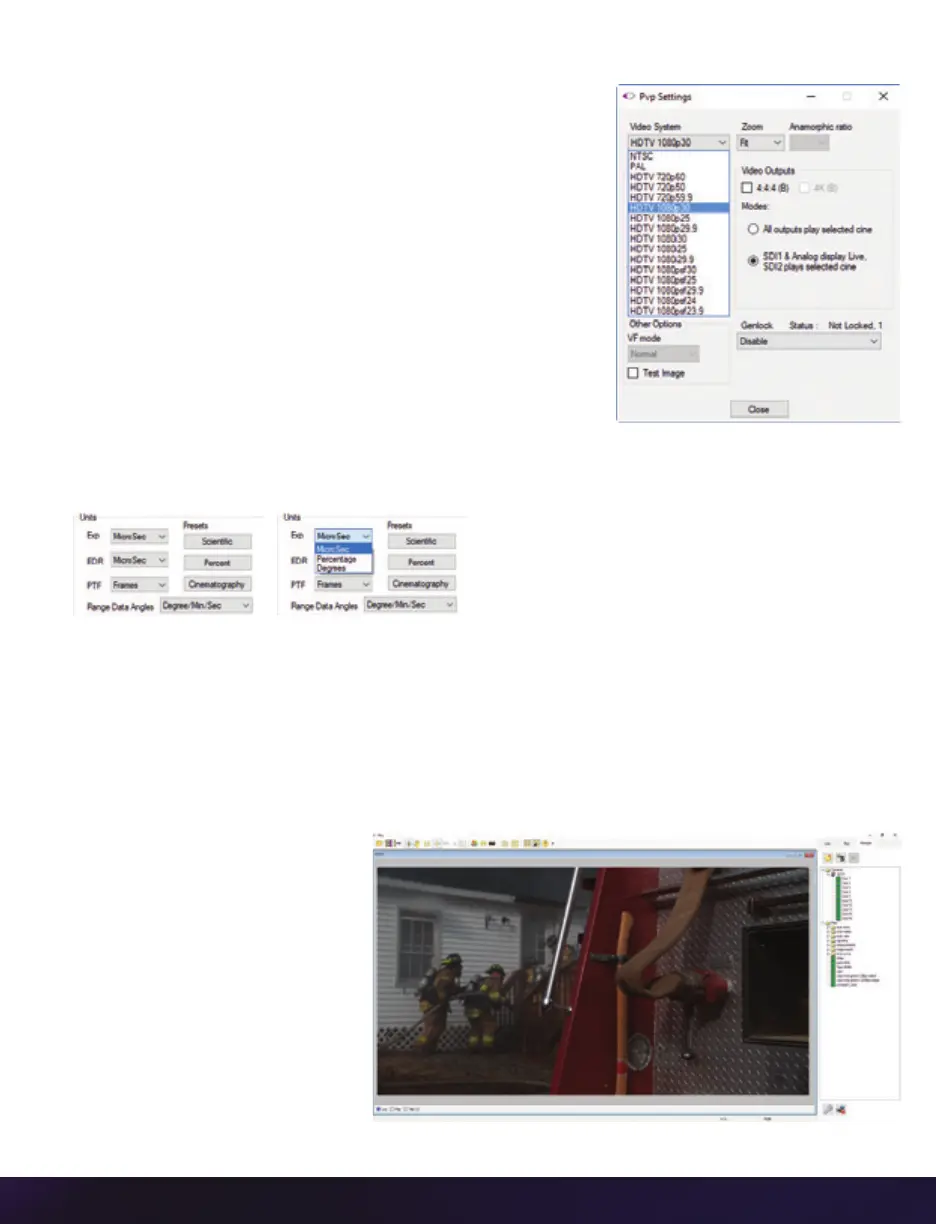
The camera’s video mode and display settings are also
set through PVP. The best video system for the camera
or project will vary based on the country you are in, what
kind of video monitor is used and the required display
resolution.
All available video systems for the connected cameras
can be found in the ‘Settings’ menu of PVP, along with
production area and other video overlay controls.
CAMERA CONTROL VIA PCC
PCC provides the ability to select various units for specific
camera parameters by clicking the ‘Preferences’ button
at the bottom of the ‘Manager’ tab.
Units can be set to commonly used values (‘Presets’) or can be customized using the pull-
down selection lists. First time users should use one of the three ‘Presets.’
The ‘Exp’ unit is probably the most important unit to be set. It specifies what unit to use
when setting the exposure time. The other units to set are EDR and PTF (Post Trigger
Frames) covered later in this section.
SELECTING A CAMERA
Double-click the camera(s) to be controlled listed in the ‘Manager’ tab, or select the
camera(s) from the ‘Camera’ pull-down list in the ‘Live’ tab.
Once a camera is selected, a
‘Preview’ panel will display
to the left of the control tabs
showing the current image
being captured by the camera.
This image may differ slightly
to that of the image being
output over the camera’s 3G
HD-SDI port due to display
differences in the video
monitor and computer screens.


 To Next Page
 Loading...