Vision Research, Inc. | Phantom Ultrahigh-Speed Camera Manual
IMAGE PROCESSING
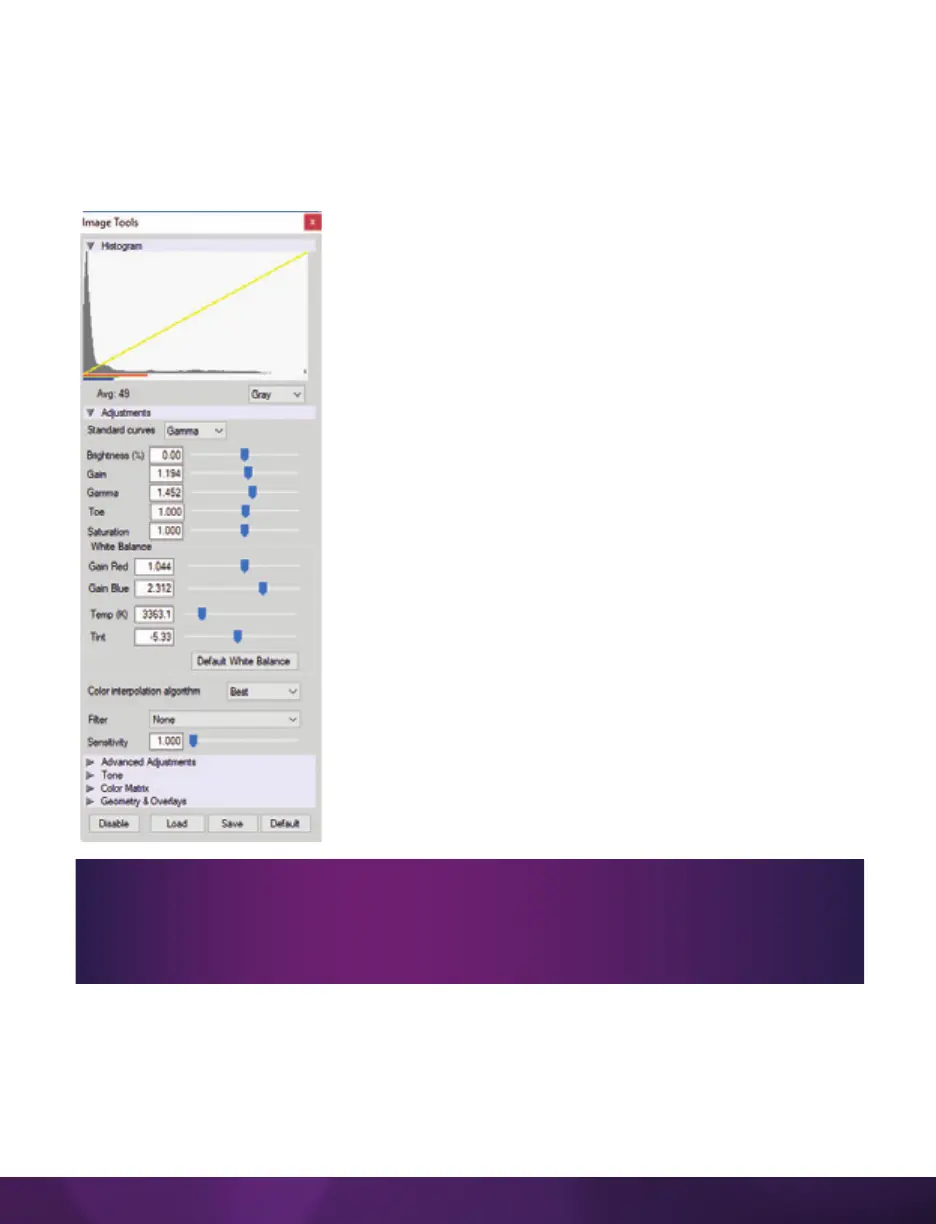
‘Image Tools’ provides extensive control over the look of the image, from color and
contrast settings to image orientation and crop settings. The menu is accessed by
clicking on the ‘Image Tools’ toolbar button (the one that looks like an artist’s palette).
The top of the ‘Image Tools’ window displays a
‘Histogram.’ This is a graphic representation of the
pixel brightness levels of the displayed image. The left
represents black, the right represents white and the
height represents the proportionate number of pixels at
that particular value. Unlike a waveform, the histogram’s
shape is not representative of the content—it is simply
an averaging of the brightness values.
Below the histogram are controls which change image
settings of the live images, recorded images and the
video output of the camera.
Some of the variables include; brightness, gain, gamma,
saturation, toe, white balance adjustments (Temp (K)
and Tint), individual red, green and blue pedestal, gain
and gamma values, tone control and more.
At the bottom of the window is a ‘Default’ button that
restores all parameters except white balance, tone and
color matrix to their default values.
The ‘Default White Balance’ button restores white
balance to the factory defaults on color cameras.
The Tone ‘Reset’ button restores the image tone to the
default values, and the Color Matrix ‘Restore’ button
returns the color matrix values to their default values.
The ‘Zoom Actual Size’ toolbar button resizes the images being displayed in the
‘Preview/Playback’ panel to their actual size.
The ‘Zoom Fit’ toolbar button resizes the images to fit the panel. Images can also be
zoomed to a specific magnification ratio by selecting a number from the pull-down list
to the right of the ‘Zoom Fit’ button.
Changes made here only affect the metadata of the Cine Raw file. They are
applied in software but not “baked in.” If you are saving to a different format or
recording the video output, ensure everything is set to values that produce the
image you wish to record.


 To Next Page
 Loading...