Chapter 6: Phantom PCC Software | 37
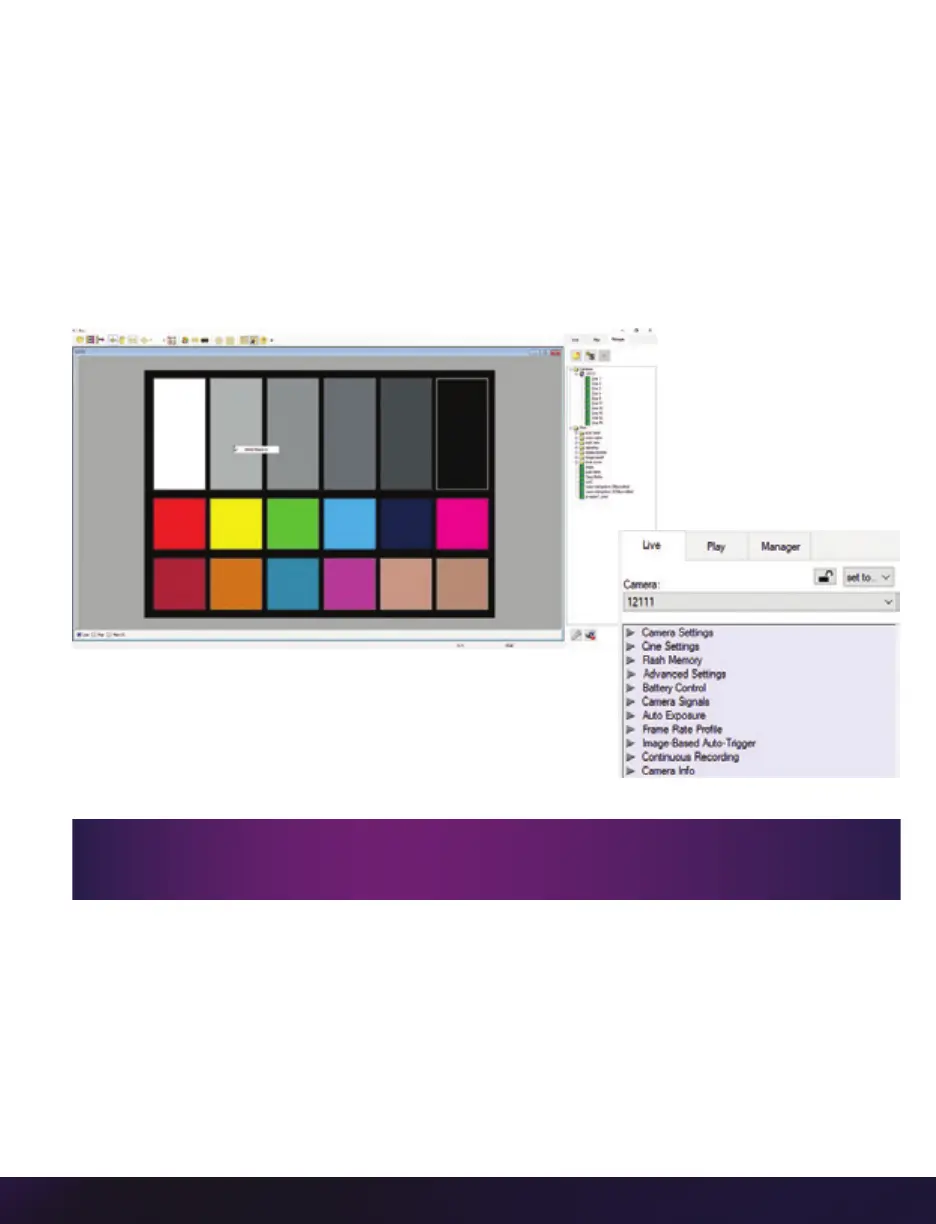
AUTOMATIC WHITE BALANCE
Performing a ‘White Balance’ should be the first step in color adjustment. (White Balance
not applicable to monochrome cameras.)
Right click on an area that resembles white in the image in the ‘Preview’ or ‘Playback’
panel, then click on the ‘White Balance’ pop-up window. It is not necessary to fill the frame
with white—a small target can be used.
It is recommended to perform the White Balance after a CSR and on a white or gray object
that is not fully saturated.
CAPTURE SETUP
Just below the ‘Camera’ selector in the ‘Live’ tab are a
series of expandable headers, which contain groups of
related camera settings.
CAMERA SETTINGS & CINE SETTINGS
Set Time: Synchronizes the timestamps embedded in the recorded image data to the
computer’s clock.
Bit Depth: All Phantom UHS cameras operate in 12-bit mode only.
Partitions: Select the number of desired partitions (evenly divided memory segments) from
the ‘Partitions’ pull-down menu. For basic camera setups, this should be set to one.
This manual will cover the most commonly used settings—see the ‘PCC Help’ file for
details of other settings.


 To Next Page
 Loading...