Need help?
Do you have a question about the Philips 105MB and is the answer not in the manual?
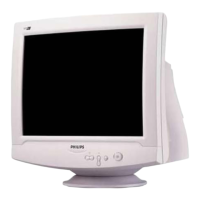
This document describes the Philips 105MB color monitor, a display device designed for various applications requiring high resolution and a large screen size.
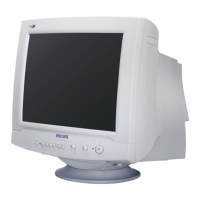
The Philips 105MB monitor is a color display that delivers sharp and brilliant images for text and graphics. It supports a maximum resolution of 1280x1024 pixels, making it suitable for Windows, CAD/CAM/CAE, desktop publishing, spreadsheets, and multimedia. The monitor features automatic scanning of horizontal frequencies from 30KHz to 70KHz and vertical frequencies from 50Hz to 160Hz. Its microprocessor-based digital-controlled circuitry and On Screen Display (OSD) controls allow for automatic adjustment to the video card's scanning frequency and precise image parameter display.
The monitor incorporates several key features to enhance user experience and image quality. An anti-glare, anti-static, anti-reflection, high-contrast screen coating minimizes reflections and dust accumulation. The Color Adjustment feature allows users to select from preset color temperatures (9300°K, 6500°K) or customize their own color parameters (User 1, User 2). The Image Tilt Adjustment feature corrects rotated images, compensating for distortions caused by magnetic fields. A full-size feature expands the image to fill the screen in factory preset modes. An optional USB Connector at the back of the monitor serves as a Universal Serial Bus hub, enabling easy and flexible connection of USB-designed devices like a mouse or keyboard for true Plug-and-Play functionality. The monitor also boasts a "Green Design" with an automatic power saving function (NUTEK) and low-emission compliance (optional TCO '95), demonstrating a commitment to environmental responsibility. DDC1/DDC2B technology facilitates communication between the monitor and the PC for optimal video configuration. Moire Cancellation helps eliminate diffraction or fringe patterns in the picture.
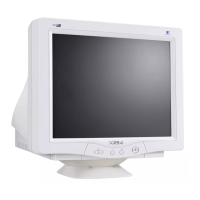
The monitor's front panel includes several controls: a Power Button for turning the electricity on and off, a Volume Button for adjusting sound from the speakers, a Brightness Button for adjusting screen brightness, a Contrast Button for adjusting screen contrast, and an LED indicator that turns green when the monitor is on and at full power. It also has an Earphones Jack for private listening, muting the front speakers when in use. A built-in microphone allows for voice input to the computer. The On Screen Display (OSD) Button brings up the OSD menu, and a Rotary Knob helps navigate through the OSD and adjust settings like Volume, Brightness, and Contrast. On the rear, there are Speakers for audio output, a Microphone Jack for external microphone input, a USB Connector (optional) for USB hub functionality, an Audio In Jack for connecting to a computer or amplifier, a Microphone Out Jack for transmitting sound to a computer or amplifier, a Power Plug for the power cord, and a Video In Jack for connecting to the computer's video output.
The OSD menu provides access to various settings, organized into windows:
The OSD provides an intuitive interface for adjusting various display parameters. Users can navigate through menus using the Rotary Knob and select options with the OSD Button. Settings for Contrast, Brightness, and Volume can be adjusted directly via front panel buttons and the Rotary Knob. The OSD Timer allows users to set the timeout duration for the OSD menu (5 to 50 seconds, default 10 seconds). Language settings can be changed to English, French, Spanish, German, or Italian. The DDC1/2B feature can be turned off if the computer's video card is not DDC compatible to prevent interference. Moire adjustment is available for correcting fringe patterns, though it may affect sharpness. Sync Input Select helps synchronize the monitor with the video card, useful for correcting greenish casts not resolved by color temperature controls. Color temperature presets (9300°K, 6500°K) are available, with custom User 1 and User 2 settings allowing individual adjustment of red, green, and blue mixtures for color balance. Geometry controls (Rotation, Pincushion, Trapezoid, Balanced Pincushion, Parallelogram) help square up the picture. Size & Position controls (Zoom, Horizontal Position, Horizontal Size, Vertical Position, Vertical Size) allow for precise image sizing and placement. Settings can be saved by pressing the front panel button again, selecting "SAVE" in the OSD, or by letting the OSD time out. Changes can be canceled by re-entering the window or selecting "CANCEL" in the OSD. The monitor supports automatic power saving (VESA DPMS compliant) to reduce power consumption when not in use.


 To Next Page
 General