2
Description of Controls
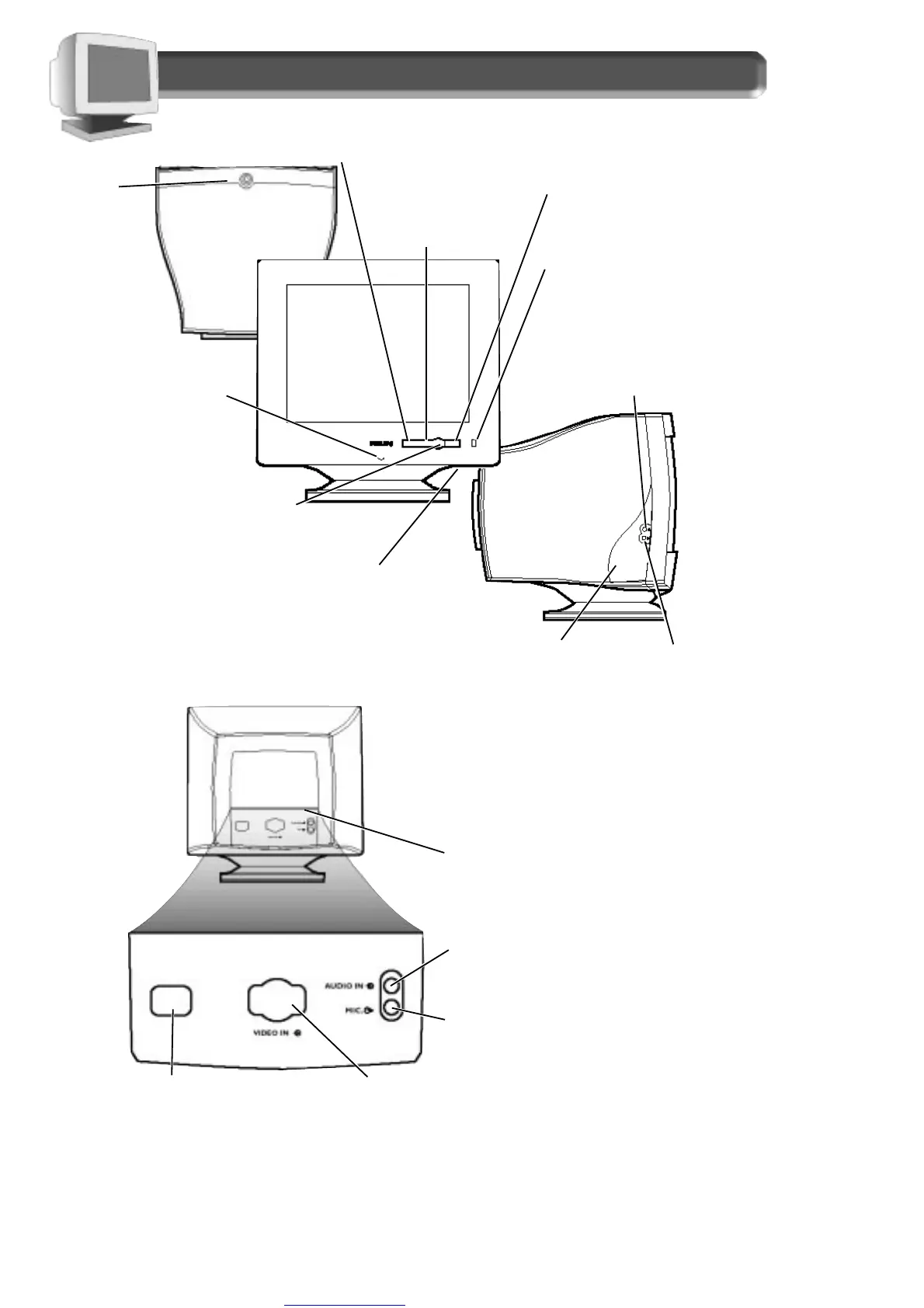
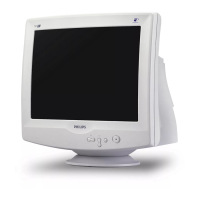
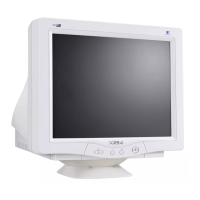
TOP VIEW
FRONT VIEW
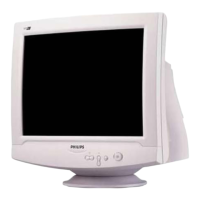
LEFT VIEW
POWER
Button –
Turns the
electricity
On and
Off.
B
RIGHTNESS Button –
Press the button to
adjust the screen’s
brightness.
C
ONTRAST Button – Press this
button to adjust the screen’s
contrast.
ON SCREEN DISPLAY (OSD) Button –
Brings up the On Screen Display and
helps you navigate through it.
M
ICROPHONE Jack – Plug in a
microphone to transmit
sound through the side
speakers or to the computer.
See page 16.
E
ARPHONES Jack – Plug in earphones
here. This mutes the sound from the
front speakers.
ROTARY Knob – Helps guide you through the On
Screen Display and also adjusts settings such as
Volume, Brightness, and Contrast.
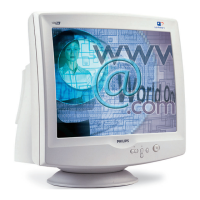
REAR VIEW
VIDEO IN Jack – One end of the cable is already connected here. The other
end connects to the computer. See foldout for details.
M
ICROPHONE OUT Jack – Connect the supplied
microphone cable to transmit sound from the
monitor to a computer or amplifier.
P
OWER Plug – Plug the power cord in
here. See foldout for details.
USB Connector (under the edge, optional) – Slot
for plugging in the USB Hub-optional hardware that
allows true Plug-and-Play. For details, see page 16.
AUDIO IN Jack – Connect the supplied audio cable to
send sound from a computer or amplifier to the
monitor’s speakers.
BUILT-IN MICROPHONE –
Allows you to “speak” to
your computer.
LED – Light Emitting Diode
turns green when the monitor is
on and at full power.
VOLUME Button – Press the button to adjust the sound from
the speakers.
S
PEAKERS – Transmit
sounds from your
computer or amplifier.
One speaker on each
side of the monitor.



 To Next Page