The OSD Controls
Description of the On-Screen Display • The OSD Tree
The OSD Controls : Brightness (HotKey) • Language • Adjust Position • Brightness and
Contrast • Video Noise • Adjust Color • OSD Settings • Product Information • Reset to
Factory Settings • Close Main Controls
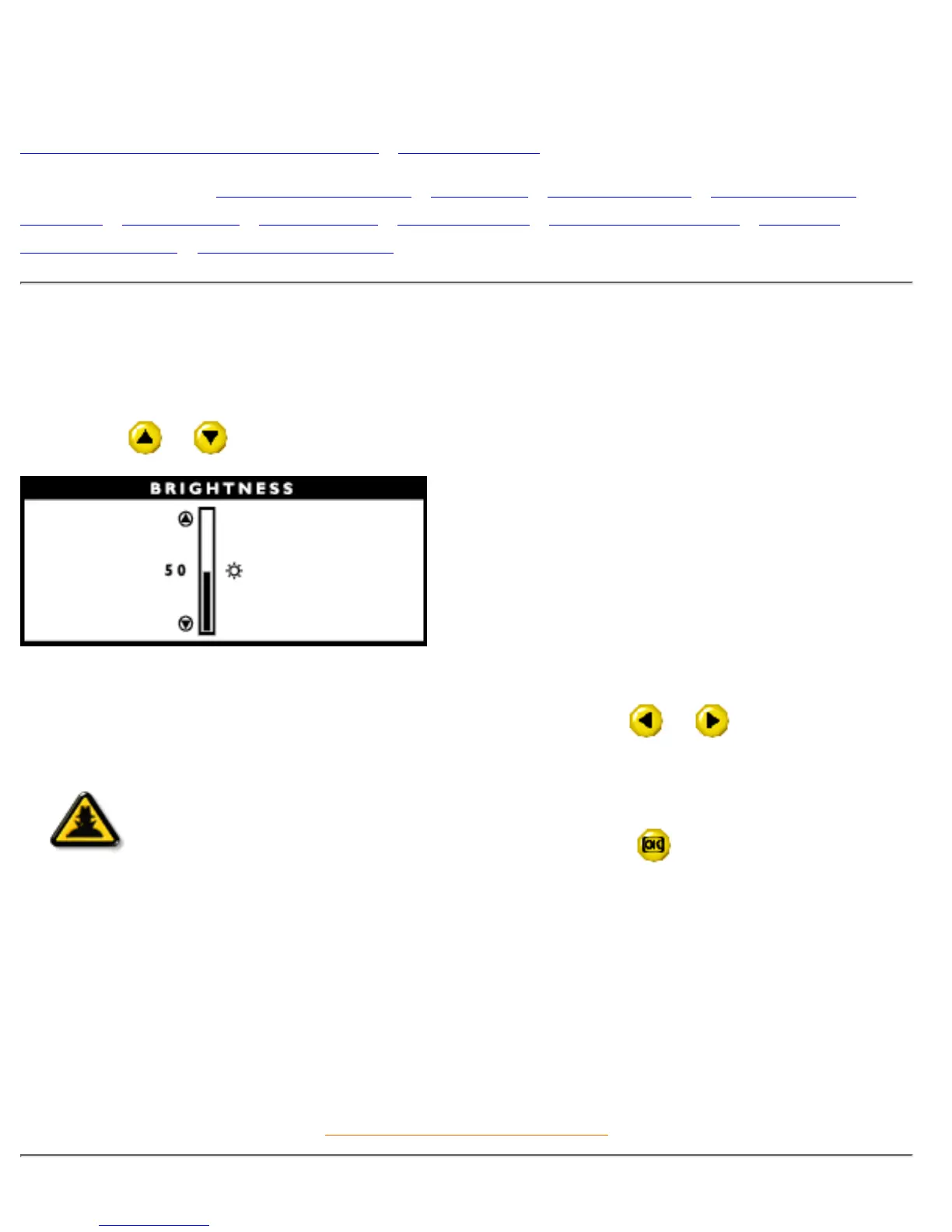
BRIGHTNESS
Brightness is the overall intensity of the light coming from the screen. To adjust your screen's brightness,
follow the steps below. An 80% brightness is recommended.
1) Press the or button on the monitor. The BRIGHTNESS window appears.
2) Press the button to adjust the brightness.
3) When the brightness is adjusted to the level desired, stop pressing the
or button and after
three seconds the BRIGHTNESS window will disappear with the new adjustment saved.
Smart
Help
After the BRIGHTNESS window has disappeared…
… to continue to the CONTRAST window by pressing the
key, an OSD MAIN
CONTROLS window will appear
Note: You can also adjust the brightness from the MAIN CONTROLS window. See
BRIGHTNESS & CONTRAST for details.
RETURN TO TOP OF THE PAGE
file:///D|/Philips LCD/english/150S/OSD/OSD_CONT.HTM (1 of 16) [1/20/2001 3:13:10 PM]


 To Next Page