45
English
EN
Access CAM services
1 After inserting and activating the CAM,
press
MENU.
2 Press to select [Setup] >
[Features] > [Common interface].
» Applications provided by the digital TV
service operator appear on the screen.
Note
This menu option is available only if the CAM
is inserted and activated correctly.
Use a Conditional Access
Module
A Conditional Access Module (CAM) is
provided by digital TV service operators to
decode digital TV channels.
Note
Refer to the documentation from your service
operator on how to insert a smart card into
the Conditional Access Module.
Insert and activate a CAM
Caution
Be sure to follow the instructions described
below. Wrong insertion of a CAM may
damage both the CAM and your TV.
1 Switch off the TV and disconnect it from
the power outlet.
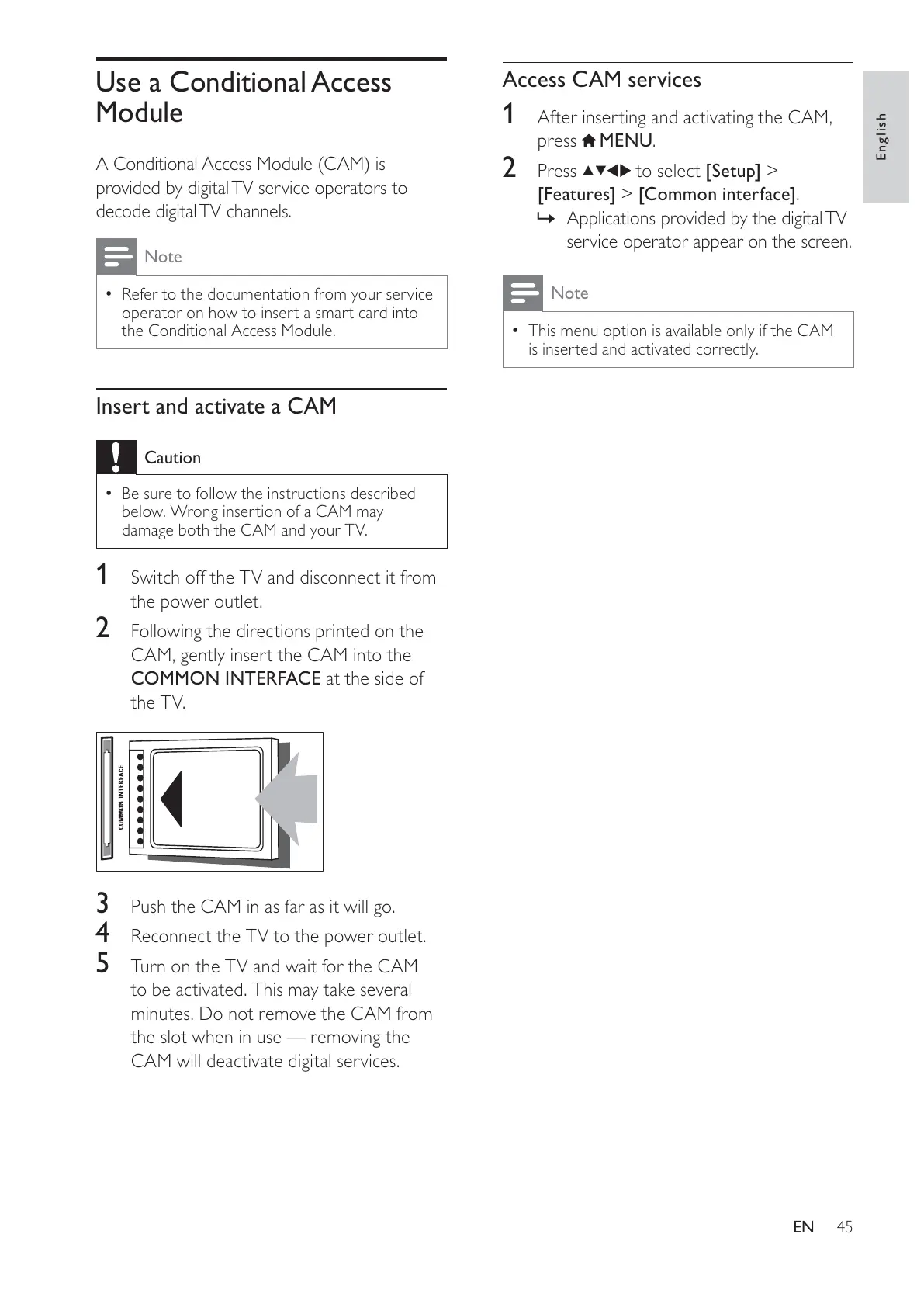
2 Following the directions printed on the
CAM, gently insert the CAM into the
COMMON INTERFACE at the side of
the TV.
3 Push the CAM in as far as it will go.
4 Reconnect the TV to the power outlet.
5 Turn on the TV and wait for the CAM
to be activated. This may take several
minutes. Do not remove the CAM from
the slot when in use — removing the
CAM will deactivate digital services.





 To Next Page