13
When the sub source is
not detected:
A (main) B
Note
The black strip shows on the top and
the bottom of the screen for the correct
aspect ratio when in the PBP mode. If
you expect to see full screen side by side,
adjust your devices resolutions as pop
up attention resolution, you will able to
see 2 devices source screen project to this
display side by side without black strips.
Note the analog signal is not support this
full screen in PBP mode.
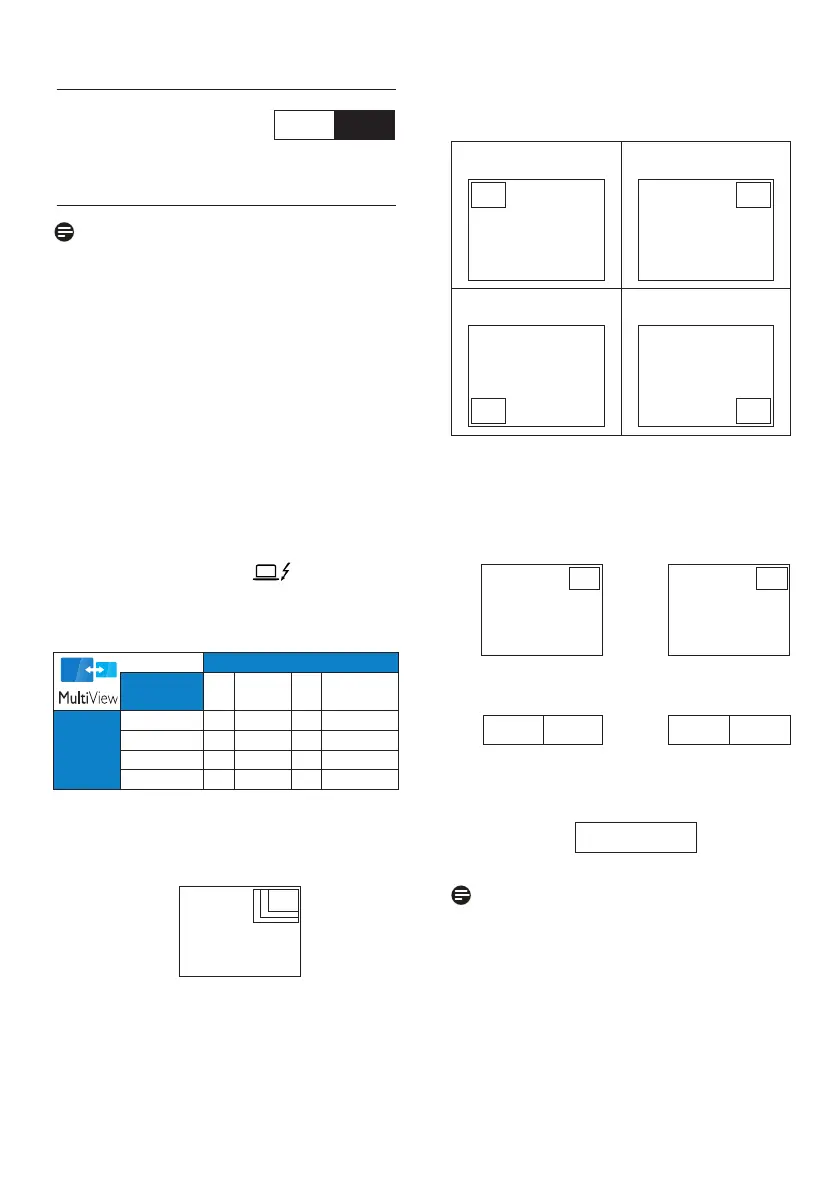
• PIP / PBP Input: There are four
different video input to choose
as the sub display source: [HDMI
2.0], [DisplayPort], [USB C] and
[Thunderbolt input 96W].
Please refer below table for
compatibility of main/sub input source.
SUB SOURCE POSSIBILITY (xl)
Inputs
HDMI DisplayPort USB C Thunderbolt
TM
4
MAIN
SOURCE
(xl)
HDMI 2.0
● ● ● ●
DisplayPort
● ● ● ●
USB C
● ● ● ●
Thunderbolt
TM
4
● ● ● ●
• PIP Size: When PIP is activated,
there are three sub-window sizes to
choose: [Small], [Middle], [Large].
A (main)
Small
Middle
Large
• PIP Position: When PIP is activated,
there are four sub-window positions
to choose.
Top-Left Top-Right
A (main)
A (main)
Bottom-Left Bottom-Right
A
(main)
A (main)
• Swap: The main picture source
and the sub picture source
swapped on the display.
Swap A and B source in [PIP] mode:
A (main)
↔
B (main)
Swap A and B source in [PBP] mode:
A (main) B
↔
B (main) A
• O: Stop MultiView function.
A (main)
Note
When you do the SWAP function, the
video and its audio source will swap at
the same time.



 To Next Page