21
4. Thunderbolt
TM
docking display
introduction
Philips Thunderbolt
TM
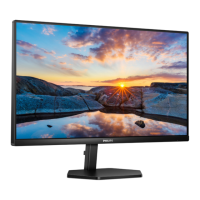
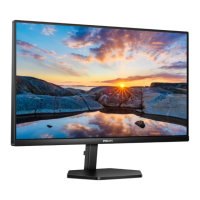
docking monitors
deliver universal port replication,
for a simple, clutter-free, notebook
connection.
Securely connect to networks, transmit
data, video and audio from laptop only
using a single cable.
4.1 Docking through Thunder-
bolt
TM
4
1. Connect the Thunderbolt
TM
4 cable
to the Thunderbolt input (96W)
port on the monitor and to your
PC. It can transmit video, audio,
data, network, power through
Thunderbolt
TM
cable.
2. Press at the rear of the monitor to
enter input menu screen.
3. Press or button to select
[Thunderbolt].
Thunderbolt
USB Type-C
Input
HDMI 2.0
DisplayPort
USB C
Thunderbolt
Note
When connect your monitor to the PC
with Thunderbolt or USB C-A cable,
your monitor screen probably show
as the extend screen. To call out the
main screen on your monitor, hold the
Windows key and press P twice.
(Windows key + P + P) If you still
cannot see the main screen on your
monitor, hold the Windows key and
press P. All your options pop-up on the
right side, then select “PC screen only” or
“Duplicated”.





 To Next Page