EasyManua.ls Logo

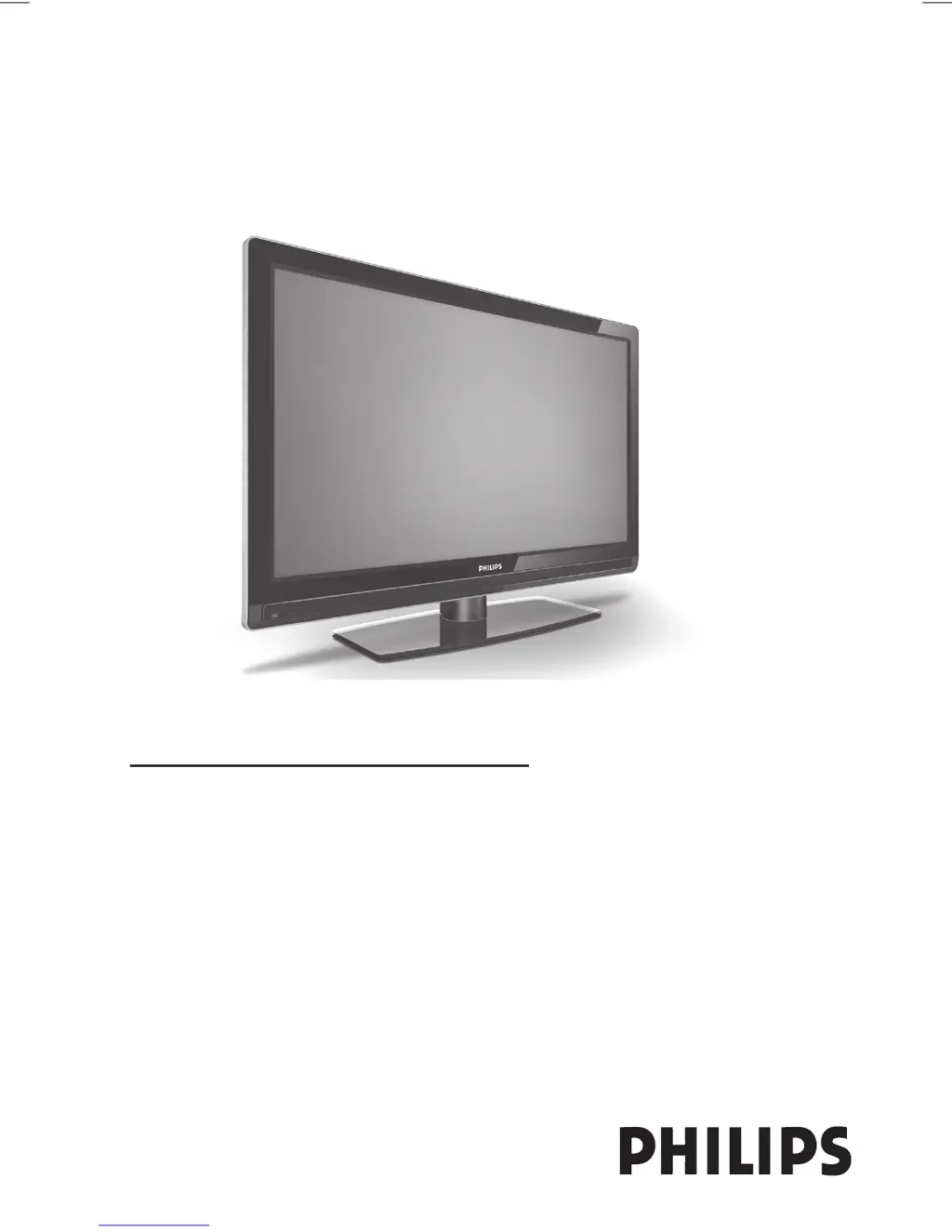
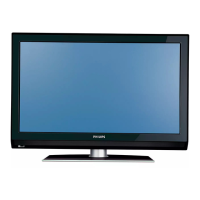
Philips 3139 - User Manual

Philips 3139
52 pages
Print Icon
To Next Page IconTo Next Page
Loading...
USER MANUAL
Register your product and get support at
www.philips.com/welcome

Table of Contents

Questions and Answers

Summary

Introduction

Safety

Television keys and connectors

Getting started

Mounting the TV on a wall

Instructions for wall mounting the TV.

Connecting the aerial and mains

Connecting power and TV antenna.

How to switch your TV on

Steps to power on the TV for the first time.

Putting batteries in the remote control

Guide on inserting remote control batteries.

Remote control functions

Understanding the information banner

Viewing or listening to digital TV and radio

Changing the order of stored channels

Reordering digital and radio channels.

Checking for new TV channels or radio stations

Scanning for new broadcast channels.

Setting up TV and radio channels

Adding new channels or stations to your list

Adding new channels after initial setup.

Reinstalling all channels

Reinstalling all digital TV and radio channels.

Installing digital channels manually

Manually scanning channels by frequency.

Testing your TV reception

Checking signal strength for aerial reception.

Selecting your language and location

Setting your language and location

Selecting preferred language, country, and time zone.

Resetting the language to your preferred language

Steps to revert to preferred language if set incorrectly.

Submenu options for language

Details on language options for audio, subtitles, and menus.

Submenu options for location

Details on country and time zone selection.

Restricting access to digital channels

Opting to use a pin code

Enabling PIN protection for digital channels.

Changing your pin code

Procedure to change the existing PIN code.

Options for restricting access to digital channels

Overview of blocking options like maturity rating and channels.

Using the Common Interface slot

Information on using the CI slot for conditional access.

Setting up lists of favourite channels

Select TV channels

Adding TV channels to a favourite list.

Select radio stations

Adding radio stations to a favourite list.

Add all services

Adding all available services to a list.

Remove all services

Removing all services from a list.

Updating software automatically

Obtaining the software version

Checking the current software version.

Information about software downloads

Details on new software and features.

Downloading new software

Procedure to download and install new software.

Using the Options menu

Favourites

Selecting and managing favourite channel lists.

Subtitle language

Changing the subtitle language.

Audio language

Changing the audio language.

Mode

Selecting TV channel reception mode.

Banner duration

Setting how long the info banner is displayed.

Getting programme listings

Using digital teletext

Analogue teletext in digital mode

Using analogue teletext on digital channels.

Using conditional access

Tuning analogue channels automatically

Tuning analogue channels manually

Renumbering channels

Naming channels

Selecting your favourite channels

Adding or removing channels from your list of favourites

Adding/removing channels from favourite lists.

Setting the timer

Blocking channels (Parental Control)

Accessing the Parental Control menu

Steps to enter the parental control menu.

Creating a pin code for parental control

Setting up a new PIN for parental controls.

Blocking and unblocking selected channels

Locking or unlocking specific TV channels.

Locking the side controls (Child Lock)

Enjoying Ambilight

Switching Ambilight on and off

Turning the Ambilight feature on or off.

Configuring Ambilight settings

Adjusting Ambilight brightness, mode, and colour.

Adjusting picture and sound settings

Picture settings

Adjusting picture brilliance, colour, contrast, etc.

Sound settings

Adjusting equalizer, balance, and surround sound.

Using Smart Picture and Smart Sound

Using Smart Picture

Selecting predefined picture presets.

Using Smart Sound

Selecting predefined sound presets.

Picture Formats

Using teletext

Teletext On;Off

Turning teletext display on or off.

Direct access

Accessing teletext pages directly.

Selecting a page

Entering a specific teletext page number.

Contents

Returning to the teletext content page.

Page hold

Stopping or resuming sub-page progression.

Using the TV in High Definition mode

Connecting HD equipment to your TV

Connecting HDMI or DVI sources to the TV.

Adjusting picture or sound settings in HD mode

Tuning picture/sound for HD sources.

Picture settings in HD mode

Specific picture adjustments for HD.

Sound settings in HD mode

Specific sound adjustments for HD.

Configuring the TV in HD mode

Setting up TV for HD resolutions like 480p, 720p.

Displaying in native 1080 mode

Using the TV as a PC Monitor

Connecting a PC to your TV

Connecting a computer for use as a monitor.

Adjusting picture or sound settings in PC mode

Adjusting picture/sound for PC input.

Picture settings in PC mode

Specific picture adjustments for PC.

Sound settings in PC mode

Specific sound adjustments for PC.

Configuring the TV in PC mode

Configuring TV for PC connection.

Supported PC resolutions

List of compatible PC screen resolutions.

Troubleshooting

Environmental Information

Information for users in the UK

IMPORTANT NOTICE: DIGITAL SWITCHOVER AND YOUR TV EQUIPMENT

Philips 3139 Specifications

General IconGeneral
Display TechnologyLED
Screen Size32 inches
Refresh Rate60 Hz
Smart TVNo
HDMI Ports2
USB Ports1
Built-in Wi-FiNo
Resolution1366 x 768

Related product manuals