32BDL3550Q
29
5. Setting UI
5.1. Settings
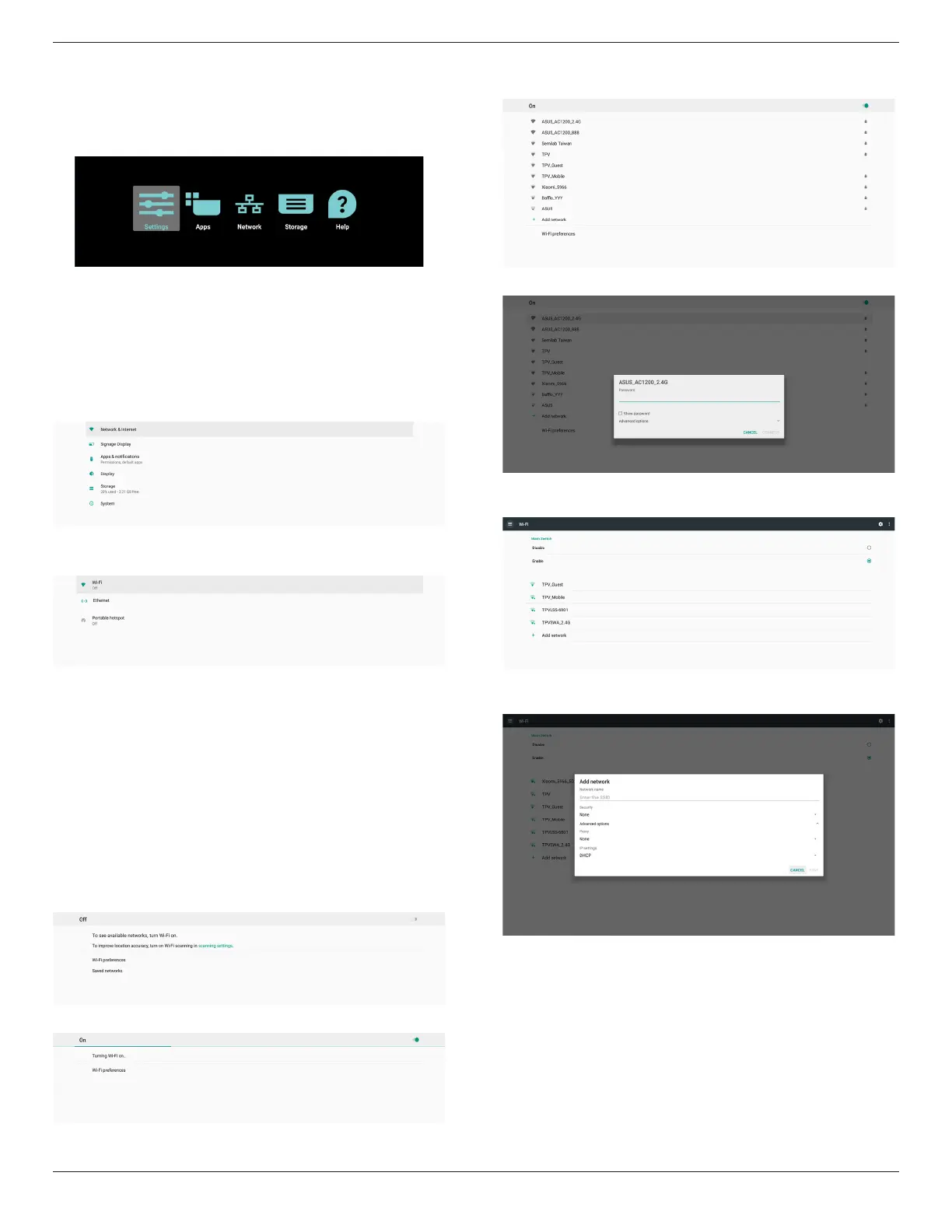
Enter PD settings by clicking “Settings” icon in Admin mode.
Setting menu consists of the following items:
(1). Network & Internet
(2). Signage Display
(3). Apps & notications
(4). Display
(5). Storage
(6). System
5.1.1. Network & Internet
5.1.1.1. Wi-Fi
Settings -> Network & Internet -> Wi-Fi
Important Note: This option is available only when the
supported Wi-Fi dongle is plugged. Wi-Fi dongle hot spot
is however not supported. Reboot the device whenever you
plug or remove the USB Wi-Fi dongle.
Enable Wi-Fi
Enable/disable Wi-Fi connection through main switch in
Setting -> Network & Internet -> Wi-Fi -> O/On toggle
button.
Wi-Fi O
Wi-Fi On
On the available network list, select an AP (access point) on
an existing wireless network.
Enter the required settings.
At the bottom of the list, select “Add network” to add a
network not shown on your list.
If needed, enter the network name (SSID) and security
details.
Note:
When Wi-Fi is enabled, Ethernet will be disabled
automatically.


 To Next Page