18
Features settings - Demo
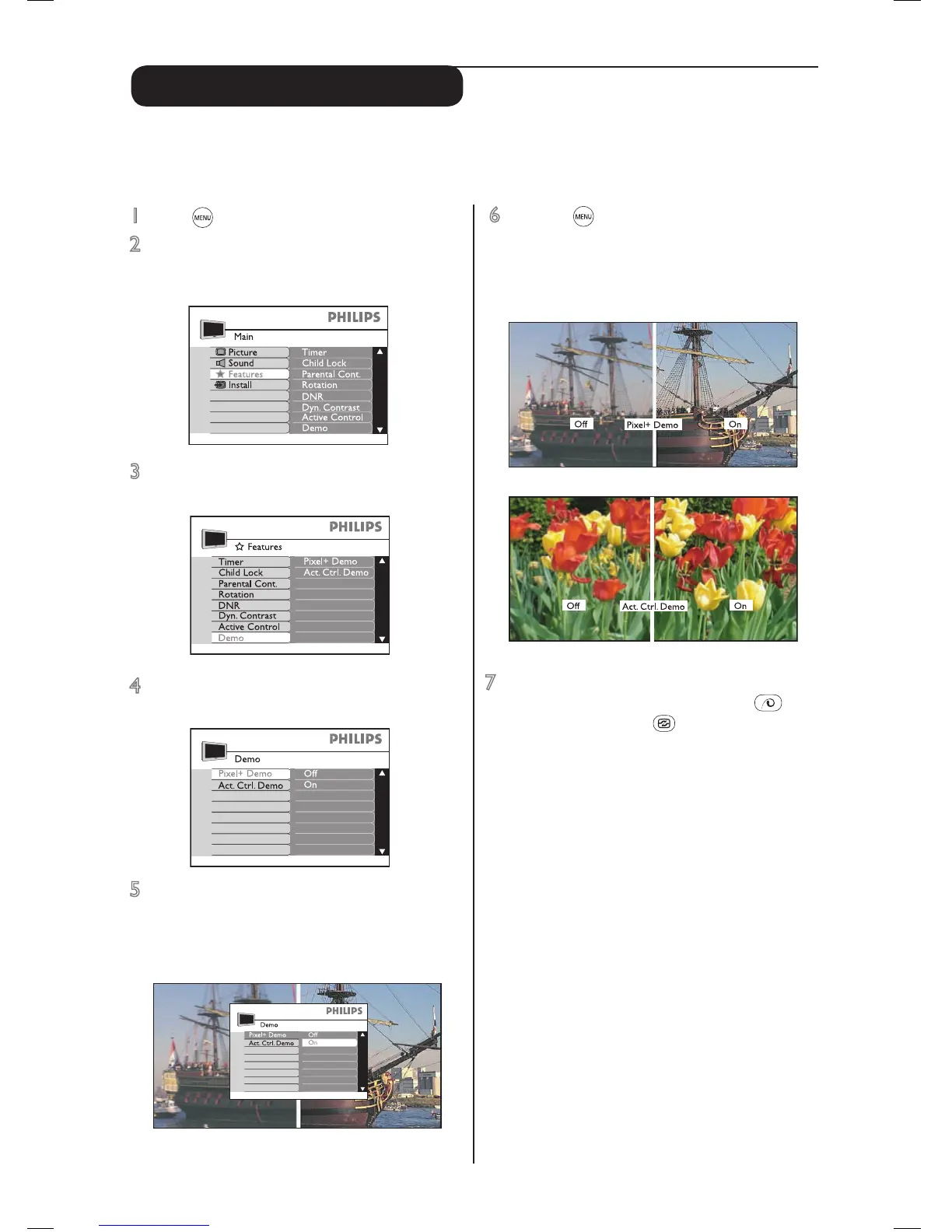
1 Press key to start. A main menu appears.
2 Press cursor down key to select Features.
Press cursor right key to enter features
settings.
3 Press cursor down key to select Demo and
press cursor right key to enter demo selection.
4 Press cursor up or down to select Pixel+
Demo or Act. Ctrl. Demo.
5 Press the cursor right key to enter and cursor
down key to select “On”. Press the cursor
right key to enter Demo mode.
The screen will split into two.
This function enables you to demonstrate via a split screen, the image performance of Pixel Plus or Active Control.
For details of these features, please refer to the section on “Special Features” in the “Introduction” page.
This function is only available in Widescreen mode (for widescreen TV) and 4:3 mode (for conventional TV).
6 Press the key repeatedly to remove the
menu from the screen.
The left side (Off) shows the picture
before enhancement and the right side (On)
shows the picture after enhancement.
7 To switch off the Demo mode:
a) with the remote control press the
(for Pixel+ Demo) or (for Active Control
Demo) key on the remote control once.
OR
b) with the on screen menu
Repeat steps 1 to 5 and select “No”.


 To Next Page