10
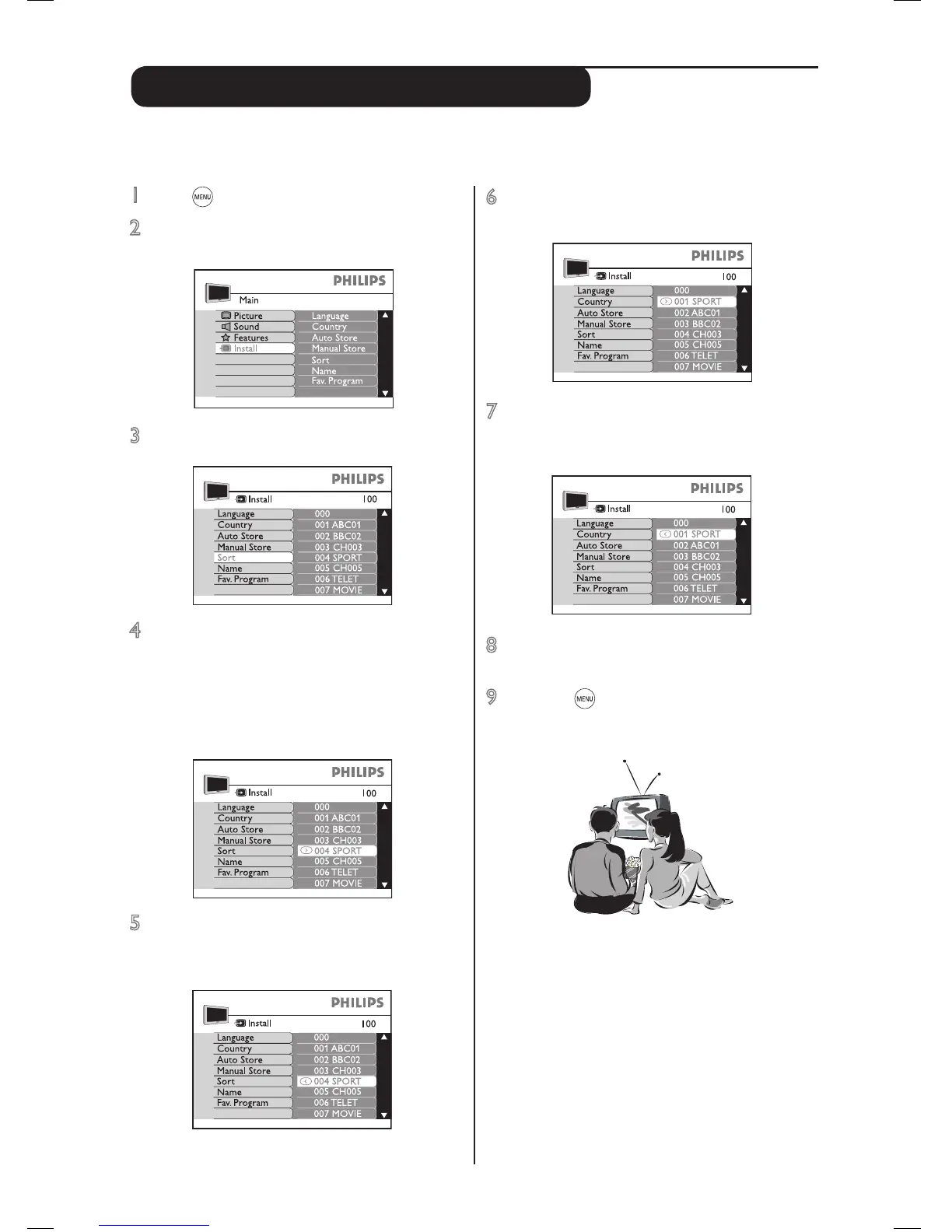
6 Press the cursor up or down to select a
channel that you want to change to (e.g. 001).
7 Press the cursor left key to conrm. The
symbol È will change to ¬. This shows
that the change has been done.
8 Press cursor up or down to select another
channel to change. Repeat steps 5 to 7.
9 Press the key repeatedly to remove the
menu from the screen. Your TV is ready for
viewing.
Sort (rearrange channels’ sequence)
1 Press key to start. A main menu appears.
2 Press cursor down key to select Install. Press
cursor right key to enter.
3 Press cursor down key to select Sort.
4 Press cursor right key to enter. The current
channel (e.g. 004) will be selected. A symbol
¬ appears next to it. If this is the channel
you want to rearrange, go to step 5.
Otherwise press cursor up or down key to
select another channel.
5 Press cursor right key to conrm that this is
the channel you want to change from. The
symbol ¬ will change to È.
This function enables you to rearrange channels’ sequence according to your preference.


 To Next Page