11
2.3 MultiClient Integrated KVM
1
What is it?
With the Multiclient Integrated
Keyboard Video Mouse (KVM) switch
feature, it is possible to control two
separate PCs with a one monitor/
keyboard/mouse setup.
2
How to enable MultiClient Integrated
KVM
With the built-in Multiclient Integrated
KVM feature, it’s easy to switch
between each connected device via the
On-Screen Display (OSD) menu setting.
For the use of USB-C, HDMI and/or DP
as input, use the USB-C cable in the
direction of USB Upstream.
Then, connect the upstream cables from
your PC to the USB-C1 and USB C2 ports
located on the monitor. This process for
each PC can be done simultaneously.
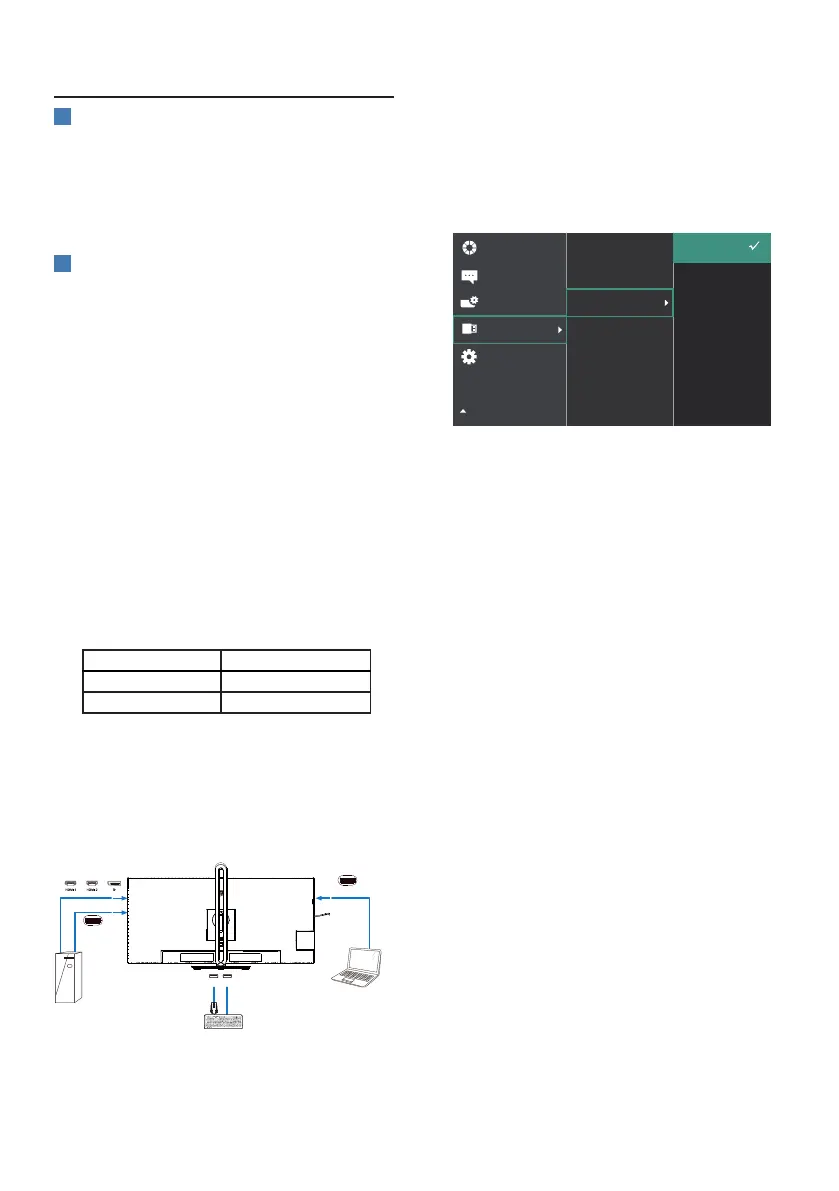
Please refer to the table and graphic
below for more information.
This table explains each source to its
corresponding ports on the monitor.
Source USB Upstream
HDMI or DP USB C2
USBC1 USB C1
A Step-by-Step procedure:
1. Connect each cord from the
corresponding ports on the monitor,
as mentioned in the table above,
downstream to each PC.
PC1 PC2
OR OR
USB A-C Cable
USB C-C Cable
USB USB
USB C1
(96W)
USB C2
(DATA )
2. Enter the On-Screen Display (OSD)
menu. Go to the KVM tab and
select “Auto”, “USB C1”, or “USB C2”
to switch the monitor view from
one device to another. To switch to
another monitor view, simply repeat
this step.
3. Go to the KVM tab and select “Auto”,
the KVM Smart function can be
used.
Users are now able to switch between
sources more easily with the latest
Smart KVM feature. To move sources,
simply click the “ctrl” three times. It
would be also available for swapping
the Main Picture and the Sub Picture on
PIP with Smart KVM.
If you would like to use a DP and/or
HDMI cord to input into your device,
use the USB-C1 and USB-C2 ports with
the USB cord being in direction USB
upstream.
Please check out the following steps
for adjusting the settings for HDMI/DP
usage:
1. Connect the USB cable upstream
from the PC(s) to the “USB C1” and
“USB C2” ports of this monitor. This
procedure can be done at the same
time, if desired.
The dual PC setup should look like this:
PC1: You can use a USB-C/A cable in
direction upstream and a HDMI
cable or a DP cable and connect it
to the USB C1 port on the monitor



 To Next Page