EasyManua.ls Logo

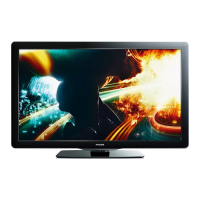
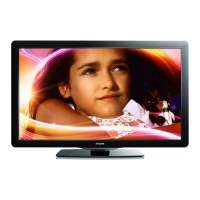
Philips 40PFL3706 - User Manual

Philips 40PFL3706
36 pages
Print Icon
To Next Page IconTo Next Page
Loading...
Register your product and get support at
www.philips.com/support
46PFL3706
40PFL3706
MODEL NUMBER SERIAL NUMBER
EN User Manual
FR Manuel d’Utilisation
ES Manual del Usuario
EN: For further assistance, call the customer support service in your country.
To obtain assistance in the U.S.A., Canada, Puerto Rico, or the U.S. Virgin Islands, contact Philips
Customer Care Center at 1-866-309-0841
To obtain assistance in Mexico, contact Philips Customer Care Center at 01 800 504 62 00
Enter below the model and serial numbers located on the back and right side of the TV cabinet.
FR: Pour obtenir de l’aide supplémentaire, communiquez avec le centre de service à la clientèle de
votre pays.
Pour obtenir de l’aide aux États-Unis, au Canada, à Puerto Rico ou aux Îles Vierges américaines,
communiquez avec le centre de service à la clientèle Philips au : 1-866-309-0841
Pour obtenir l’aide au Mexique, entrez en contact avec le centre de soin de client de Philips à
01 800 504 62 00
Entrer ci dessous le modèle et le numéro de série situés dérrière à droite sur le dos du téléviseur.
ES: Para obtener más información, llame al servicio de soporte al cliente de su país.
Para obtener asistencia en los Estados Unidos, en Canadá, Puerto Rico o en las Islas
Vírgenes de los Estados Unidos, comuníquese con Centro de atención al cliente de Philips al
1-866-309-0841
Solo para Mexico CENTRO DE ATENCIÓN A CLIENTES LADA. 01 800 504 62 00 Solo
Para México.
Escriba a continuación el modelo y número de serie que estan localizados en lado derecho y parte
posterior de el gabinete de el televisor.
Lea esta manual antes de usar el producto

Questions and Answers

  • C
    Charles GarrisonAug 14, 2025
    How to fix Philips Flat Panel TV with no power?
    • A
      Ashley ChenAug 15, 2025
      If you're not getting any power or seeing an indicator light on your Philips Flat Panel TV, start by pressing the power button on the side of the TV or on the remote control. Ensure the AC power cord is securely connected to both the TV and the power outlet. If it's still not working, remove the AC power cord from the outlet, wait 60 seconds, and then plug it back in. As a final step, try connecting the TV to a different power outlet to rule out any issues with the original socket.
  • L
    Lauren YoungAug 18, 2025
    Why Philips Flat Panel TV remote control not working?
    • H
      harrisjonathanAug 18, 2025
      If your Philips Flat Panel TV isn't responding to the remote, first ensure the indicator light on the TV blinks when you press the remote's buttons. This helps confirm the remote is sending a signal. Also, make sure you're using the correct remote for the TV and that the batteries are correctly inserted and not depleted. If problems persist, try removing the AC power cord from the power socket, wait 60 seconds, and then reconnect it.
  • B
    Brenda RobbinsAug 21, 2025
    How to fix no sound on Philips Flat Panel TV?
    • G
      gsmithAug 21, 2025
      If you're not getting any sound from your Philips Flat Panel TV's speakers, first, increase the volume to ensure it's not set too low. Also, check if the mute function is enabled by pressing the MUTE button on the remote. If you're using an AV connection, verify that the Audio L/R cable is properly connected. For HDMI connections, ensure the HDMI audio output setting is enabled on any connected devices. Finally, verify that the TV speakers are turned on in the audio settings; if [TV Speakers] is set to [Off], no sound will be output.
  • R
    Raymond LongAug 25, 2025
    What to do if Philips Flat Panel TV shows HDCP authentication error?
    • M
      melanieruizAug 25, 2025
      If you're seeing an error message about HDCP authentication failing on your Philips Flat Panel TV, first, make sure your HDMI cable is certified. Try switching to another source by pressing the SOURCE button on the remote, and then switch back to the HDMI source. You can also try resetting both the accessory device and the TV. Ensure the TV and the accessory device are turned on, and the HDMI channel is selected. As a final step, unplug and re-plug the HDMI cable while both devices are powered on.
  • P
    pperkinsAug 28, 2025
    Why does Philips Flat Panel TV brightness change automatically?
    • A
      Allison MatthewsAug 28, 2025
      If the brightness of your Philips Flat Panel TV is changing automatically, it's likely because the TV is in [Home] mode, which adjusts brightness based on ambient light. Sudden changes in brightness can occur due to variations in room lighting or if something is blocking the light sensor on the front of the TV.
  • P
    Paul ThompsonAug 31, 2025
    How to adjust picture format on Philips Flat Panel TV?
    • N
      Noah MckinneyAug 31, 2025
      If the picture on your Philips Flat Panel TV is distorted, stretched, or has black bars, try pressing the FORMAT button on the remote control to select the best picture format. Also, for some connected devices, you might need to adjust the picture format settings directly on the device itself.
  • V
    Veronica RangelSep 3, 2025
    Why is Philips Flat Panel TV picture red and green?
    • C
      Charlene MeyerSep 3, 2025
      If the picture on your Philips Flat Panel TV is mostly red and green, or missing red when connected to an accessory device via component cables, ensure all connections are made according to the color code. Push the component cables all the way into the YPbPr sockets on the TV.
  • P
    Pedro HamptonSep 7, 2025
    Why Philips Flat Panel TV has no picture or sound?
    • J
      jasminenguyenSep 7, 2025
      If you're not getting any picture or sound on your Philips Flat Panel TV, first, ensure you have selected the correct channel. If you are receiving channels via an AV connection, set the TV to the correct source input. If the TV is connected directly to the wall via a coaxial connection, perform the auto-installation again.
  • B
    Brian WileySep 12, 2025
    Why Philips Flat Panel TV remote not controlling other devices?
    • T
      Teresa SandersSep 12, 2025
      If you cannot control your Philips Flat Panel TV and connected devices with one remote control, confirm that the connected devices are EasyLink compliant and connected to your TV via an HDMI cable. Be aware that not all brands of devices, such as Blu-ray Disc players, use the same system as Philips EasyLink, and might not work with it.

Summary

Important Safety Instructions

General Safety Precautions

Provides essential safety instructions for operating the equipment and preventing hazards.

Get Started

Accessories and Initial Setup

Lists supplied accessories and guides for mounting the stand and installing batteries.

Use Your TV

Basic TV Operation

Covers switching the TV on/off, standby mode, and channel selection.

Volume, Still Mode, and External Sources

Adjust volume, use still mode, and watch content from set-top boxes or connected devices.

Use More of Your TV

Install Channels

Upgrade Your TV Software

Software Update Procedures

Guides on checking, preparing, downloading, and installing TV software updates via USB.

Connect Devices

Troubleshooting

Common TV Problems and Solutions

Troubleshoots issues like no power, HDMI errors, picture distortion, and remote control problems.

Specifications

Warranty

Warranty Coverage and Limitations

Explains the limited warranty terms, what is covered, and specific exclusions.

Philips 40PFL3706 Specifications

General IconGeneral
FM radioNo
EqualizerYes
Audio systemDolby Digital, Stereo, SAP
RMS rated power20 W
Number of speakers2
Equalizer bands quantity5
Comb filter3D
Response time8 ms
Display diagonal40 \
Display brightness400 cd/m²
Display technologyLCD
Native aspect ratio16:9
Supported video modes1080i, 1080p, 480i, 480p, 720p
Viewable size diagonal1020 mm
Contrast ratio (typical)4000:1
Screen format adjustments4:3, 16:9, Zoom
Supported graphics resolutions1024 x 768 (XGA), 1280 x 1024 (SXGA), 1280 x 768 (WXGA), 1360 x 768 (WXGA), 1400 x 1050 (SXGA+), 1440 x 900 (WXGA+), 1680 x 1050 (WSXGA+), 1920 x 1080 (HD 1080), 640 x 480 (VGA), 800 x 600 (SVGA)
Operating temperature (T-T)5 - 35 °C
Package depth176.02 mm
Package width1180 mm
Package height709.93 mm
Package weight19300.3 g
Audio formats supportedMP3
Image formats supportedJPG
HDMI ports quantity3
USB 2.0 ports quantityUSB 2.0 ports have a data transmission speed of 480 Mbps, and are backwards compatible with USB 1.1 ports. You can connect all kinds of peripheral devices to them.
Digital audio coaxial out1
Digital audio optical out0
Sustainability certificatesENERGY STAR
Panel mounting interface400 x 200 mm
Playback formatsMP3, JPEG
Sound enhancement technologyIncredibleSurround
Remote control typeTV
Supported TV bandsUHF, VHF
Analog signal format systemNTSC
Digital signal format systemATSC
AC input voltage120 V
AC input frequency60 Hz
Power consumption (standby)0.15 W
Power consumption (typical)145 W
Weight and Dimensions IconWeight and Dimensions
Depth (with stand)230.12 mm
Width (with stand)988.06 mm
Height (with stand)651 mm
Weight (with stand)15798.62 g
Depth (without stand)109.98 mm
Height (without stand)613.92 mm
Weight (without stand)13698.48 g

Related product manuals