6
Make sure the PC with Philips Media Manager installed on it
(see p. 2) is switched on.
& Switch on your TV.
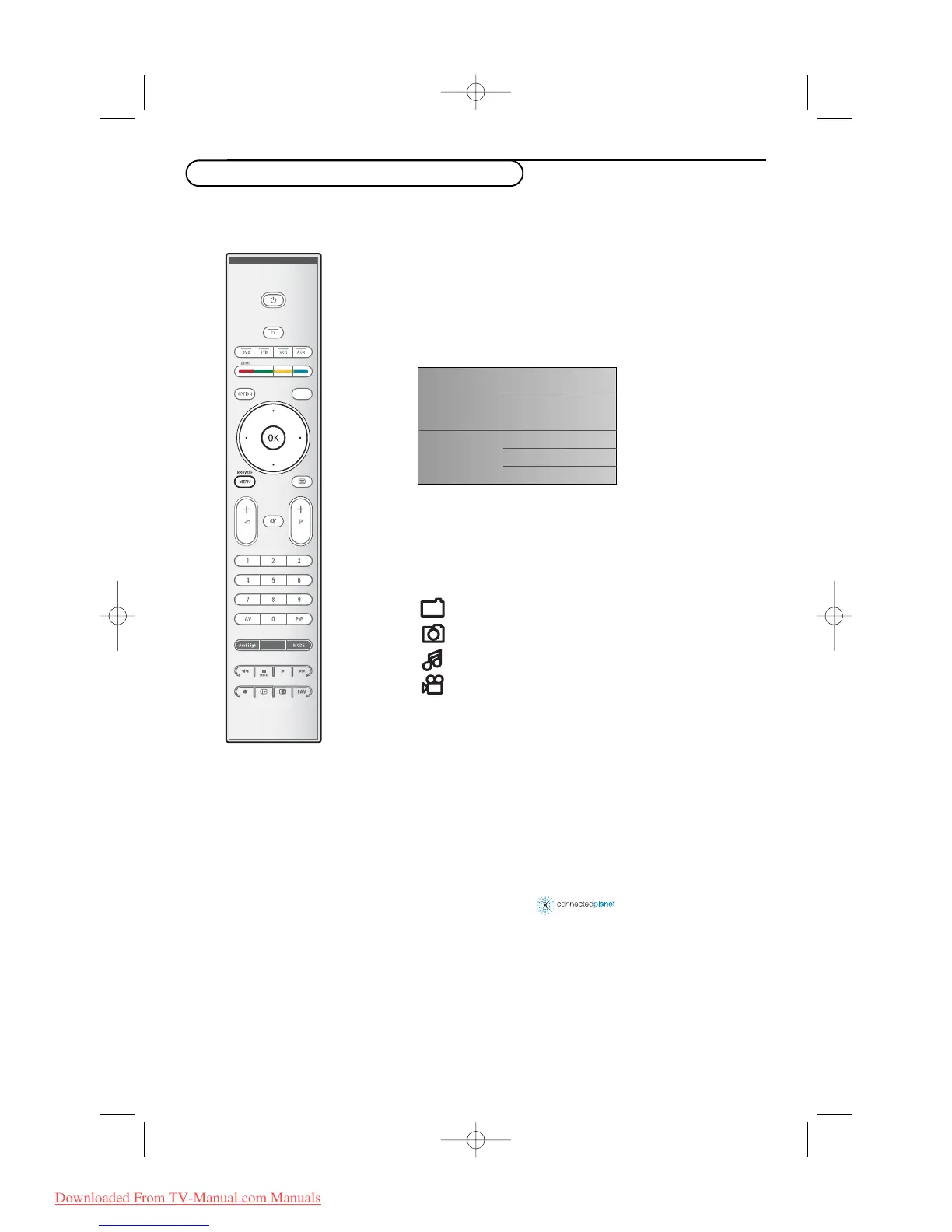
é Press the BROWSE/MENU key on the remote control to
display the Browse menu.
“ Select your PC from which you want to access the content and
press the cursor right.
Note: It may take up to 2 minutes after switching on the TV before
your PC appears in the Browse menu.
‘ Use the cursor keys to navigate through the Pictures, Music,
Video files or folders.
( Press the OK key to play the content.
§ Press the cursor left to display the content list again.
Step 4:Viewing multimedia content
folder
picture file
music file
video file
Televisie
Multimedia
TV-menu
TV-zenders
Programmagids
Media servers
Multimedia browser functional keys:
‡ to stop playing your content
† for fast forward
Ò for rewind
π for play, for pause
-P+ to go to the next or previous media file
cursor up/down to make subtitles visible
For supported file formats, see the extended instructions on the CD supplied.



 To Previous Page