Annex 4 - Software update
________________________
How to update the TV software
_________________________
Use of the Update assistant
Philips continuously tries to improve its products and it wants you to
profit of that even after your purchase.
Therefore it allows you to update your TV software using a USB
memory device (not supplied).
rNote
The device must have at least 48Mb free space. Make sure the write
protection is turned off.
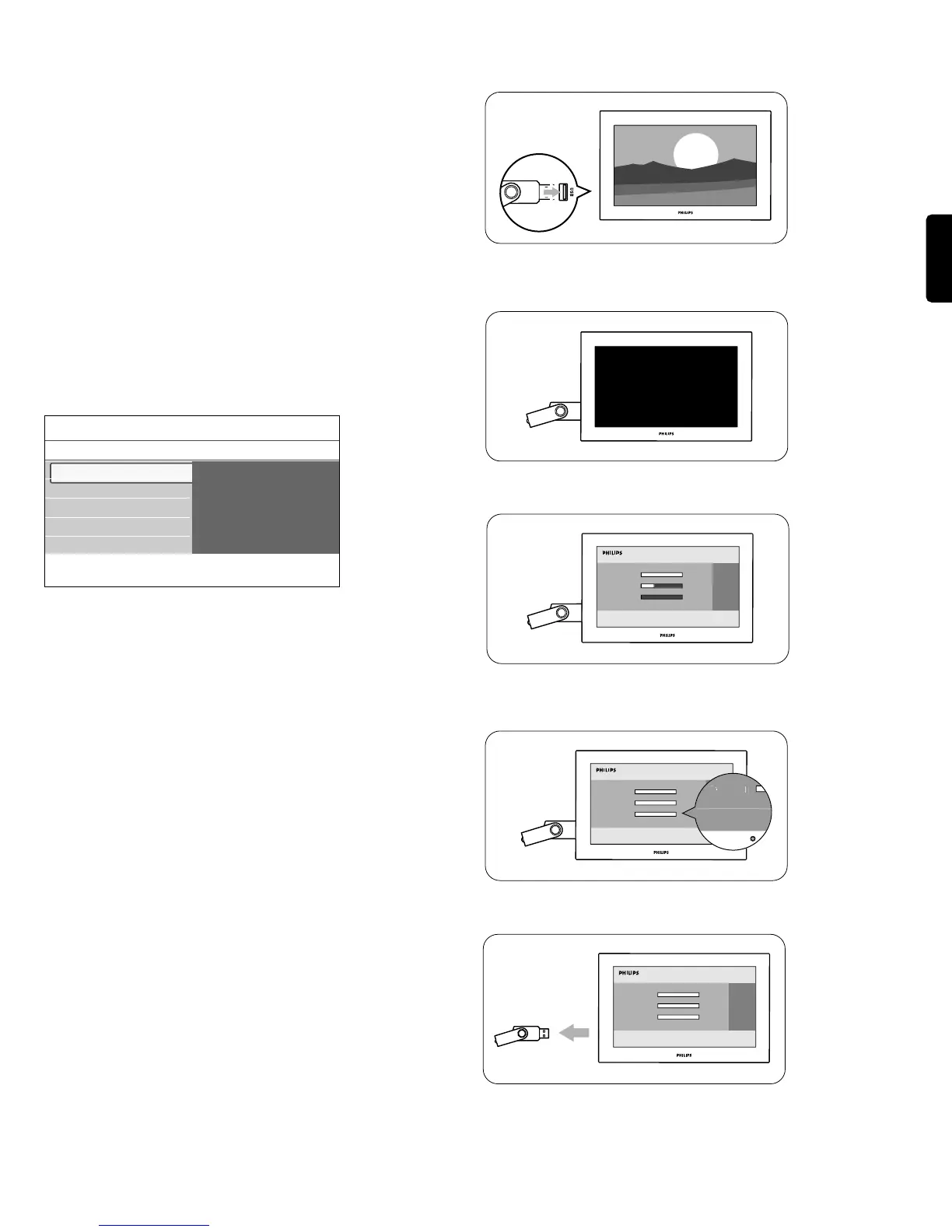
Step 1 USB Memory device to TV
‡ Select TV menu and press the cursor right.
> The TV menu appears.
® Select Software update and press the cursor right.
> The Software update menu appears.
Ò Select Update assistant and press the cursor right.
† Press the
OK button to activate.
º Insert a USB memory device to the USB connector at the side of
the TV.
> The main menu appears.
◊Press the green color button to proceed.
> A message appears the TV has successfully written an
identification file to the USB memory device.
‹Press the green color button again to finish.
≈Remove the USB memory device from the TV.
Step 2 USB Memory device to PC
‡ Insert the USB memory device into a PC linked to the internet.
® Locate and open the file “update.htm” on your device.
Ò Follow the instructions on the page displayed.
> The software update is downloaded on the USB memory device
(on condition the software version is newer than the one
currently installed).
† Remove the USB memory device from your PC.
Step 3 USB Memory device back to TV
) - do not remove the USB portable memory device during the
software update procedure;
- in case of a power drop during the update procedure, don’t remove
the USB portable memory from the TV.The TV will continue the
update as soon as the power comes back.
‡ Insert the USB memory device in the
USB slot of the TV.
® The TV turns off.The screen stays black for about 10 seconds.
Please, wait and do not use the
POWER switch on the TV.
Ò The update process starts automatically. Please wait.
† The update is finished when the message ‘Operation successful’
appears on the screen.
º Remove the USB memory device from the TV.
33
ENGLISH
Info
TV menu
Software update
Update assistant
Start now
Update assistant
Current software info
Local updates




 To Next Page