4.6
DVD Player
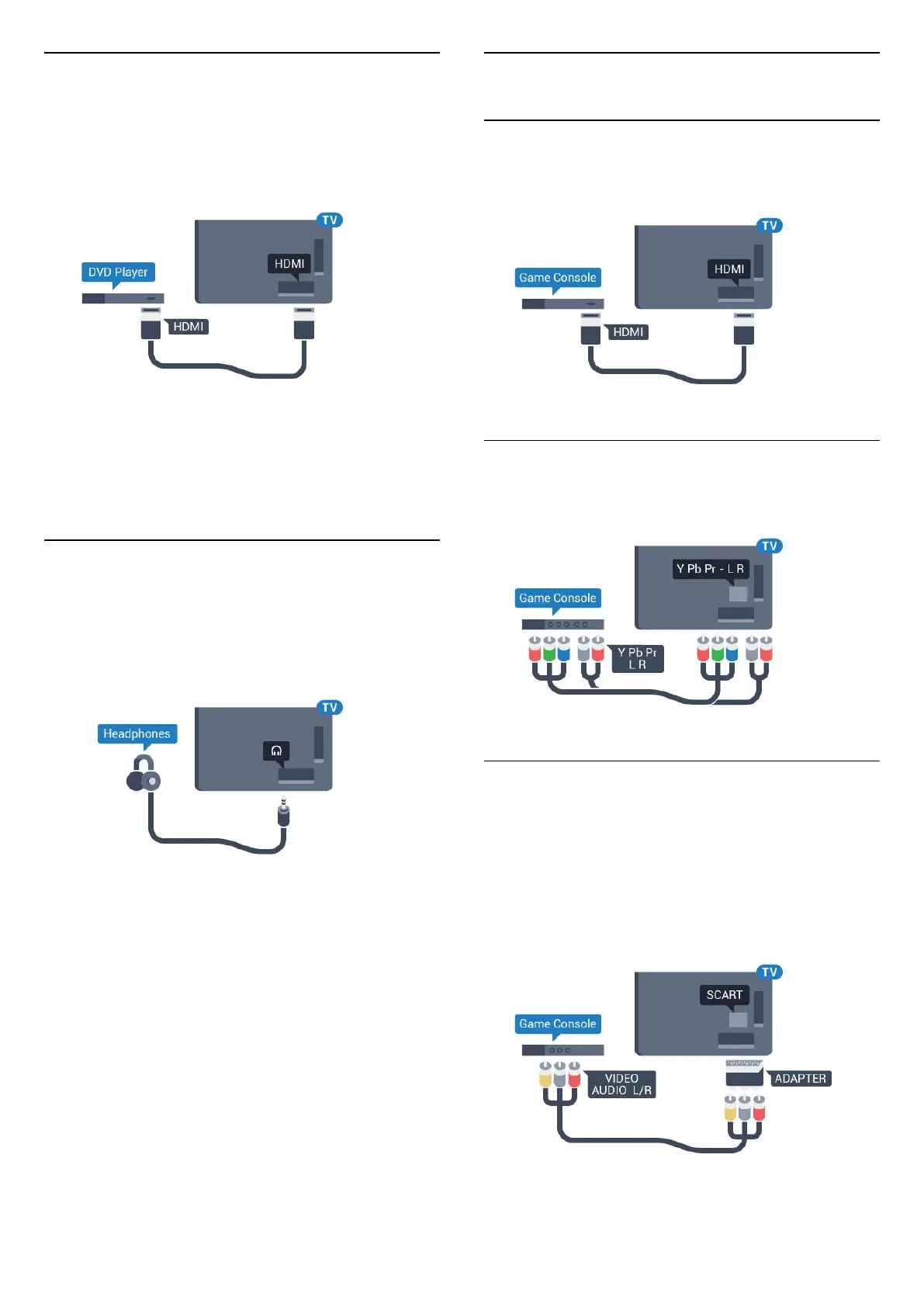
Use an HDMI cable to connect the DVD player to the
TV.
Alternatively, you can use a SCART cable, if the
device has no HDMI connection.
If the DVD player is connected with HDMI and has
EasyLink CEC, you can operate the player with the TV
remote control.
For more information on EasyLink, press the colour
key
Keywords and look up EasyLink HDMI CEC.
4.7
Headphones
You can connect a set of headphones to
the
connection on the back of the TV. The
connection is a mini-jack 3.5mm. You can adjust the
volume of the headphones separately.
To adjust the volume…
1 - Press
, select All Settings and press OK.
2 - Select Sound and press
(right) to enter the
menu.
3 - Select Headphone Volume and press OK.
4 - Press the arrows
(up) or
(down) to adjust
the value.
5 - Press
(left) repeatedly if necessary, to close
the menu.
4.8
Game Consoles
HDMI
For best quality, connect the game console with a
High speed HDMI cable to the TV.
YPbPr
Connect the game console with a component video
cable (Y Pb Pr) and an audio L/R cable to the TV.
Video-Audio LR / Scart
Connect the game console to the TV with a
composite cable (CVBS) and an audio L/R cable to
the TV.
If your game console only has Video (CVBS) and
Audio L/R output, use a Video Audio L/R to SCART
adapter (sold separately) to connect to the SCART
connection.
17



 To Next Page