65BDL4650D/75BDL4650D/86BDL4650D
49
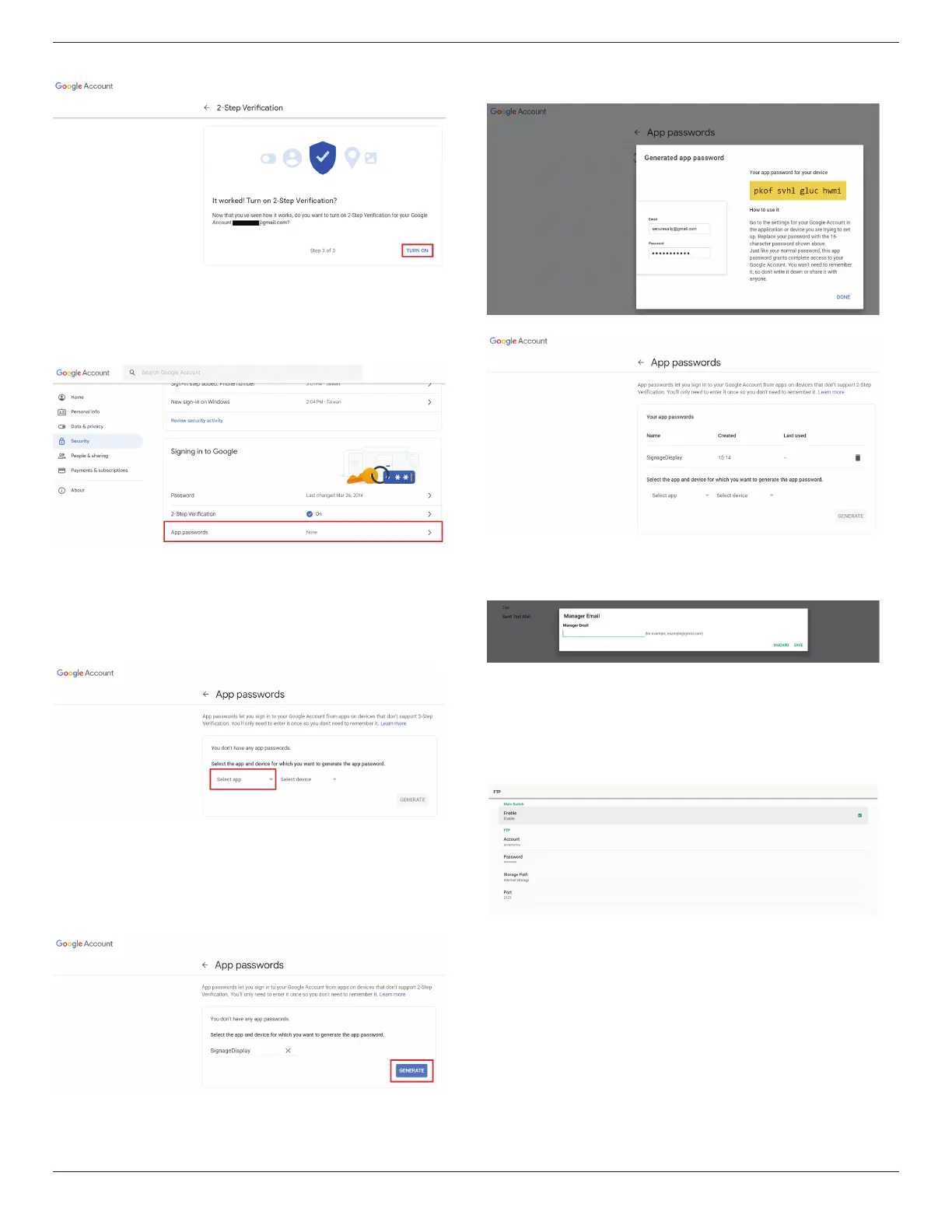
Step 4 - Create the App Password
Click on the “App Password” option to create a new application
password:
Step 5 - Add New App Name
First, select a device (for example, Windows Computer) and
then click on “Select App” menu and choose “Other (custom
name)”:
Enter a custom application name (it does not matter what
name is used in this eld). Click the “Generate” button:
(Ex. Enter “SignageDisplay” as an app name)
Record the auto-generated app password or simply select it
and copy to the clipboard for later use.
Manager Email
Specify the destination address to receive the e-mail.
Test
To check if your e-mail settings are correct, select ‘Send Test
Mail” to send a test e-mail.
FTP
Settings -> Signage Display -> Server Settings -> FTP
Click the checkbox to enable/disable FTP server feature. After
enabling this feature, user can setup an account, password and
port number.
(1). Account: The user name to log into the FTP server must be
between 4 and 20 characters long, and only alphanumeric
characters (a-z, A-Z, 0-9) can be used.
(2). Password: The password to log in to the FTP server should
be between 6 and 20 characters long, and can only contain
the characters [a-z], [A-Z], and [0-9]. After setting the
password, it will be displayed as asterisks.
(3). Storage path: The FTP server has access to the internal
storage only. The storage path is unchangeable.







 To Next Page