5.10
Game Console
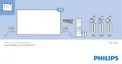
HDMI
For best quality, connect the game console with a
High speed HDMI cable to the TV.
Y Pb Pr
Connect the game console with a component video
cable (Y Pb Pr) and an audio L/R cable to the TV.
Scart
Connect the game console to the TV with a
composite cable (CVBS) and an audio L/R cable to
the TV.
If your game console only has Video (CVBS) and
Audio L/R output, use a Video Audio L/R to SCART
adapter (sold separately) to connect to the SCART
connection.
Best Setting
Before you start playing a game from a connected
game console, we advice you to set the TV in the
ideal setting Game.
When you finish playing a game and start watching
TV again, remember to switch the Game or
Computer setting back to Off.
To set the TV to the ideal setting…
1 - Press
, select All Settings and press OK.
2 - Select Picture and press
(right) to enter the
menu.
3 - Select Advanced > Game or Computer, and
select the device type you want to use. To switch
back to TV, select Off.
4 - Press
(left) repeatedly if necessary, to close
the menu.
5.11
Gamepad
Connect a Gamepad
To play games from the Internet on this TV, you can
connect a selected range of wireless Gamepads. You
can use Gamepads with a USB nano receiver or
gamepads with Bluetooth.
To connect a Gamepad with a USB nano receiver…
1 - Plug in the small nano receiver in one of the USB
connections on the side of the TV. The wireless nano
receiver comes with the Gamepad.
2 - If the Gamepad is switched on, you can use the
Gamepad.
You can connect a second Gamepad in the second
USB connection on the side of the TV.
Bluetooth
To connect a wireless gamepad with Bluetooth,
in Help, select Keywords and look up Bluetooth,
Pairing.
23



 To Next Page