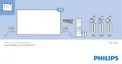
3 - When done, turn the remote control,
select Close and press OK.
The TV will switch to the newly created Favourites
List.
You can add a range of channels in one go or start a
Favourites List by duplicating the channel list with all
channels and removing the channels you do not
want.
The channels in the Favourites List are renumbered.
Add a Range of Channels
To add a consecutive range of channels to a
Favourites List in one go.
To add a range of channels…
1 - Press
, to switch to TV.
2 - Press OK to open the current channel list.
3 - Press
OPTIONS.
4 - Select Create Favourites List and press OK.
5 - In the list at the left select the first channel of the
range you want to add and press OK.
6 - Press
(down) to select the last channel of the
range you want to add. The channels are marked at
the right.
7 - Press OK to add this range of channels and
confirm.
Rename a Favourites List
You can only rename a Favourites List.
To rename a Favourites List…
1 - Press
SOURCE.
2 - Select Favourite List and press
(right).
3 - Select
at the upper right corner and press OK.
4 - Select Rename Favourite List and press OK.
5 - Press
BACK to hide the on-screen keyboard.
6 - Use the keyboard on the back of the remote
control to delete the current name and enter a new
name.
7 - When done, turn the remote control,
select Close and press OK.
8 - Press
BACK to close the channel list.
Remove a Favourites List
You can only remove a Favourites List.
To remove a Favourites List…
1 - Press
SOURCE.
2 - Select Favourite List and press
(right).
3 - Select
at the upper right corner and press OK.
4 - Select Remove Favourite List and press OK.
Reorder Channels
Only in a Favourites List you can change the
sequence of channels (reorder).
To change the sequence of channels…
1 - Open the Favourites List you want to reorder.
2 - Press
, select Reorder Channels and
press OK.
3 - In the Favourites List, select the channel you
want to reorder and press OK.
4 - With the
(up) or
(down) keys move the
channel where you want it.
5 - Press OK to confirm the new location.
6 - You can reorder channels with the same method
until you close the Favourites List with
the
BACK key.
8.5
Text / Teletext
Text Pages
To open Text/Teletext press TEXT, while you are
watching TV channels.
To close Text, press TEXT again.
Select a Text page
To select a page . . .
1 - Enter the page number with the number keys.
2 - Use the arrow keys to navigate.
3 - Press a colour key to select a colour-coded
subject at the bottom of the screen.
Text sub-pages
A Text page number can hold several subpages. The
subpage numbers are shown on a bar next to the
main page number.
To select a subpage, press
or
.
T.O.P. Text pages
Some broadcasters offer T.O.P. Text.
To open T.O.P. Text pages within Text,
press
OPTIONS and select T.O.P. Overview.
Favourite pages
The TV makes a list of the last 10 Text pages you
opened. You can easily reopen them again in the
Favourite Text pages column.
1 - In Text, select
(heart) in the top left corner of
the screen to show the column of favourite pages.
2 - Press
(down) or
(up) to select a page
number and press OK to open the page.
You can clear the list with the option Clear Favourite
Pages.
Search Text
38




 To Next Page