EasyManua.ls Logo

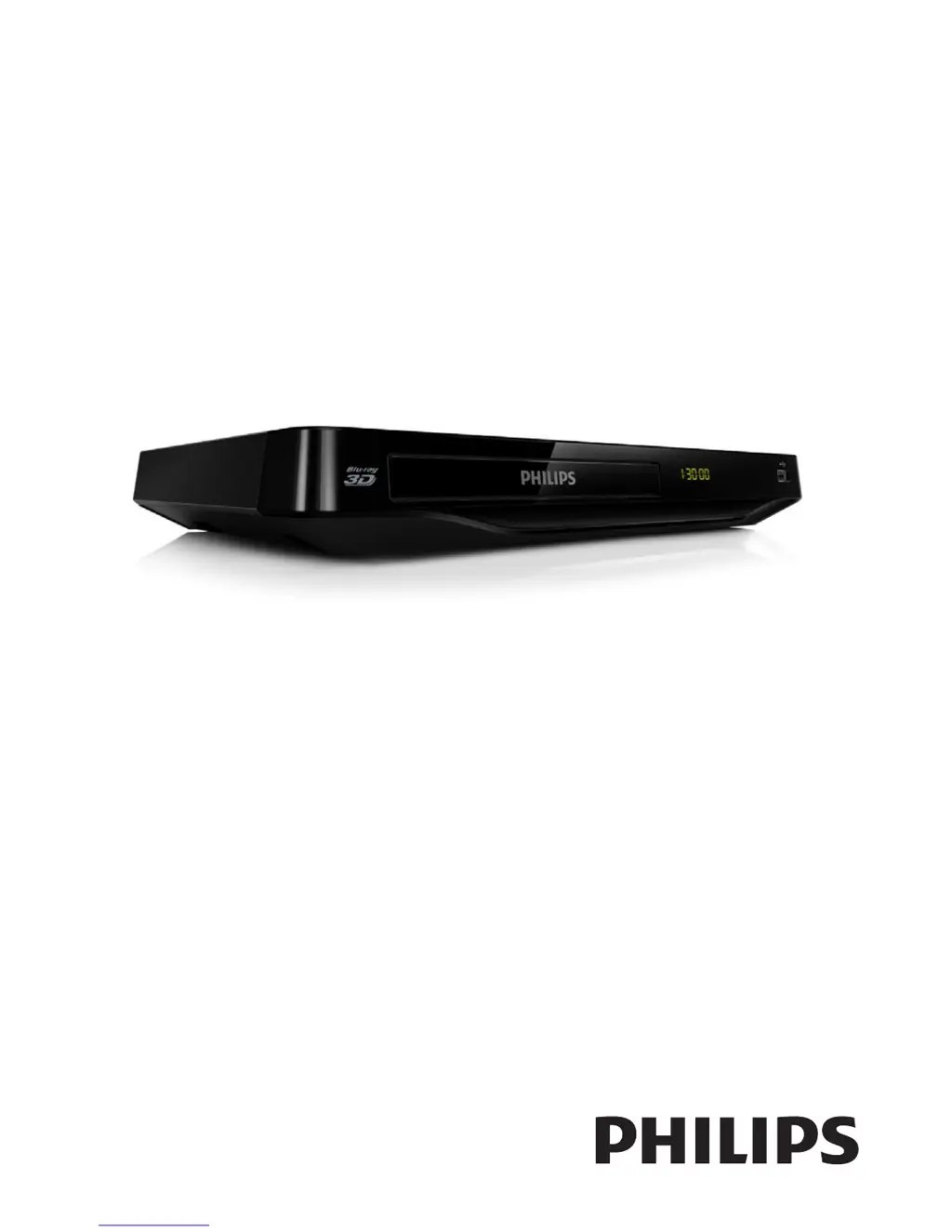
Philips BDP2980 - User Manual

Philips BDP2980
22 pages
Print Icon
To Next Page IconTo Next Page
Loading...
Register your product and get support at
www.philips.com/welcome
BDP2980
BDP2982
User manual

Other manuals for Philips BDP2980

Questions and Answers

  • R
    Robert KirbySep 9, 2025
    What to do if DivX subtitles do not display correctly on Philips BDP2980?
    • V
      Valerie WhiteSep 10, 2025
      If DivX subtitles do not display correctly on your Philips Blu-ray Player: * Ensure that the subtitle file has the same name as the DivX video file. * Make sure that the subtitle file has an extension name supported by the player (.srt, sub, .txt, .ssa, or .smi).
  • A
    aterrellSep 12, 2025
    Why is there no secondary audio output for Picture-in-Picture feature on Philips BDP2980 Blu-ray Player?
    • J
      Jordan RodriguezSep 12, 2025
      If there is no secondary audio output for the Picture-in-Picture feature on your Philips Blu-ray Player, deselect [Bitstream] under the [HDMI Audio] or [Digital Audio] menu. When [Bitstream] is selected, interactive sound like secondary sound for Picture-in-Picture is muted.
  • M
    Michael CrawfordSep 13, 2025
    How to enable 3D effects on Philips BDP2980?
    • G
      Gary DodsonSep 13, 2025
      To see 3D effects on your Philips Blu-ray Player: * Ensure that 3D output is turned on. * Make sure that the disc title being played is Blu-ray 3D compliant. * Ensure that the TV is 3D and HDMI compliant, and the TV is set to 3D mode (refer to the TV's user manual). * Make sure that the 3D glasses are activated (refer to the TV’s user manual).
  • P
    pcooperSep 16, 2025
    What does 'No entry' or 'x' sign mean on Philips BDP2980?
    • C
      cheryllambertSep 16, 2025
      The 'No entry' or 'x' sign displayed on the TV when using your Philips Blu-ray Player indicates that the operation you are trying to perform is not possible.

Summary

Use your Blu-ray disc; DVD player

Basic play control

Details basic playback controls using the remote and on-screen menus.

Video, audio and picture options

Explains how to adjust video, audio, and picture settings for optimal playback.

DivX videos

Provides instructions for playing DivX videos and managing subtitles.

Play a musical slideshow

Guides on creating a musical slideshow from music and picture files.

BonusView on Blu-ray

Explains how to view bonus content, like commentaries, in a small window.

BD-Live on Blu-ray

Details how to access exclusive online services and bonus content on Blu-ray discs.

Play a Blu-ray 3 D video

Instructions for playing Blu-ray 3D videos, including TV and glasses requirements.

Set up a network

Steps to connect the player to the Internet for online services and software updates.

Use Philips EasyLink

Explains how to use the EasyLink feature for controlling connected HDMI devices.

Change settings

Picture

Guides users on adjusting picture settings like display format, resolution, and color.

Sound

Details audio setup options, including night mode, HDMI audio, and digital output formats.

Network (installation, status...)

Instructions for network setup, installation, and checking network status.

Preference (languages, parental control...)

Covers preference settings for menu language, audio, subtitles, and parental controls.

Advanced options (clear memory...)

Explains advanced options like BD-Live security, software updates, and clearing memory.

Update software

Update software via the Internet

Instructions for updating the player's software using an Internet connection.

Update software via USB

Guides on downloading and installing software updates using a USB storage device.

Specifications

Troubleshooting

Picture

Troubleshooting steps for issues related to no picture or no picture on HDMI connection.

Sound

Resolves issues with no audio output from TV, loudspeakers, or HDMI connection.

Play

Solutions for problems when the disc does not play or DivX video files cannot be read.

Philips BDP2980 Specifications

Power IconPower
power consumption25 W
power supply220-230V, 50Hz
standby power consumption< 1W
Picture/Display IconPicture/Display
aspect ratio4:3, 16:9, 21:9
picture enhancementHigh Def (720p, 1080i, 1080p), Progressive scan, Video upscaling
D/A converter12Bit/148MHz
Weight and Dimensions IconWeight and Dimensions
product dimensions310 x 40 x 203 mm
product weight1.25 kg
packaging dimensions420 x 90 x 303 mm
weight including packaging2.0 kg

Related product manuals