9
Tip
The HDMI connection provides best audio quality. •
Connect to a digital AV amplifier/receiver
Connect to coaxial jack
1 Connect a coaxial cable (not supplied) to:
the • COAXIAL jack on this product.
the COAXIAL/DIGITAL input jack on •
the device.
Connect an analogue stereo system
1 Connect the audio cables to:
the • AV OUTPUT-L/R on this product.
the AUDIO input jacks on the device.•
Connect a USB device
A USB device provides an additional memory to
enjoy software updates and BD-Live.
1 Connect a USB device to the (USB) jack
on the front panel of this product.
Note
Press • , and select [browse USB] in the menu to access
the content and play the files.
Connect a USB device only to the
• jack of this
product.
Philips does not guarantee compatibility with all USB devices.
•
COAXIAL
AUDIO IN
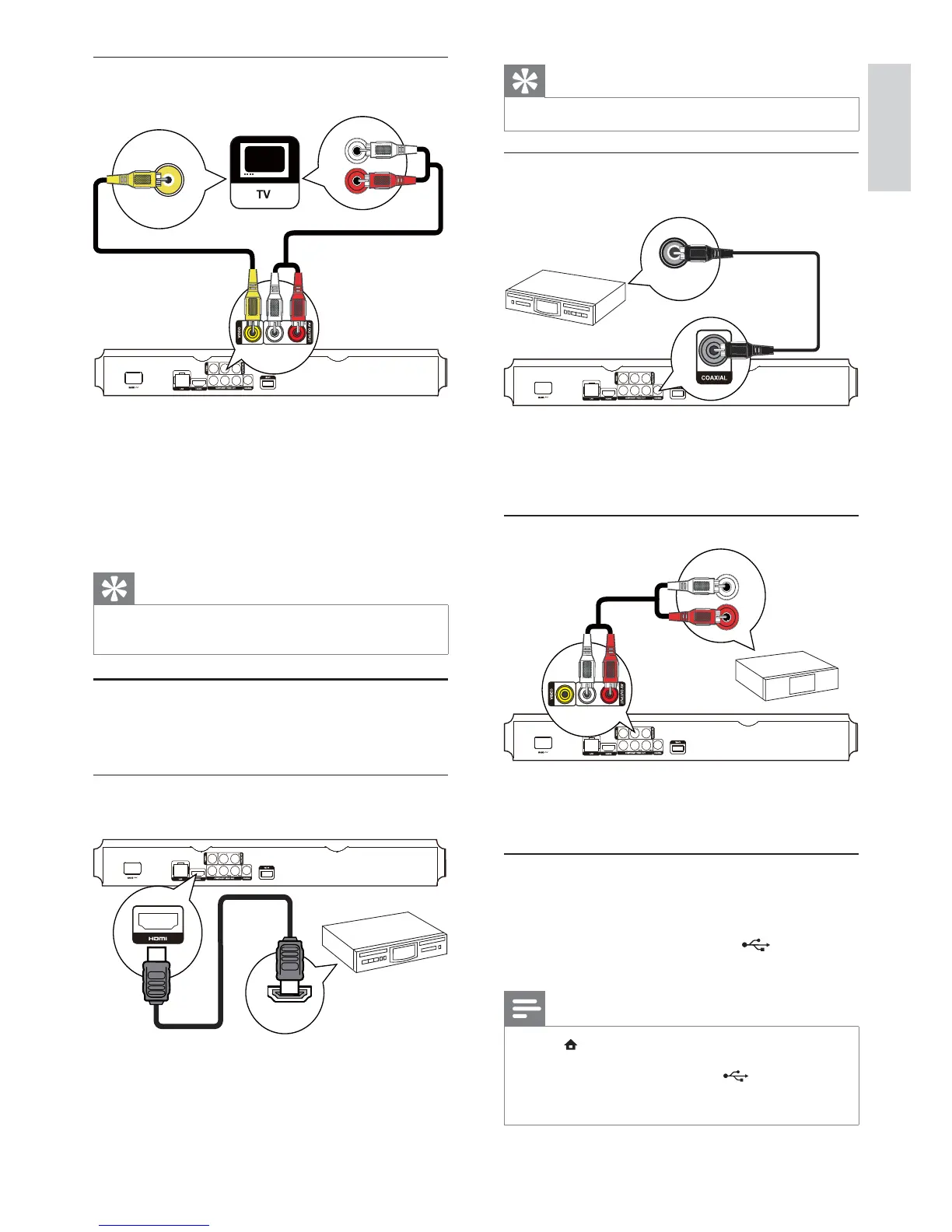
Option 3: Connect to the composite
video jack
1 Connect a composite video cable to:
the • VIDEO jack on this product.
the VIDEO input jack on the TV.•
2 Connect the audio cables to:
the • AV OUTPUT-L/R jacks on this
product.
the AUDIO input jacks on the TV.•
Tip
The video input jack on the TV might be labeled as A/V •
IN, VIDEO IN, COMPOSITE or BASEBAND.
Route audio to other devices
You can route the audio from this product to other
devices.
Connect to an HDMI-compliant AV
receiver/amplifier
1 Connect an HDMI cable (not supplied) to:
the • HDMI jack on this product.
the HDMI jack input jack on the device.•
VIDEO IN
AUDIO IN
HDMI IN
English
EN



 To Next Page