6 EN
5 On the BD-Live interface, select an item
to access.
Note
• BD-Live services vary from discs and countries.
• When you use BD-Live, data on the disc and this player
are accessed by the content provider
• Use a USB storage device with at least 1GB of free
space to store the download.
• If a USB hub is used with this player, do not overload
the USB hub with many USB devices to avoid
insufcientUSBpower.
Play a Blu-ray 3D video
What you need
• A 3D compliant TV
• This player is connected to the TV through
HDMI
• 3D glasses compatible with the TV
• 3D Blu-ray disc
1 Make sure that 3D output is turned on:
press , and select [Setup] > [Video]
>[Watch 3D video] > [Auto].
2 Play a Blu-ray 3D video.
3 Put on the 3D glasses for 3D effects.
• To turn off 3D output, press , and
select [Setup] > [Video] > [Watch 3D
video] > [Off].
Set up a network
Connect this player to a computer network and
the Internet to access the services:
• Browse PC (DLNA): play photos, music,
andvideolesstreamedfromyour
computer.
• Smart TV: access online Smart TV services.
• Update software: update the software of
this player via the Internet.
• BD-Live: access online bonus features
(applicable to Blu-ray discs that are BD-
Live enabled).
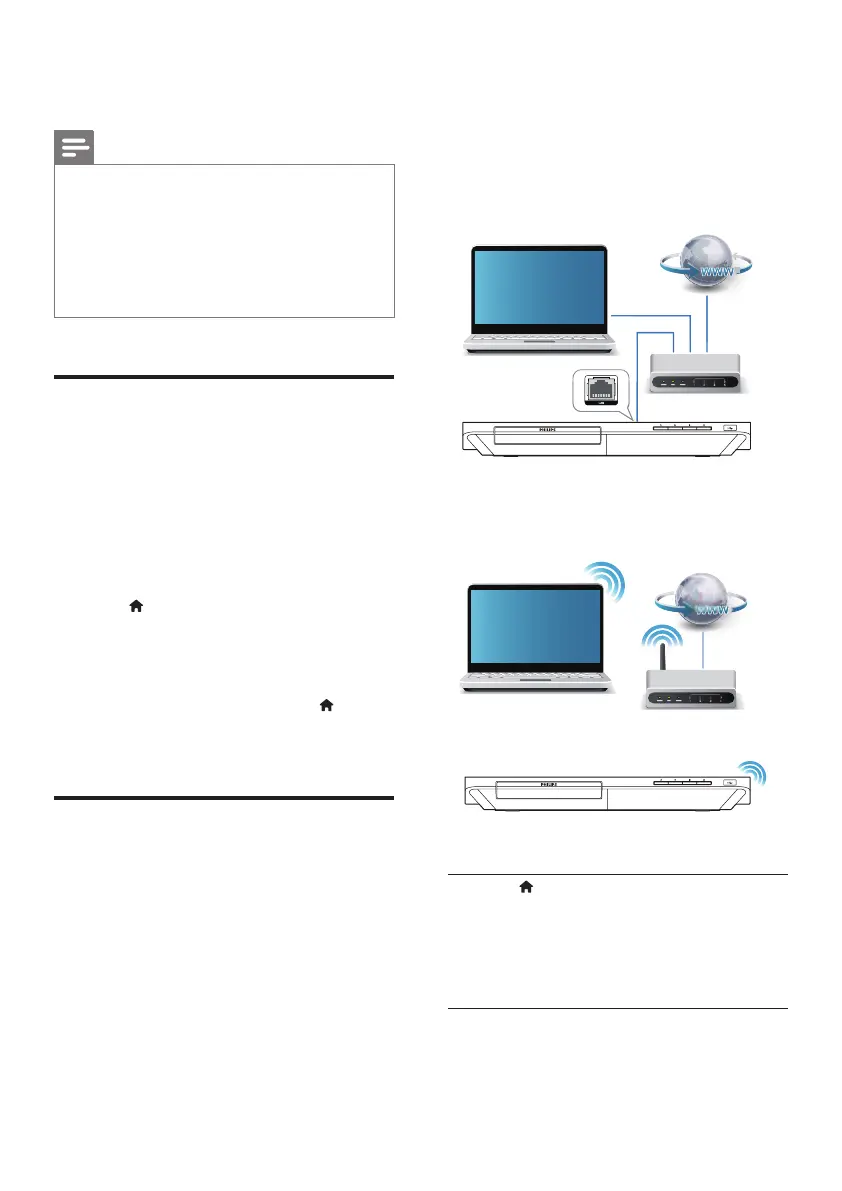
1 Connect this player to a computer
network and the Internet, through wired
(Ethernet) or wireless connection.
• For wired connection, connect a
network cable (not supplied) to the
LAN port on the back panel of this
player.
• This player has a built-in Wi-Fi for a
wireless connection.
2 Perform the network installation.
1) Press .
2) Select [Setup], and press OK.
3) Select [Network] > [Network
installation], and press OK.
4) Follow the instructions on the TV screen to
complete the installation.
PC (DLNA)
PC (DLNA)



 To Next Page