9EN
Note
• This player can store up to 10 Miracast devices for
pair-up,andcanonlyconnectasingleMiracastcertied
device at a time.
• During Miracast connection, Wi-Fi connection on this
player is temporarily suspended.
• To avoid interference from Bluetooth transmission, turn
off Bluetooth on your Miracast device.
• During Miracast streaming, video stuttering or audio
dropouts may occur, depending on your environment
(video streaming is up to 720p).
Use Philips EasyLink
This player supports Philips EasyLink which
uses the HDMI CEC (Consumer Electronics
Control) protocol. You can use a single remote
control to control EasyLink compliant devices
that are connected through HDMI. Philips does
not guarantee 100% interoperability with all
HDMI CEC devices.
1 Connect the HDMI CEC compliant devices
through HDMI, and turn on the HDMI
CEC operations on the TV and other
connected devices (see the user manual of
the TV or other devices for details).
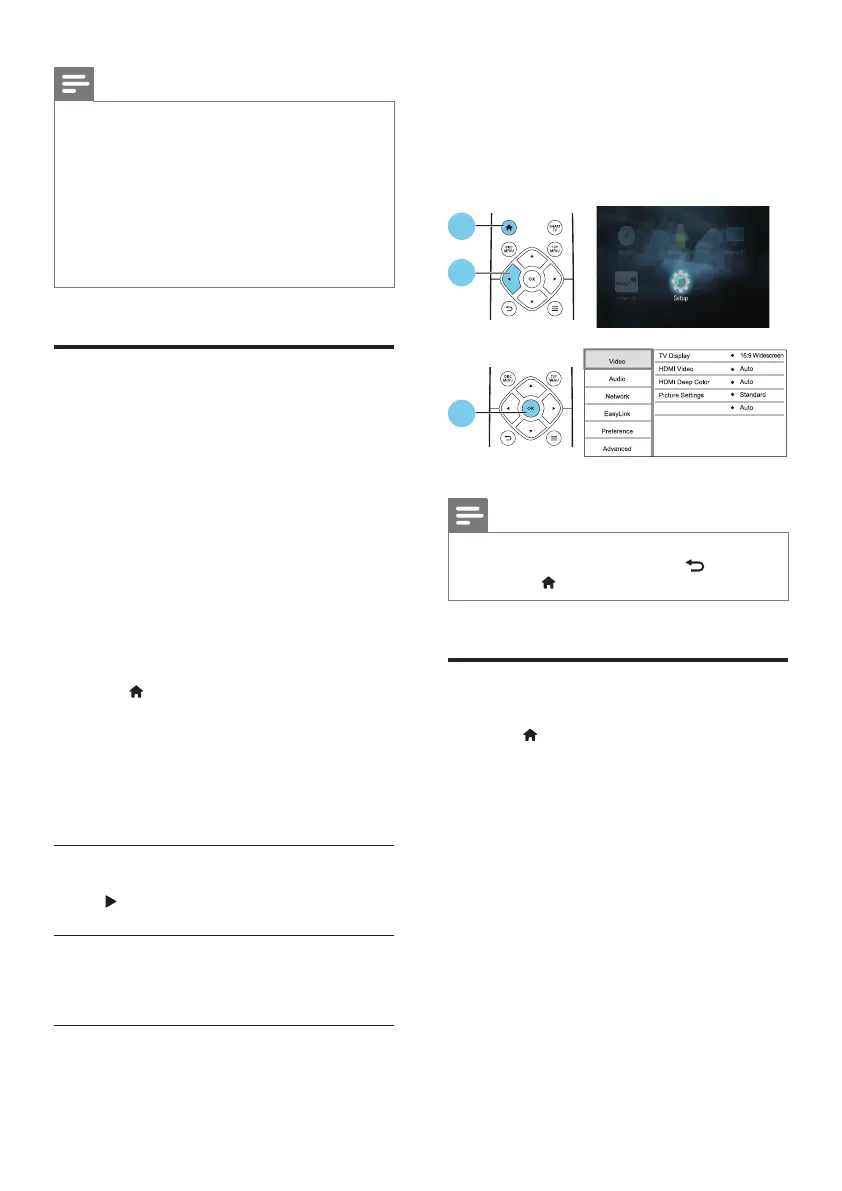
2 Press .
3 Select [Setup]> [EasyLink].
4 Select [On] under the options: [EasyLink],
[One Touch Play] and [One Touch
Standby].
» EasyLink function is turned on.
One Touch Play
When a video disc is in the disc compartment,
press to wake up the TV from standby, and
then play a disc.
One Touch Standby
When a connected device (for example TV)
is put to standby with its own remote control,
this player is put to standby automatically.
2 Change settings
This section helps you change the settings of
this player.
Note
• You cannot change a menu option that is grayed out.
• To return to the previous menu, press . To exit the
menu, press .
Picture
1 Press .
2 Select [Setup] > [Video] to access the
video setup options.
• [TV display]: Select a picture display format
tottheTVscreen.
• [HDMI video]: Select an HDMI video
resolution.
• [HDMI Deep Color]: Display colors with
more shades and hues when the video
content is recorded in Deep Color and the
TV supports this feature.
• [Picture settings]:Selectapredened
color setting.
• [Watch 3D video]: Set to 3D or 2D
output when playing a Blu-ray 3D disc.
The player must be connected to a 3D TV
through HDMI.
Watch 3D video
1
2
3



 To Next Page