EN 24
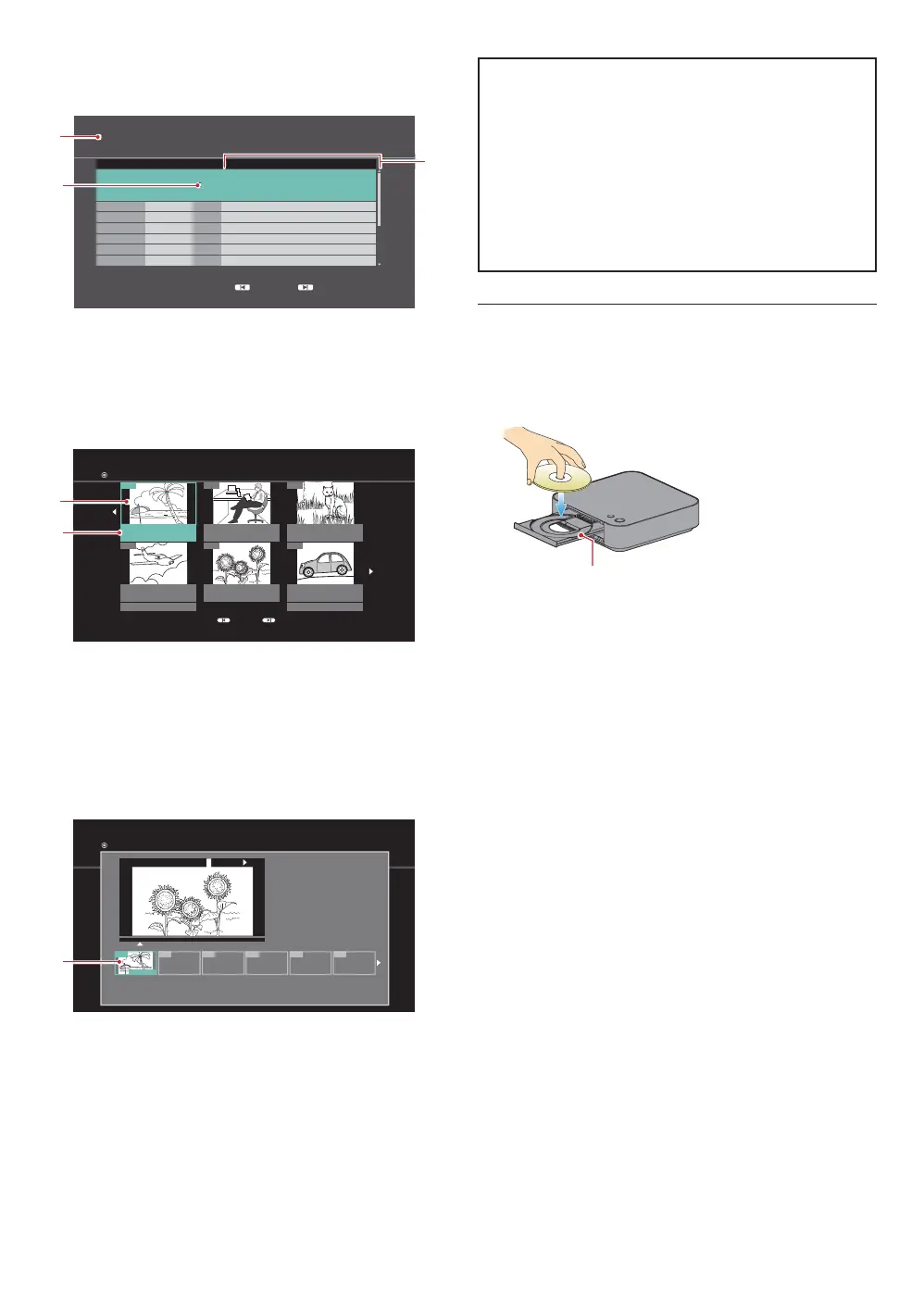
C Title/Play/Chapter List (VR)
Title List (VR)
USB \xxxxx\xxxxx
Play
Video Menu
DVD-R(VR)
Channel Date Title name
Simple PG
High Bitrate
New Resolution
Simple Seamless Connection
Resolution Changing
Aspect ratio changing
24.01
Start Time 17:15 Rec. Length 0:05
24.01
Low Bitrate
24.01
24.01
24.01
24.01
24.01
Previous Next
Page 001/003
1
3
Ti
2
1 Media type
2 Title List
3 Recording start time/Recording length of the
selected Title
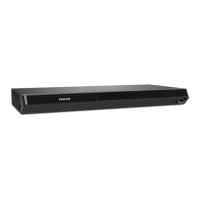
Playlist (VR)
01
02 03
04 05 06
12/16 (Fri) 0:01.38
PL_1
12/16 (Fri) 0:00.00
PL_2
12/16 (Fri) 0:00.59
PL_3
12/16 (Fri) 0:00.59
PL_6
12/16 (Fri) 0:02.00
PL_5
Page 01/17
Previous Next
Previous Next
12/16 (Fri) 0:00.40
PL_4
Playlists Playlist View
DVD-RW (VR)
4
5
4 Thumbnail
5 Title information
When a Disc containing the Playlist is inserted, and the
Home menu is displayed, select “Videos”
“Disc” to
display the Title/Playlist selection screen, then select
“Playlist”.
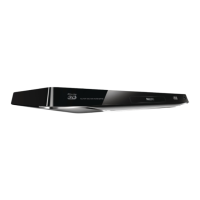
Chapter List (VR)
01
Chapter View
DVD-RW (VR)
Press OK to start playing from
the selected chapter.
Press BACK to go back to
previous menu.
0:00.05
Page 001/001
Play
PG_Play Test1
0:00.00
001
--- --- --- --- ---
6
6 Chapter thumbnail
How to Navigate through the Track / File List
• Use [ K / L ] to move the highlight up and down in the
list.
• To access the files in a group (folder), select the
desired group (folder), then press [OK].
• Press [ BACK Y ] to go back to the previous hierarchy.
• Press [S (previous)] or [T (next)] to change the
page of the list.
• Press [ Q (home)] to go back to the home menu.
6.3. How to Insert a Disc
1. Press [ A (open/close)] to open the disc tray.
2. Place the disc on the disc tray with its label side
facing up.
Align the disc to the
disc tray guide.
3. Press [ A (open/close)] to close the disc tray.
• It may take a while to load the disc.


 To Next Page