14 EN
This player is connected to the TV through
HDMI
3D glasses compatible with the TV
1 Make sure that 3D output is turned on:
press
, and select [Setup] > [Video]
>[Watch 3D video] > [Auto].
2 Play a Blu-ray 3D video.
3 Put on the 3D glasses for 3D effects.
To play 3D video in 2D, turn off Blu-ray
3D output (press
, and select [Setup]
> [Video] > [Watch 3D video] >
[Off]).
View 2D video/picure in 3D
effect
You can convert 2D videos or pictures to be
viewed in 3D effect.
What you need
A 3D compliant TV
This player is connected to the TV through
HDMI
3D glasses compatible with the TV
1 Play 2D video or pictures on this player.
2 Press .
» The options menu is displayed.
3 Select [2D to 3D] > [On].
» 2D video or pictures are converted to
3D effect.
4 Put on the 3D glasses for 3D effects.
Set up a network
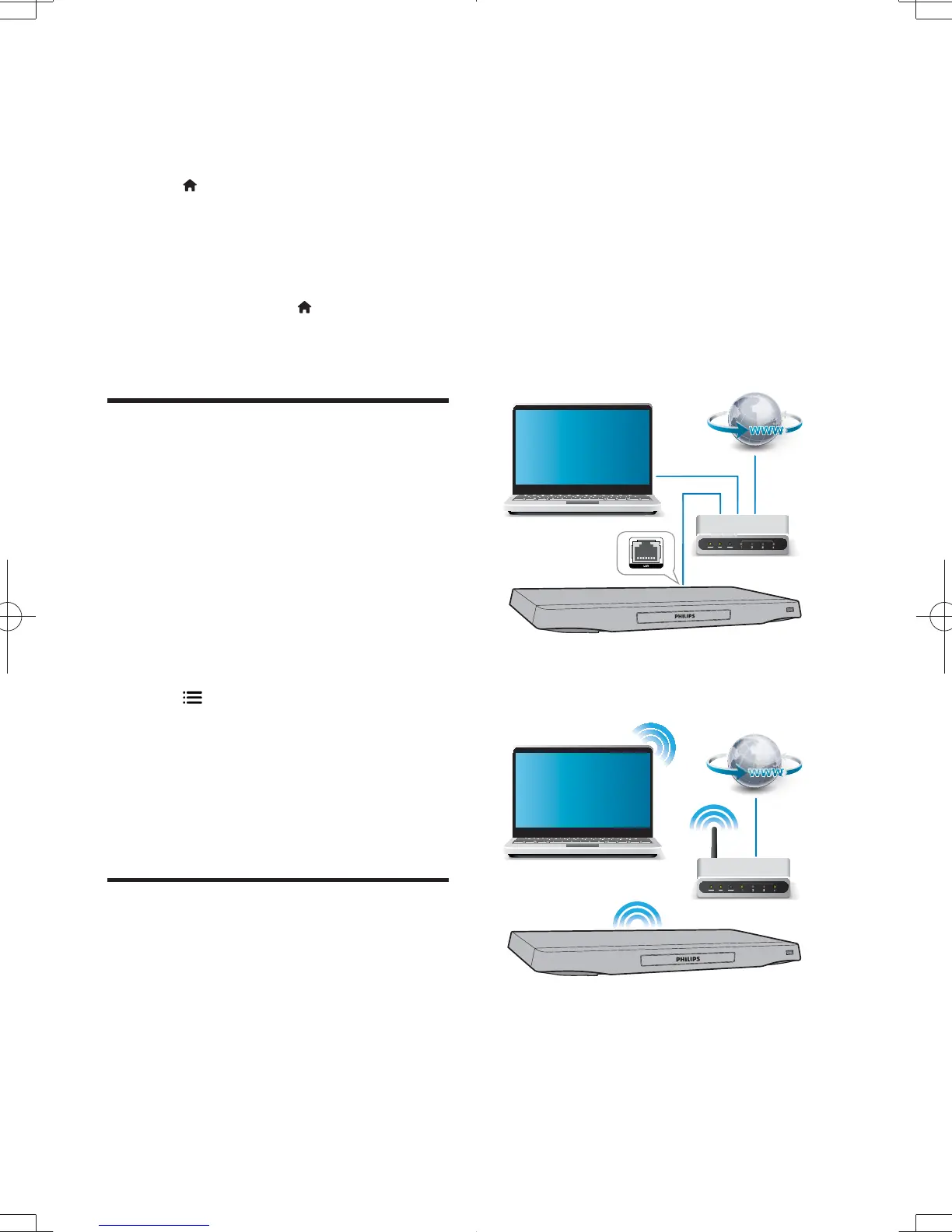
Connect this player to a computer network and
the Internet to access the services:
Browse PC (DLNA): play photos, music,
computer.
Browse Net TV: access online services,
such as pictures, music and video stores.
Update software: update the software of
this player via the Internet.
BD-Live: access online bonus features
(applicable to Blu-ray discs that are BD-
Live enabled).
1 Connect this player to a computer
network and the Internet, through wired
(Ethernet) or wireless connection.
For wired connection, connect a
network cable (not supplied) to the
LAN port on the back panel of this
player.
This player has a built-in Wi-Fi for a
wireless connection.
2 Perform the network installation.
PC (DLNA)
PC (DLNA)
BDP7700_98_UM_V1.0.indb 14 2012-2-28 14:52:35


 To Next Page