Go to 'My Products'
Select your toothbrush
Select 'Handle update' to see if any updates are available
If you have updates available, please update the firmware of your handle by following the
instructions from the Philips Sonicare app.
If you have tried all the troubleshooting tips above, but your toothbrush is still not turning on,
then please contact us for further help.
I cannot connect my Philips Sonicare Toothbrush with the
Sonicare App
If you are unable to connect your Philips Sonicare Toothbrush to your Sonicare app, read some
causes and solutions below and use our instruction video on how to set up your toothbrush
with the Sonicare app.
Sonicare App or smartphone software is not updated
Sonicare App update
Ensure that you have the latest version of the Sonicare App installed on your smartphone.
Smartphone software update
Check to see if you have the latest operating system running on your smartphone:
1. Android smartphone that runs Android 6.0 and higher
2. iPhone that runs iOS 11.0 and higher
Not using the compatible toothbrush
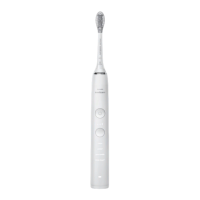
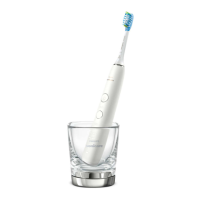
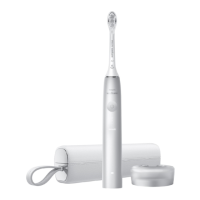
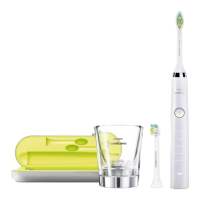
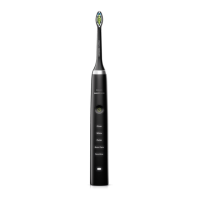
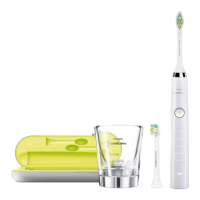
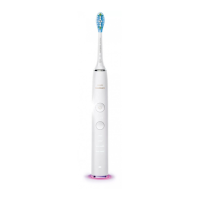
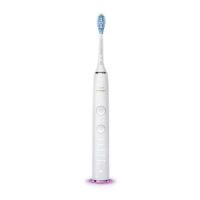
The Sonicare app is only compatible with the following connected toothbrushes:
1. Philips Sonicare DiamondClean Smart
2. Philips Sonicare Flexcare Platinum Connected
3. ExpertClean
4. DiamondClean 9000
5. Philips Sonicare for Kids (Only compatible with Sonicare Kids App)
Toothbrush is not on
Turn on your toothbrush by either removing it from the charger or pressing the mode button.
The lights on the handle will illuminate to tell you that your toothbrush is turned on.






 To Next Page