English
73
Edit Recordings - Hard Disk (continued)
Dividing titles
You can divide a title into two or more
titles. You can use this function to
separate and delete undesired portions of
a recording, such as commercials.
CAUTION!
Once a title has been divided, it
cannot be reversed.
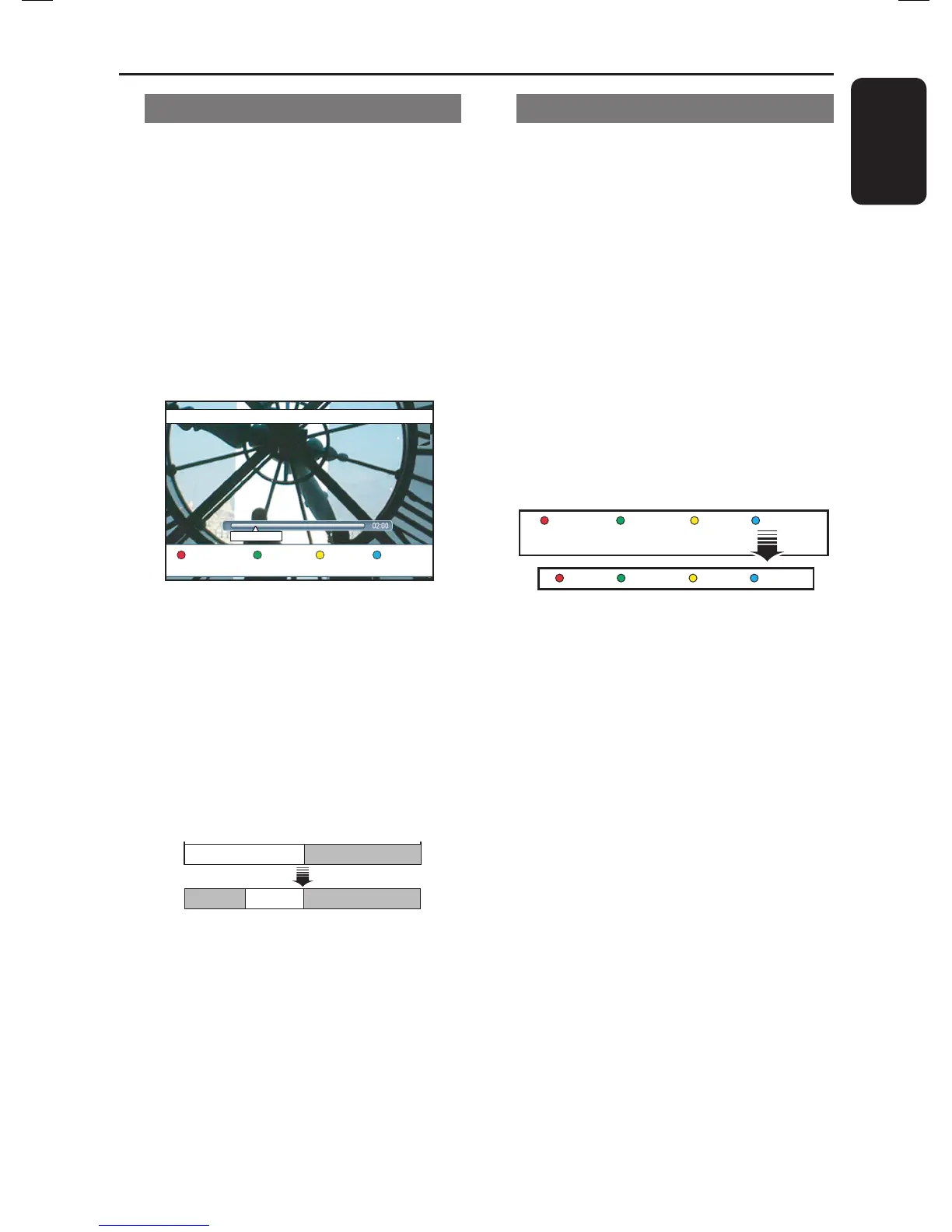
A During hard disk recording playback,
press u to pause playback at the scene
where you want to edit.
No Chapter HideChapter Divide
00:11:25
Use m / M or / keys on the
remote control for fast reverse or
forward search.
B Press EDIT on the remote control.
C Press the Yellow button on the remote
control for { Divide }.
A new title and new Index Picture will
be created from the current point of
playback.
Title1 Title 2
Title 3Title1 Title2
(for example, title 1 is selected)
Hiding unwanted scenes
You can choose to hide certain scenes
for playback (e.g., skipping a commercial
scene) or make the hidden scene visible
again.
A During hard disk recording playback,
press u to pause playback at the scene
where you want to edit.
Use m / M keys or / keys on
the remote control for fast reverse or
forward search.
B Press EDIT on the remote control.
C Press the Blue button on the remote
control for { Hide }.
It sets the start marker for hide.
No Chapter
Chapter Divide
Hide
Stop Hide Cancel
D Press M key on the remote control to
search for the end of the scene to hide.
E Press the Green button for { Stop
Hide }.
It sets the end marker for hide.
The ‘hidden’ area will be marked in
blue.
Otherwise, cancel the operation by
pressing the Blue button on the remote
control for { Cancel }.
F To exit, press EDIT.







 To Next Page