20
Display Setting
You can change the display functions.
1
Press SYSTEM MENU in stop mode.
2
Press s or B to select “CUSTOM”, then press OK.
• CUSTOM mode screen will appear.
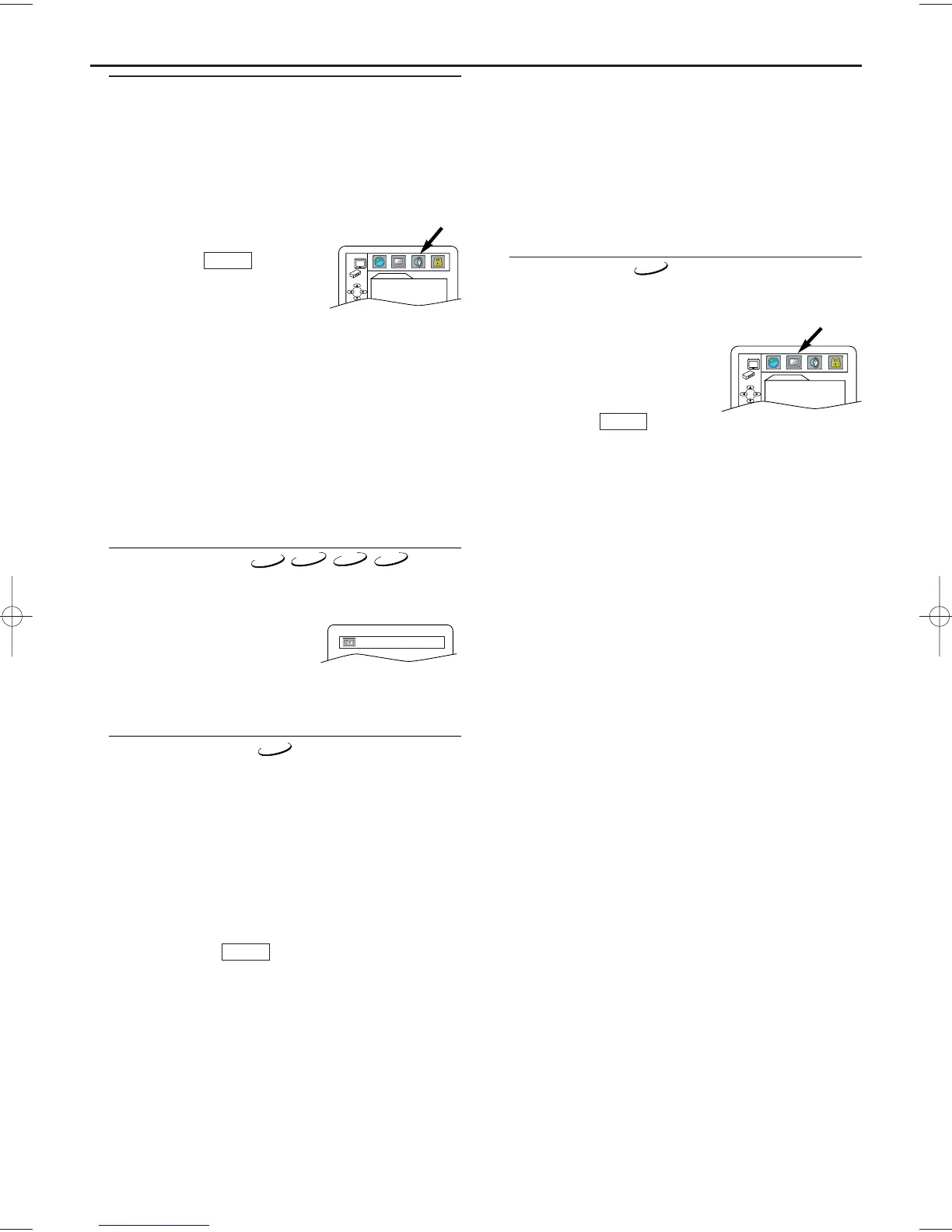
3 Press s or B to select “DISPLAY”,
then OK to confirm.
4 Press K or L to select the below
items, then press OK.
5 Press SYSTEM MENU to exit.
TV ASPECT :
4:3 LETTER BOX :When viewing a 16:9 picture on a 4:3 aspect
TV screen, black bars appear on the top and
bottom of the screen.
4:3 PAN & SCAN :When viewing a 16:9 on a 4:3 aspect TV
screen, a full height picture with both sides
trimmed is presented.
16:9 WIDE : if a wide-screen TV is connected to this
unit, select this setting.
• Press K or L to select a setting, then press OK.
• The default setting is “4:3 LETTER BOX”.
STILL MODE :
AUTO : select it usually.
FIELD : pictures in the Still mode will be stabilized although
they will be coarse due to a little amount of data.
FRAME : pictures in the Still mode will be highly defined
although they will be blurred due to outputting two
fields at the same time.
• Press K or L to select an option, then press OK.
• The default setting is “AUTO”.
ANGLE ICON :
ON : to show the angle icon when multiple camera
angles are available during DVD playback.
OFF : to hide the angle icon.
• Press OK repeatedly to select “[ON]” or “[OFF]”.
• The default setting is “ON”.
AUTO POWER OFF :
ON : to turn off the unit automatically after 35 minutes
of no use.
OFF : to keep this unit on.
• Press OK repeatedly to select “[ON]” or “[OFF]”.
• The default setting is “[ON]”.
VIDEO OUT :
AUTO : to change video out system (PAL/NTSC) automati-
cally according to the format of an inserted disc.
PAL:to view pictures of the discs recorded with PAL
system.
• Press OK repeatedlly to select “PAL” or “AUTO”.
• The default setting is “AUTO”.
QUICK
DISPLAY
TV ASPECT
4:3 LETTER BOX
ANGLE ICON ON
AUTO POWER OFF ON
VIDEO OUT AUTO
Language Setting
Language options are not available with some discs.
1
Press SYSTEM MENU in stop mode.
2
Press B to select “CUSTOM”, then press OK.
• “CUSTOM” mode will appear.
3 Press s or B to select “LANGUAGE”, then OK to confirm.
4 Press K or L to select the below items, then press OK.
AUDIO :
Sets the audio language.
SUBTITLE :
Sets the subtitle language.
DISC MENU :
Sets the language for DVD Menu.
PLAYER MENU :
Sets the language for the On-Screen display.
QUICK
DVD Setup
Audio Setting
Choose the appropriate Audio settings for your equipment as it
only affect during the playback of DVD discs of the DVD/VCR.
1 Press SYSTEM MENU in stop mode.
2 Press B to select CUSTOM, then press OK.
CUSTOM mode will appear.
3 Press s or B to select AUDIO, then OK to confirm.
4 Press K or L to select the below items, then press OK.
DRC (Dynamic Range Control) :
To compress the range of sound volume.
The default setting is ON.
Dolby Digital :
Set to ON when the player is connect-
ed to Dolby Digital Decoder.
(ON : Output by Dolby Digital)
(OFF : Convert the Dolby Digital to PCM)
The default setting is ON.
DOWN SAMPLING :
Set to ON when outputting in 48kHz.
The default setting is ON.
When playing disc with copyright Protection
• If you select OFF, copyright protection will be activated and
sound will be down sampled at 48kHz.
MPEG :
Set to ON when the player is connected MPEG Decoder.
(ON: Output by MPEG)
(OFF: Convert the MPEG to PCM)
• The default setting is OFF.
5 Press SYSTEM MENU to exit.
QUICK
AUDIO
DRC ON
DOLBY DIGITAL ON
DOWN SAMPLING ON
MPEG OFF
Virtual Surround
You can enjoy stereophonic visual space on your existing stereo
system.
1 Press MODE during playback.
2 Press OK to set it 1(Natural effect),
2(Emphasized effect) or OFF.
3 Press MODE or RETURN to exit.
Note (for CD and DVD play only):
-
Virtual Surround will not be effective if the sound mode
is set to something other than STEREO.
OFF
CD
MP3
VCD
5 Press K or L to select a setting, then press OK.
• If OTHER is selected in the AUDIO, SUBTITLE or DISC
MENU screen, press four-digit number to enter the code for
the desired language. (Refer to the language code list on back
inside cover).
• Only the languages supported by the disc can be selected.
6 Press SYSTEM MENU to exit.
Note:
- Language Setting for Audio and Subtitle is not available
with some discs.Then use AUDIO and SUBTITLE. Details
are on pages 16-17.



 To Next Page