12
6 Connect your home
theater
This section helps you connect your home theater
to a TV and other devices.
For information about the basic connections of
your home theater and accessories, see the quick
start guide. For a comprehensive interactive guide,
see www.connectivityguide.philips.com.
Note
•
For identication and supply ratings, refer to
the type plate at the back or bottom of the
product.
• Before you make or change any connections,
make sure that all devices are disconnected
from the power outlet.
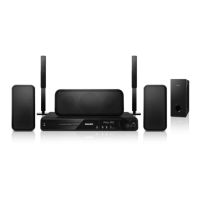
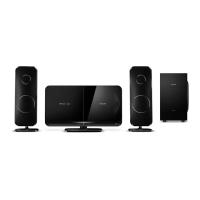
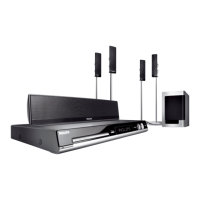
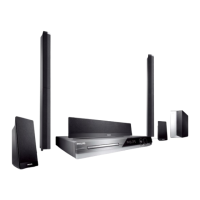
Speakers
Position, connect, and set up your speakers for
best surround sound.
Position
Speaker position plays a critical role in setting up
a surround sound effect.
For best results, place your speakers and the
subwoofer as shown below.
a Alphanumeric buttons
Enter values or letters (using SMS style
entry).
b REPEAT
Select or turn off repeat mode.
c DOCK for iPod
Switch to Philips dock for iPod or iPhone.
d SUBTITLE
Select subtitle language for video.
e Color buttons
Select tasks or options for Blu-ray discs.
f HELP
Access the onscreen help.
EasyLink controls
With Easylink, you can control your home
theater and the TV with the following buttons
on your home theater remote control (see
‘EasyLink’ on page 33).
• (Standby-On): Press and hold to switch
your home theater, TV and the connected
devices to standby.
• (Play): When a video disc is in the disc
compartment, wake up the TV from
standby, and then play a disc.
EN


 To Next Page