12
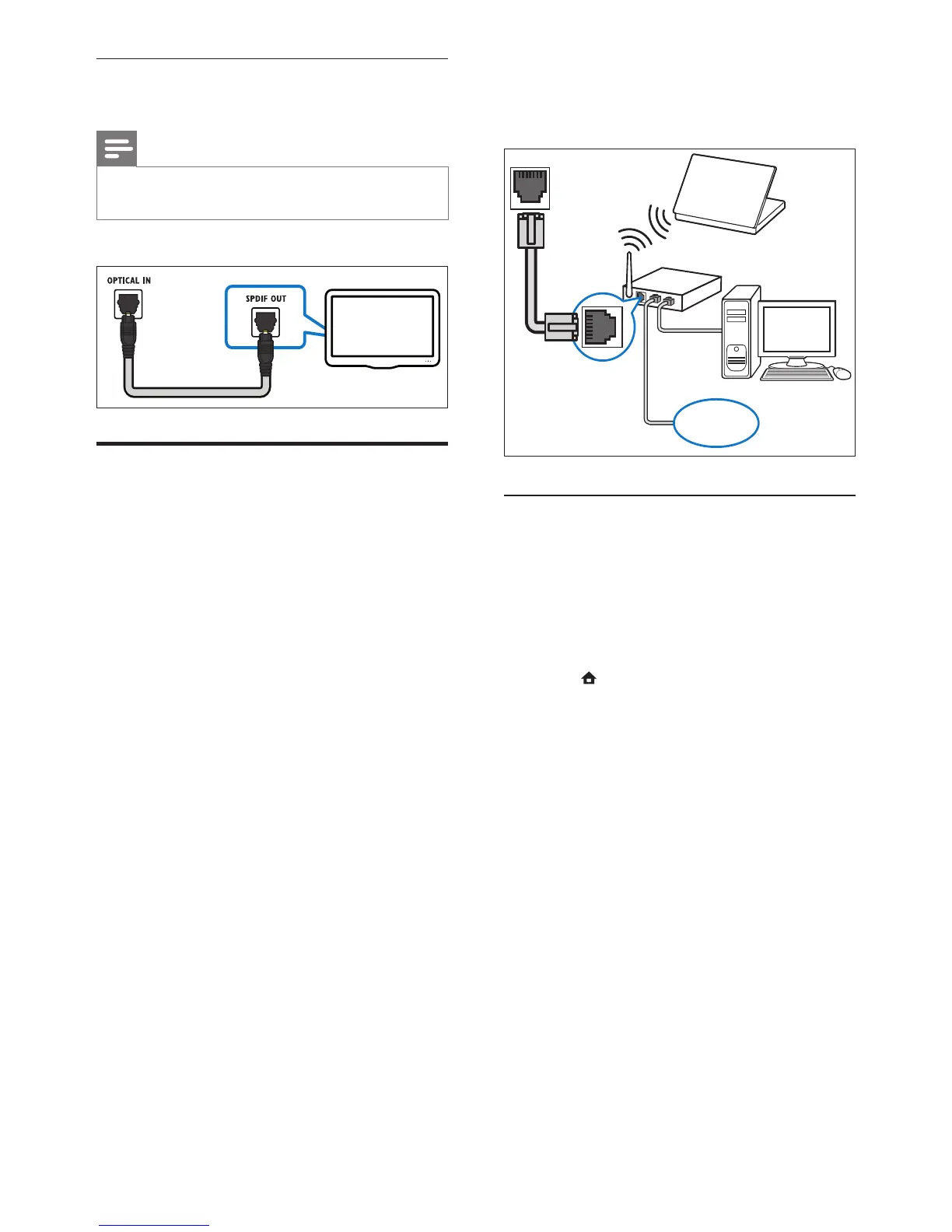
(Net TV feature not available in China and Latin
America)
(Cable not supplied)
Set up network
1 Connect the home theater to a network
router through wired or wireless network
connection (see ‘Connect a Wi-Fi USB
adapter’ on page 13).
2 Turn on your TV and switch to the correct
source for the home theater.
3 Press (Home).
4 Select [Setup], then press OK.
5 Select [Network] > [Network Installation],
then press OK.
• For wired network, select [Wired
(Ethernet)] and press OK.
• For wireless network, select [Wireless
(Wi-Fi)] and press OK.
6 Follow the instructions on the TV to
complete the setup.
» The home theater connects to the
internet. If connection fails, select [Retry],
then press OK.
7 Select [Finish], then press OK to exit.
Option 3: Connect audio through a digital
optical cable
Note
• The digital optical cable or connector might be
labeled as SPDIF OUT or OPTICAL OUT.
(Cable not supplied)
Connect to a computer
network and the Internet
Connect the home theater to a computer
network and enjoy:
• Multimedia content streamed from your
computer : view photos, play music and
watch video les streamed from your
computer (see ‘Play from PC (DLNA)’ on
page 18).
• Net TV : browse Net TV services (see
‘Browse Net TV’ on page 19).
• Software update : update the software of
the home theater through the network (see
‘Update software from the network’ on
page 24).
What you need:
• A network router (with DHCP enabled).
• A network cable (RJ45 straight cable).
• A computer with media server software
installed (see ‘Set up media server software’
on page 18).
• For Net TV and software update, make sure
that the network router has access to the
Internet and is not restricted by rewalls or
other security systems.






 To Next Page