6 EN
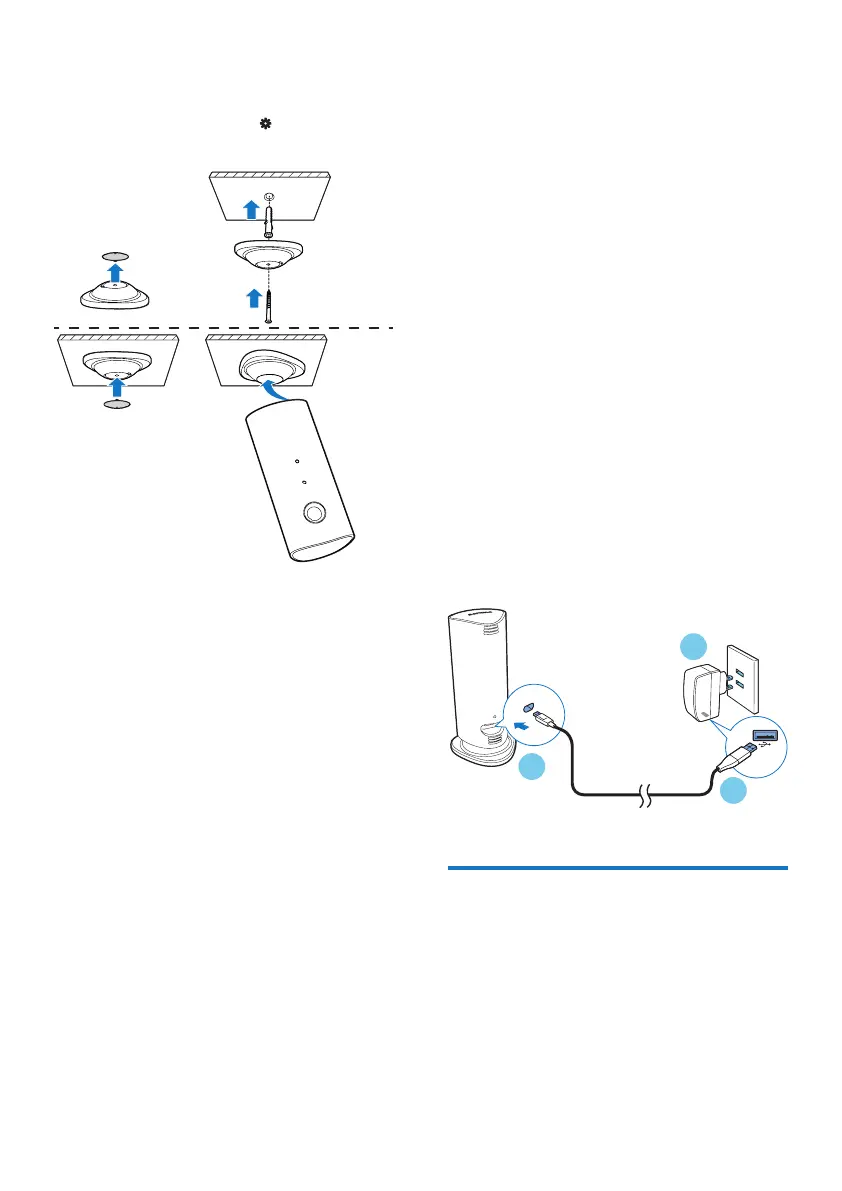
Mount on ceiling
If you install on a ceiling, select ‘Image Flip
(Image Flip)’ in the ‘Settings ( )’ options of
your monitor.
4 Set-up
You can see and hear what is happening in
your room from anywhere in the world with a
smartphone.
What you need
1 Make sure your Wi-Fi router is turned
on and that your Smartphone or Tablet is
wirelessly connected to your Wi-Fi router
network.
2 Have your Wi-Fi network name (SSID) and
Wi-Fi network password available as you
need to ll these in. You can look up your
Wi-Fi network name in the settings of your
phone or tablet.
3 Download ‘Philips In.Sight’ App from Apple
App Store. or Android Market (Google
Play).
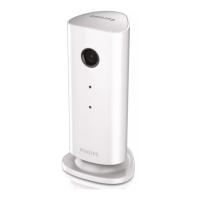
4 Connect the monitor to power. When
power is connected, wait till the Monitor
light ashes Amber.
Connect Monitor to Wi-Fi
network
1 Make sure that your smartphone or tablet
is connected to your Wi-Fi network.
2 Start the App.
3 Log in with your Philips In.Sight account –
or create a new account if you don’t have
an account.
1
2
3


 To Next Page