18
Play DivX video
You can play DivX fi les copied onto a CD-R/
RW, recordable DVD or USB device.
1 Insert a disc or connect a USB device.
2 Select a source:
For discs, press • DISC.
For USB devices, press • USB.
3 Select a fi le to play and press .
To stop play, press •
.
To pause or resume play, press •
.
To change a subtitle language, press •
SUBTITLE.
Note
You can only play DivX videos rented or purchased •
through the DivX registration code of this unit.
Subtitle fi les with the following fi lename extensions (.srt,
•
.smi, .sub, .ssa, .ass) are supported but do not appear on
the fi le navigation menu.
The subtitle fi lename has to be the same as the fi le
•
name of the video.
Play MP3/WMA/picture fi les
You can play MP3/WMA/picture fi les copied
onto a CD-R/RW, recordable DVD or USB
device.
1 Insert a disc or connect a USB device.
2 Select a source:
For discs, press • DISC.
For USB devices, press • USB.
3 Press DISC MENU until the folder is
displayed.
4 Press / to select a folder, then press OK
to confi rm.
5 Press / to select a fi le from the folder.
6 Press to start play.
To stop play, press •
.
To pause or resume play, press •
.
To skip to the previous/next fi le, press •
/ .
Tip
For some DVDs, the language can only be changed •
from the disc menu. Press DISC MENU to access the
menu.
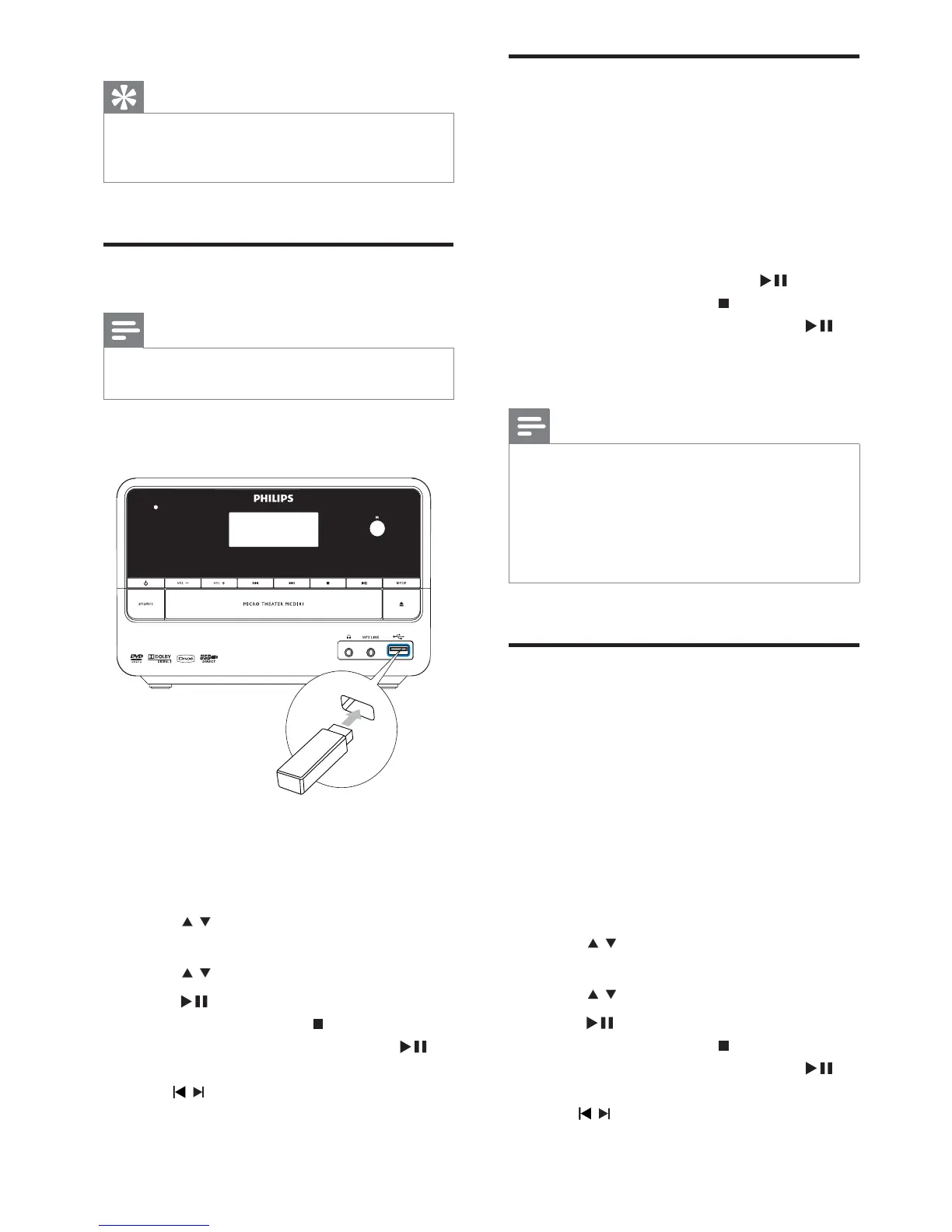
Play from USB
Note
Ensure that the USB device contains playable music, •
pictures or video.
1 Insert the USB device.
2 Press USB to select the USB source.
3 Press DISC MENU until the folder is
displayed.
4 Press / to select a folder, then press OK
to confi rm.
5 Press / to select a fi le from the folder.
6 Press to start play.
To stop play, press •
.
To pause or resume play, press •
.
To skip to the previous/next fi le, press •
/ .
EN


 To Next Page