English
17
Step 4: Setting language
preferences
You can select your preferred language
settings so that this DVD system will
automatically switch to the language for you
whenever you load a disc. If the language
selected is not available on the disc, the
disc’s default setting language will be used
instead. The OSD (on-screen display)
language for the system menu will remain
as you set it, regardless of various disc
languages.
On-screen display (OSD) language
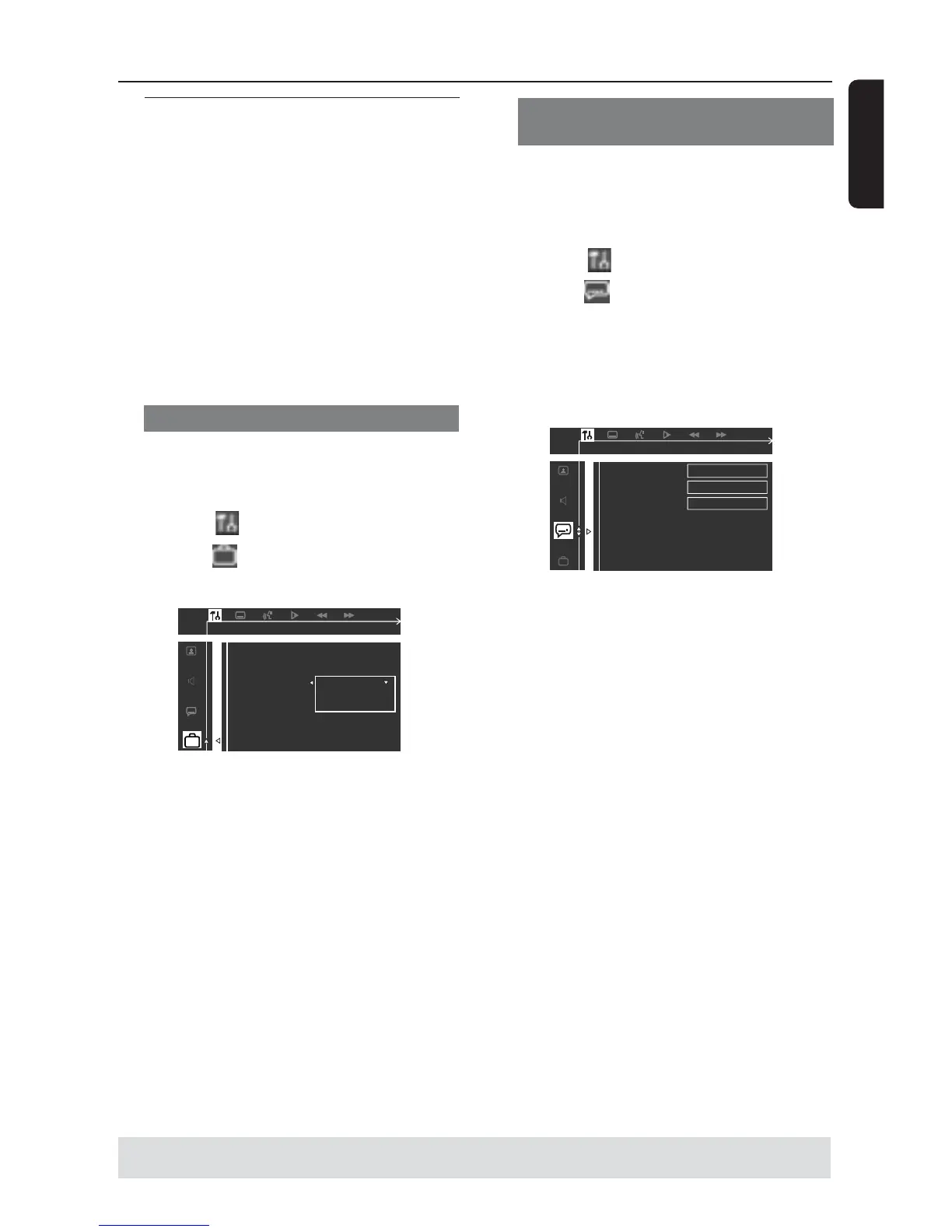
1 In disc mode, press SYSTEM MENU.
➜ Use the 1234keys on the remote
to navigate in the menu.
2 Highlight icon and press 4.
Move to
and press 2.
Move to {MENU LANG} and press 2.
ENGLISH
SPANISH
PROTUGUESE
PARENTAL
PASSWORD
MENU LANG
DEFAULTS
OSD LANGUAGE SET TO ENGLISH
3 Press 34 to select a language and press
OK to confirm.
Audio, Subtitle and Disc menu
languages
1 In disc stop mode, press SYSTEM
MENU.
➜ Use the 1234keys on the remote
to navigate in the menu.
2 Highlight icon and press 4.
Move to
and press 2.
Move to highlight one of the options
below at a time,then press 2.
– {AUDIO} (disc’s soundtrack)
– {SUBTITLE} (disc’s subtitles)
– {DISC MENU} (disc’s menu)
AUDIO
SUBTITLE
DISC MENU
ENGLISH
ENGLISH
ENGLISH
GOTO LANGUAGE SETUP PAGE
3 Press 34 to select a language and press
OK to confirm.
4 Repeat steps 2~3 for other settings.
Getting Started
TIPS:
To return to the previous menu, press 1.
To exit the menu, press SYSTEM MENU.


 To Next Page