P-SCAN
ON OFF
Pb
DIGITAL
OUT
DIGITAL
IN
AUX
IN
TV
IN
LINE
OUT
AUDIO
VIDEO
OUT
CVBS
S-VIDEO
FM ANTENNA
AM
L
R
Y
AUDIO
OUT
Pr/Cr
Pb/Cb
Y
S-VIDEO
IN
VIDEO IN
COMPONENT
VIDEO IN
AUDIO
OUT
Pr/Cr
Pb/Cb
Y
S-VIDEO
IN
VIDEO IN
COMPONENT
VIDEO IN
1
3
Pr
2
SURROUND CENTER FRONT
L
R
SL
SR
C
SUB-WOOFER
IMPORTANT!
– If the picture is distorted, check the
Video Output setting. Make sure it is set
to ‘S-Video,’ see page 32.
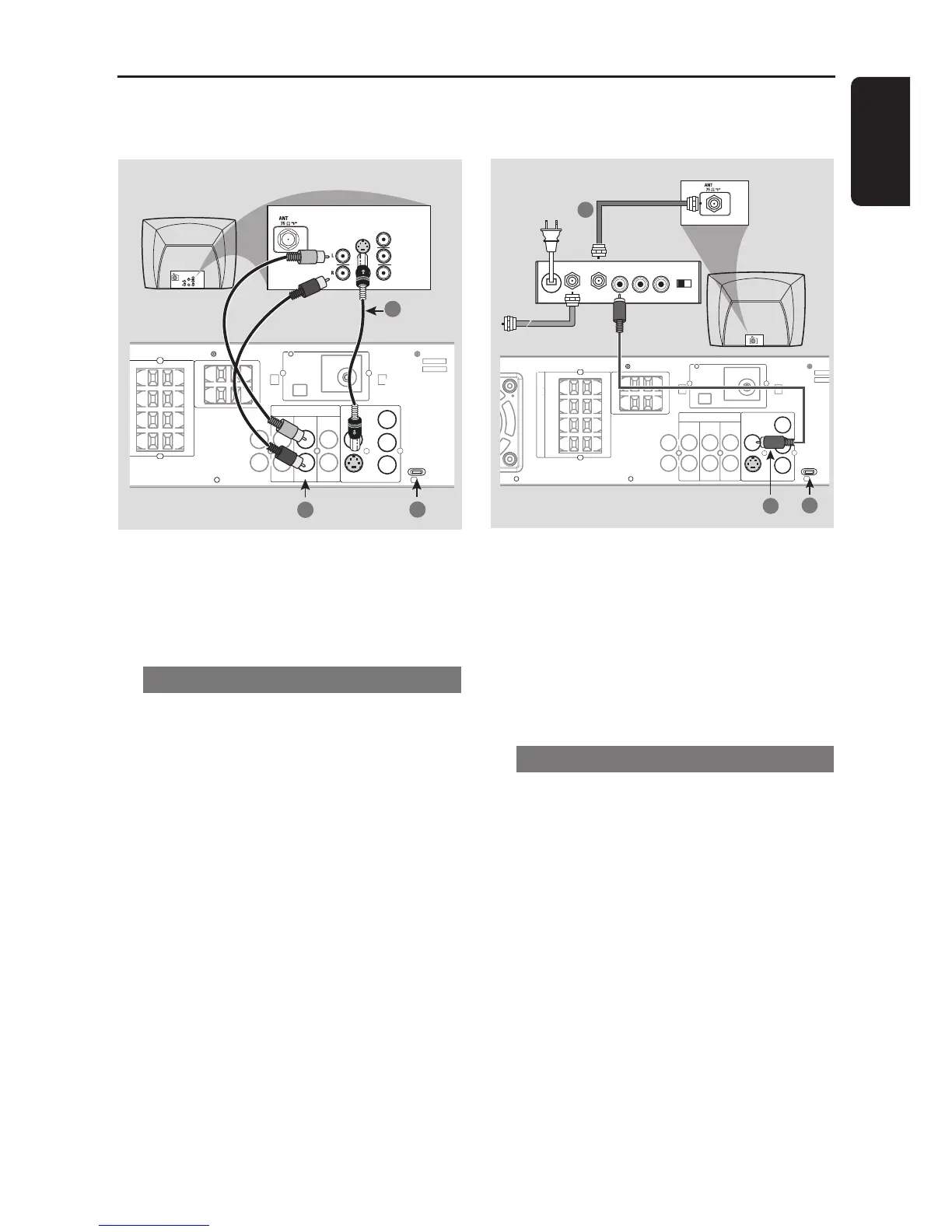
Using S-Video jack
1 Use the S-video cable (not supplied) to connect
the DVD system’s S-VIDEO OUT jack to the
S-Video input jack (or labeled as Y/C or S-VHS)
on the TV.
2 To hear the TV channels through this DVD
system, use the audio cables (white/red) to
connect TV IN (L/R) jacks to the
corresponding AUDIO OUT jacks on the TV.
3 Set the P-SCAN switch to ‘OFF.’
IMPORTANT!
– If your TV only has a single Antenna In
jack (or labeled as 75 ohm or RF In,)
you will need an RF modulator in order
to view the DVD playback on the TV.
See your electronics retailer or contact
Philips for details on RF modulator
availability and operations.
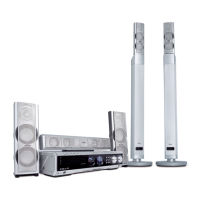
Using an accessory RF modulator
1 Use the composite video cable (yellow) to
connect the DVD system’s CVBS jack to the
video input jack on the RF modulator.
2 Use the RF coaxial cable (not supplied) to
connect the RF modulator to your TV’s RF jack.
3 Set the P-SCAN switch to ‘OFF.’
RF coaxial cable to TV
Back of RF Modulator
(example only)
Antenna or
Cable TV signal


 To Next Page