14
English
Title Menu
1 Press DVD, then TITLE.
• The title menu will appear.
2 If the feature is not available, symbol may appear on the
TV screen.
3 Press Arrow ( L / K / B / s ) to select an item, and OK to
confirm selection.
• Playback will begin at the selected Title.
1 The title menu will appear.
2 Press numerical key pads to select the menu.
• Playback will start.
Basic Playback
Getting Started
Turn on the power of the TV, amplifier and any other compo-
nents which are connected to the DVD/VCR.
Make sure the TV and audio receiver (commercially available)
are set to the correct channel.
1 Press STANDBY-ON.
2 Press DVD, then OPEN/CLOSE to open disc loading tray.
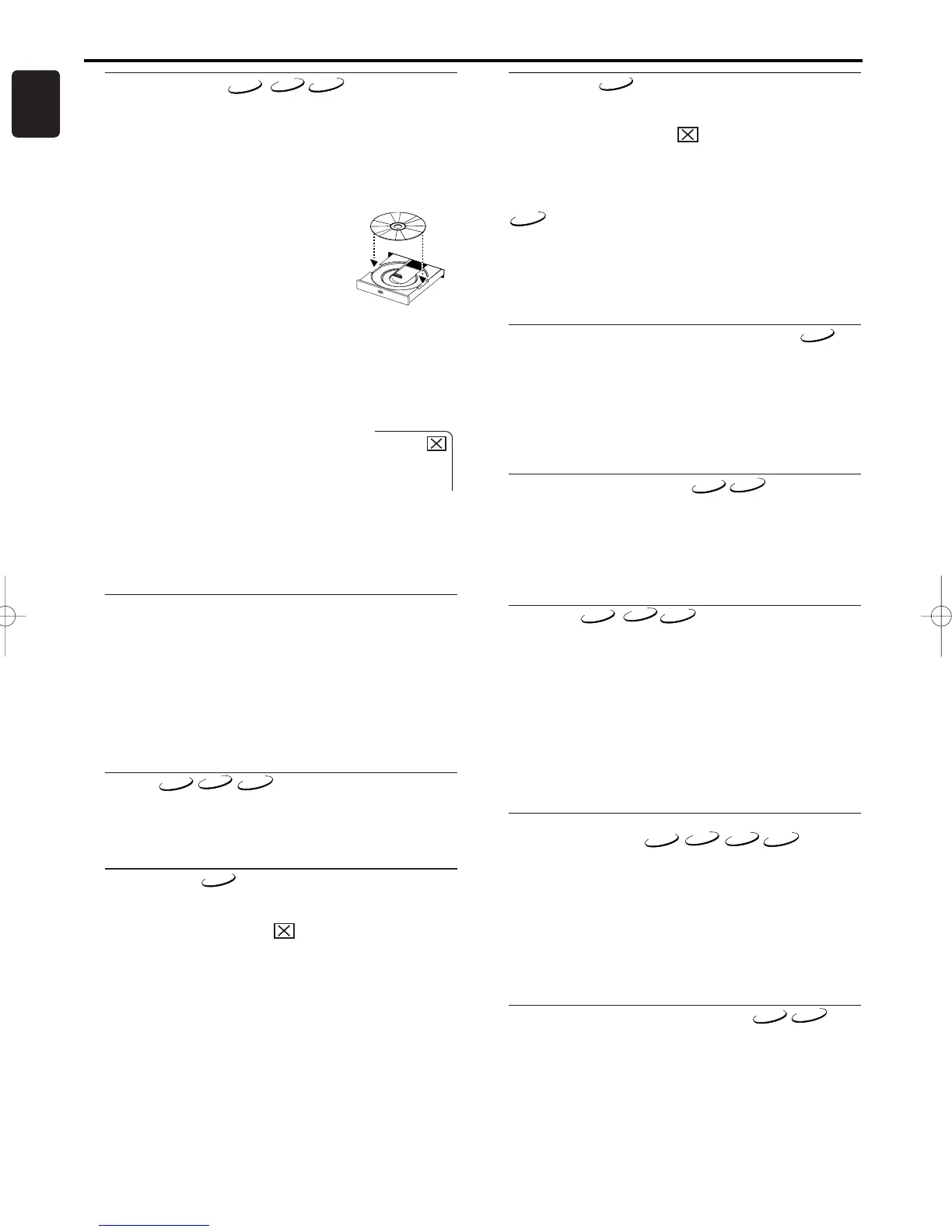
3 Place the chosen disc in the tray, with the
label facing up.
4 Press PLAY
BB
.
• The tray will close automatically, and
playback will then start from the first
chapter or track of the disc. If the play-
back does not start automatically, press
PLAY B.
• When you playback the DVD which a title menu is recorded,
it may appear on the screen. In this case, refer to “TITLE
MENU”.
5 Press STOP C to stop playback.
Notes:
- A “prohibited icon” may appear at the top-right on the
TV screen during operation, warning that
a prohibited operation has been encoun-
tered by the DVD/VCR or the disc.
- With DVDs that use some titles for play-
back program signals, playback may start
from the second title, or it may skip these titles.
- During the playback of two layered disc, pictures may
stop for a moment.This happens when the 1st layer
switches to the 2nd layer.This is not a malfunction.
Playing a Disc
General Features
DVD or video CDs may contain menus to navigate the disc
and access special features. Press the appropriate numerical key
pads or use Arrow ( L / K / B / s ) to highlight your selection
in the DVD main menu and press OK to confirm.
Note:
- Unless stated, all operations described are based on
remote control use. Some operations can be carried out
using the menu bar on the TV screen.
Pause
1 During playback, press PAUSE k.
• Playback will pause and sound will be muted.
2 To continue playback, press PLAY
BB
.
Disc Menus
1 Press DVD, then DISC/VCR MENU.
• The DVD main menu will appear.
2 If the feature is not available, symbol may appear on the
TV screen.
3 If disc menu is available on the disc, audio language, subtitle
options, chapters for the title and other options will appear for
selection.
4 Press Arrow ( L / K / B / s ) to select an item, and OK to
confirm selection.
Calling Up a Menu During Playback
• Press DISC/VCR MENU to call up the DVD main menu.
• Press TITLE to call up the title menu.
Note:
- Contents of menus and corresponding menu operations
may vary between discs. Refer to the manual accompa-
nying the disc for details.
Step by Step Playback
1 During playback, press PAUSE k.
• Playback will pause and sound will be muted.
2 The disc goes forward by one frame each time PAUSE is
pressed.
3 To exit step by step playback, press PLAY B.
Resume
1 During playback, press STOP C.
• Resume message will appear on the TV screen.
2 Press PLAY B, playback will resume from the point at which
playback was stopped.
• To cancel resume, press STOP C twice.
Note:
- If you turn the DVD/VCR off, Resume function will be
cancelled.
- Some Video CDs with PBC function resume playback
from the beginning of the track.
Fast Forward / Reverse Search
1
During playback, press
FWDg
or
REVh
repeatedly to select
the required forward or reverse speed: x2, x8, x50, x100.
• For video CDs, the speed is fixed at
x2, x8, x30.
• For audio CDs, the speed is fixed at
x16.
• For MP3, the speed is fixed at
x8.
2 To return to normal playback, press PLAY B.
Slow Forward / Slow Reverse
1 During playback, press PAUSE k.
2 Press g or h .
•
Slow motion playback will begin and sound will be muted.
3 Press g or h repeatedly to select the required speed:
1/16, 1/8, 1/2 of the normal playback.
4 To return to normal playback, press PLAY B.
Note:
- Slow Reverse is not available on video CDs.



 To Next Page