2
Use your PhotoFrame
Turn on the PhotoFrame
A
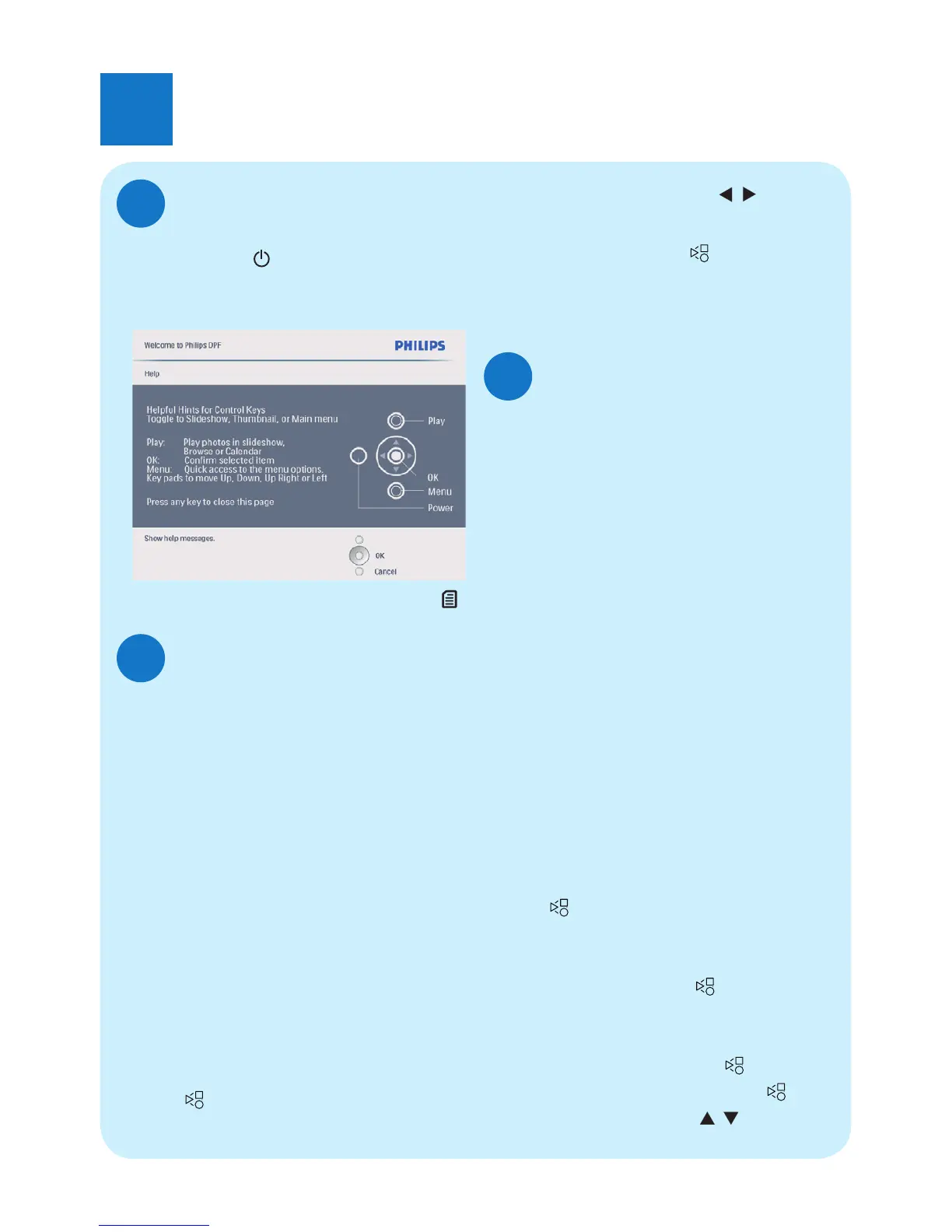
1 Press and hold
for more than 1 second.
»
Help message for control keys is
displayed.
•
To access the main menu directly, press .
Display photos
B
D
Note
You can play only JPEG photos on the
PhotoFrame.
1 In the main menu, select [Photos] and
then press OK to confi rm.
»
Available photo sources are
displayed.
2 Select a photo source, and then press
OK to confi rm.
3 Select an album, and then press OK to
confi rm.
»
Photos in the album are displayed in
thumbnail mode.
4 Press
to start slideshow play.
• In Slideshow mode, press
/
to display
the next/previous photo.
• In Slideshow mode, press
to toggle between
slideshow, browse, calendar, and Kiddy Clock
(for SPF2107 and SPF2207) mode.
Play video
C
D
Note
• You can play only M-JPEG video fi les (in
*.avi format) on the PhotoFrame.
• For best compatibility, you can use
bundled PC software (for Windows) to
transfer video fi les to your PhotoFrame
and play.
1 In the main menu, select [Video] and
then press OK to confi rm.
2 Select a source, and then press OK to
confi rm.
3 Select an album/folder, and then press
OK to confi rm.
• To select fi les in a sub-folder, repeat
step 3.
4 Select a fi le to play.
• To select all fi les, press and hold OK .
5 Press to start play.
During play,
• To stop, press and hold
.
• To pause, press OK.
• To resume, press OK again.
• To play in full screen, press
.
• To stop play in full screen, press
.
• To adjust volume, press
/ .



 To Next Page