1 In the main menu, select [Setup] and
then press OK to confi rm.
2 Select [Language], and then press OK
to confi rm.
3 Select [Language Setting], and then
press OK to confi rm.
4 Select a language, and then press OK to
confi rm.
Select on-screen language
B
Set display auto on/off by
time
C
D
Note
Ensure that you set the current time and
date of the PhotoFrame before you set
the auto on/off function.
1 In the main menu, select [Setup] and
then press OK to confi rm.
2 Select [Smart power], and then press
OK to confi rm.
3 Select [Set time], and then press OK
to confi rm.
4 Select [Weekday] / [Weekend], and
then press OK to confi rm.
5 Select [Auto on] / [Auto off], and
then press OK to confi rm.
• To cancel [Auto on] / [Auto off],
select [Set On/Off] > [Off].
6 Press
3
/
4
/
1
/
2
and OK to set the
time for auto-on/auto-off function, and
then press OK to confi rm.
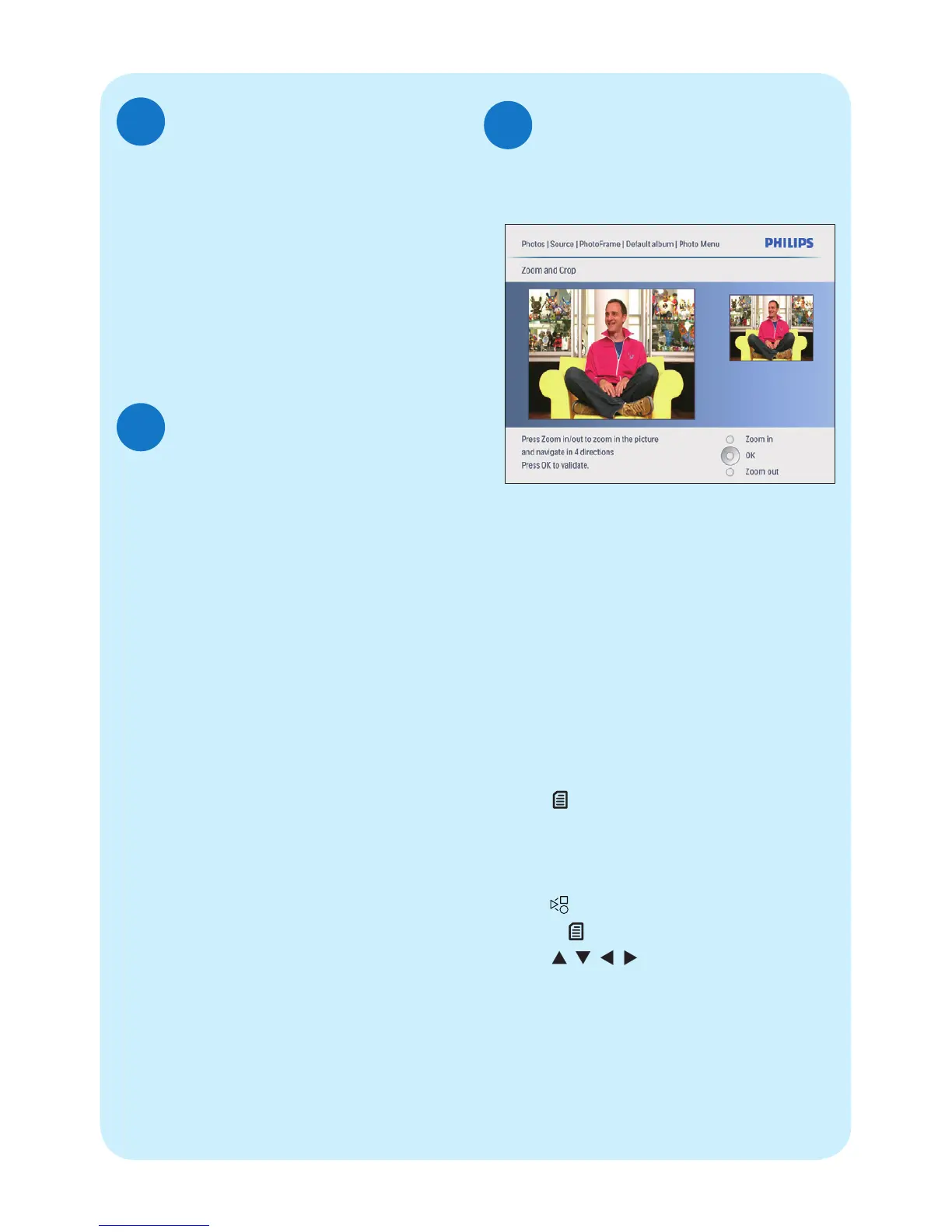
Zoom and crop pictures
D
1 In the main menu, select [Photos] and
then press OK to confi rm.
2 Select a photo source, and then press
OK to confi rm.
3 Select an album, and then press OK to
confi rm.
»
Photos in the album are displayed in
thumbnail mode.
4 Press
3
/
4
/
1
/
2
to select a photo,
and then press OK to confi rm.
• To select all photos displayed on the
screen, press and hold OK for more
than 1 second.
5 Press to access [Photo Menu] and
manage photos.
6 In [Photo Menu], select [Zoom and
Crop] and then press OK to confi rm.
7 Press to zoom in a photo.
• Press
to zoom out a photo.
8 Press / / / to crop the photo, and
then press OK to confi rm.
9 Select [Yes], and then press OK to
confi rm.



 To Next Page