12
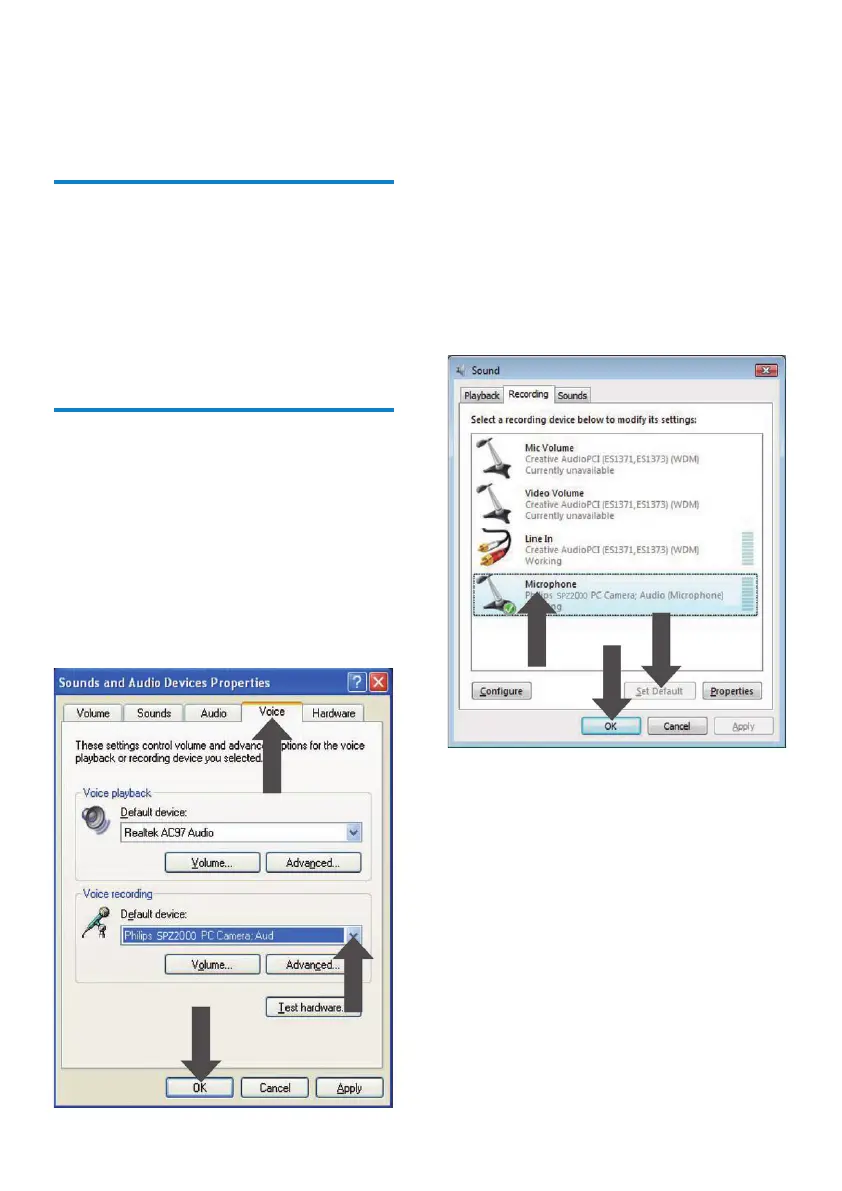
4 Set the Philips SPZ2000 webcam as
default device for Voice recording.
5 Click OK to save your settings.
For Windows Vista:
1 On the PC/notebook, click Start >
Control panel.
2 Click Hardware and Sound.
3 Click Sound.
4 Click the Recording tab in the displayed
window.
5 Select the Philips SPZ2000 webcam and
click Set Default.
6 Click OK to save your settings.
For Windows 7:
1 On the PC/notebook, click Start >
Control panel.
2 Click Hardware and Sound.
3 Click Sound > Manage audio device.
4 Click the Recording tab in the displayed
window.
5 Select the Philips SPZ2000 webcam and
click Set Default.
6 Click OK to save your settings.
8 Frequently asked
questions (FAQ)
How can I adjust image quality?
The default settings of the Philips webcam usually
offer the best possible image quality.
If you have Philips CamSuite or Webcam Driver
SPZ2000 installed on the PC/notebook, you can
also adjust image quality via the settings provided
by Philips CamSuite or Webcam Driver SPZ2000.
The microphone of my Philips
SPZ2000 webcam does not work
(properly). What should I do?
For Windows XP (SP2):
1 On the PC/notebook, click Start >
Control panel.
2 Click Sounds and Audio Devices.
3 Click the Voice tab in the displayed window.
EN


 To Next Page