20 EN
Upgrade rmware
To improve the performance of SW700M,
Philips may offer you new rmware for upgrade
of your SW700M.
Warning
• Always connect your SW700M to AC power for
rmware upgrade. Never power off your SW700M nor
close the app during rmware upgrade.
1 Make sure that SW700M is powered on
and connected to the same Wi-Fi network
as your smartphone or tablet.
2 Make sure that your home Wi-Fi network
is connected to the Internet.
3 Run SpeakerSet on your iOS or Android
smartphone or tablet.
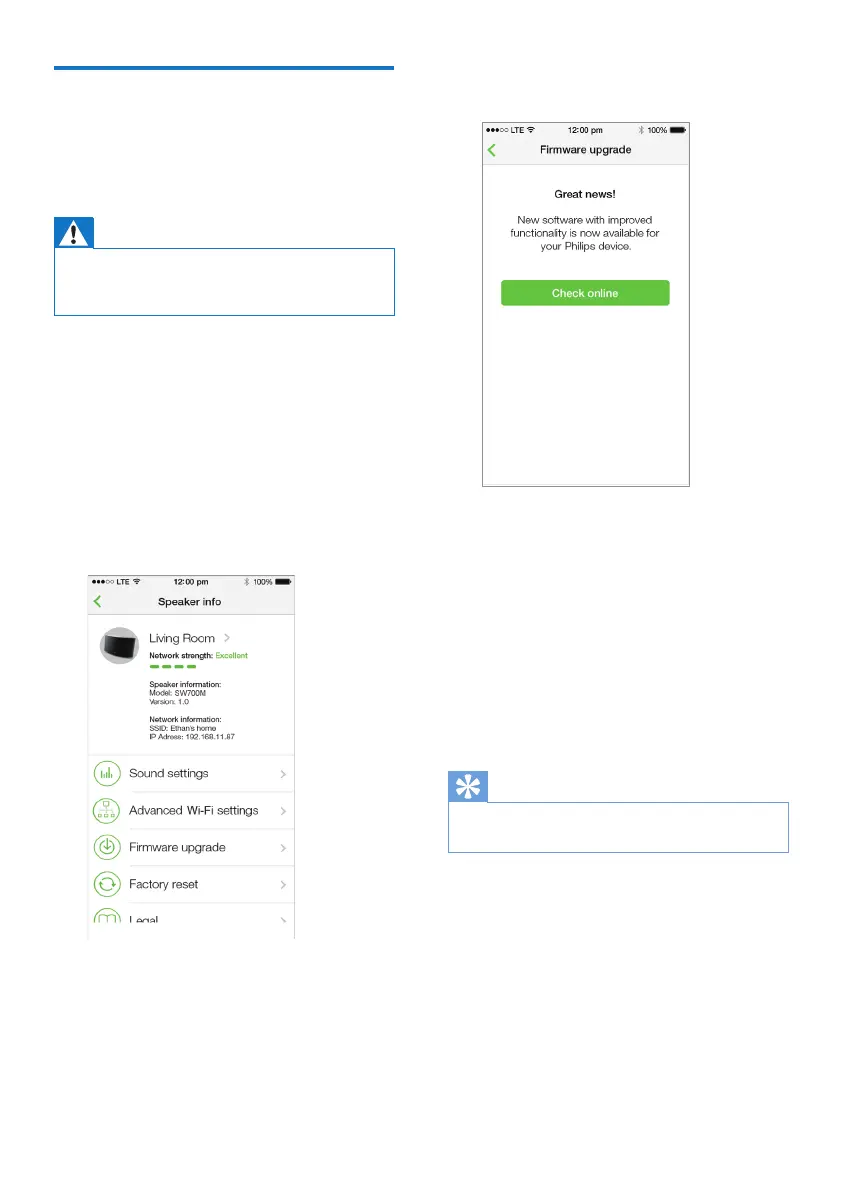
4 Tap the speaker image to see options
available for the speaker.
5 Tap Firmwareupgrade to enter the
rmware upgrade page.
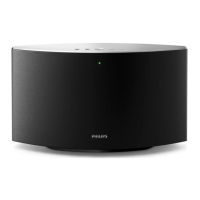
6 Tap Check online to see whether any new
version of rmware is available.
7 If a new version is available, tap Update to
start rmware upgrade.
» The system status indicator on the
front panel blinks amber and red
alternately during this process.
8 Wait until the rmware upgrade process
nishes, then tap OK to reboot the
speaker.
Tip
• Depending on the network connection, it may take 10
minutes to nish upgrade.



 To Next Page