Note
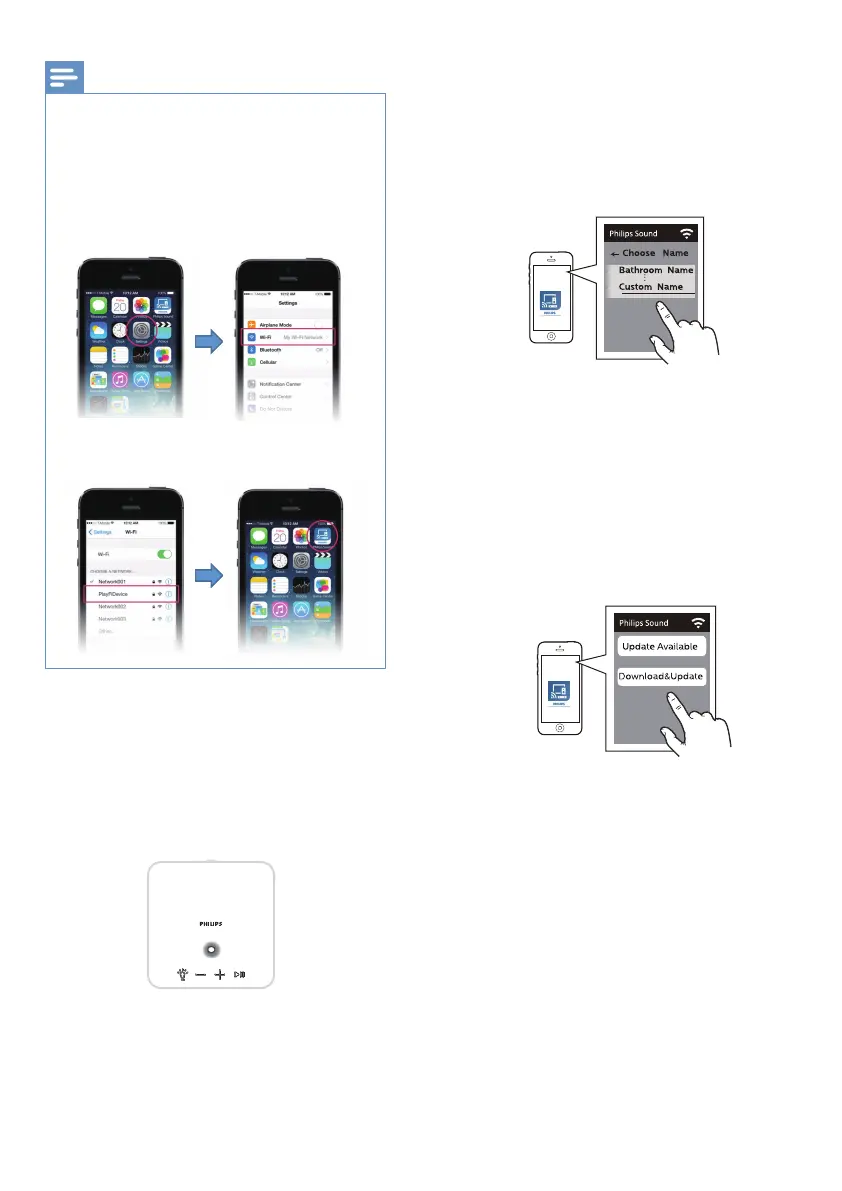
For iOS version only
x Go to Settings. x Select Wi-Fi setting.
6
7
8
After connection, you can change the
device name. There are several names
to choose from or create your own by
choosing Custom Name at the end of
the name list. Otherwise, it follows the
default name.
After connection, this product may
perform a software update. Upgrade to
the latest software when it is your rst
time set up. The software upgrade may
take several minutes. Do not unplug
your speaker, turn o your device, or
leave the network during the update.
After successful Wi-Fi connection, the
Wi-Fi light indicator on the top panel will
stop pulsing and turn solid. Once you set
up this product on your Wi-Fi network,
you can control it from any smartphone
or tablet on the same network.
Wi-Fi network used by iPhone should be
switched temporarily to Play-Fi device AP and
restart Philips Sound APP to complete the
product’s Wi-Fi setup. See the steps below:
x Select the Play-Fi
device in the Wi-Fi set
up
x Return to Philips
Sound App to
continue the set up.
8


 To Next Page