15
English
Installation
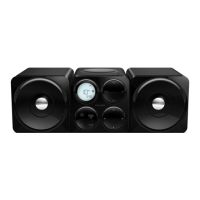
Placing Center and Station
IMPORTANT!
– Install your Center and Station near
the AC outlet and where the AC power
plug can be reached easily.
Ta ke the following steps to optimize the
Wi-Fi connection between Center and
Station:
– Keep your Center and Station away from the
source of interference (wireless routers,
microwave ovens, DECT phones, bluetooth
devices, cordless phones, other Wi-Fi products,
etc.)
–Avoid placing your Center or Station close to
the plasma TV. It may result in improper display
on your Center’s 2-way remote control.
– Keep Stations adequately apart or in different
angles (e.g. in different rooms blocked by one
wall). Within a distance and angle (e.g. in the
same room), your Center’s remote control is
powerful enough to simultaneously operate
several Stations, which may also result in
improper display on the 2-way remote control.
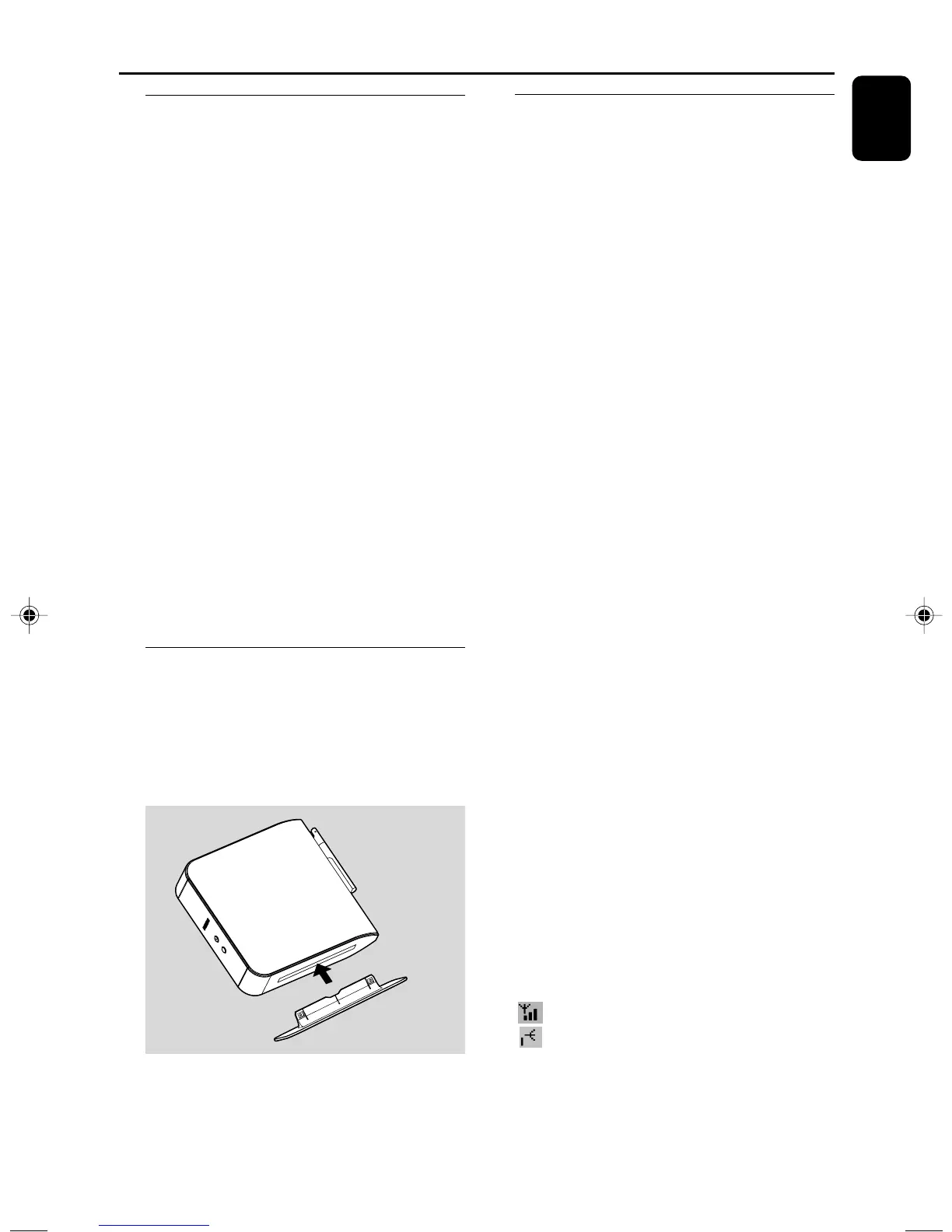
Mounting stand onto Station
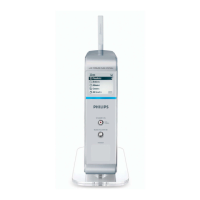
WAS5 Station is equipped with a stand. To
mount the stand onto your Station,
1 Align the supplied stand to the slot at Station’s
bottom
2 Insert the stand into the slot firmly
Helpful hints:
– Once inserted, the stand is undetachable.
Setting up Wi-Fi connection
between Center and Station
Up to 5 stations can be connected to a WAC5
Center.
On Center
1 Connect the Center to power supply
2 Switch on WAC5 Center and select HD source
3 To select Add New Station on Center
a. Press and hold STOP • MENU to enter the
MENU screen (or on remote control, press
MENU)
b. Use the navigation controls 3 or 4 and 2 to
enter Station Mgnt menu
c. In Station Mgnt menu, use the navigation
controls 3 or 4 and 2 to select
➜ You will enter the Installation Mode.
Searching for the station starts
➜ Playback stops on the previously associated
Station if you are playing the HD source
On Station
4 Connect the station to power supply
5 Select your desired language: English, Français,
Español, Nederlands, Italiano and Deutsch
➜ “Searching for Center” appears
➜ The set enters Installation Mode
➜ The search for Center starts
On Center
6 Press STOP/Ç on the Center when all your
stations are found
IMPORTANT!
– Avoid thick walls. Your Center and Station should
never be blocked by 2 or more walls.
– Avoid placing the sets close to large metal
objects.
– For better Wi-Fi reception, turn the Wi-Fi
antenna, or adjust the location of your Center and
Station.
– indicates maximum reception
– indicates no reception
p001-p025_WAS5_Eng_37 2/8/2006, 10:0015


 To Next Page