09. Howto Print - Creation Mode
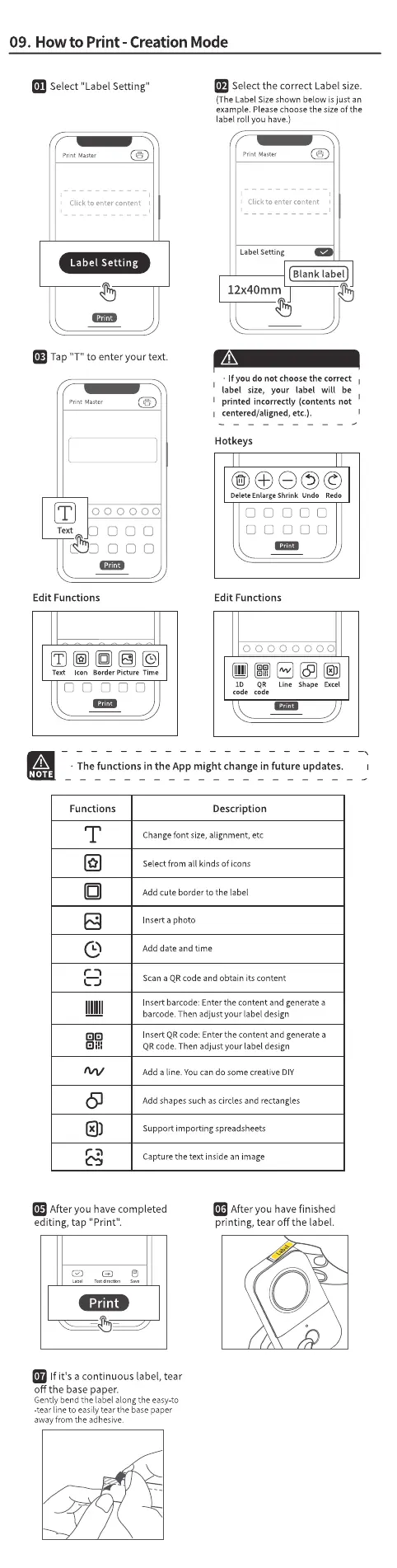
Select "Label Setting"
01
Pr.nt Master
• Click to enter content
Label Setting
Tap "T" to enter your text.
print Master
000000
ooo
Edit Functions
Text Border Picture Time
Select the correct Label size.
(The Label Size shown below is just an
example. Please choose the size of the
label roll you have.)
Print Master
Click to enter content
LabelSetting
Blank label
12x40mm
• If you do not choose the correct
label size, your label will be
printed incorrectly (contents not
I centered/aligned, etc.).
Hotkeys
ooeoe
Delete Enlarge Shrink Undo Redo
D D aaa
Edit Fu nctions
00000000
ID QR Line Shape Excel
code code
• The functions in the App might change in future updates.
NOTE
Functions
T
Description
Changefont size,alignment, etc
Select from all kinds of icons
Add cute border to the label
Inserta photo
Add date and time
Scan a QRcode and obtain its content
Insert barcode:Enterthecontent and generatea
barcode. Then adjust your label design
InsertQRcode:Enter the Contentand generatea
QR code. Then adjust your label design
Add a line. You can do some creative DIY
Add shapessuchascirclesand rectangles
Support importing spreadsheets
Capturethe text inside an image
After you have completed
editing, tap "Print".
Print
f it's a continuous label, tear
off the base paper.
Gently bend the label along the easy-to
-tear line to easily tear the base paper
away from the adhesive.
After you have finished
printing, tear Off the label.


 To Next Page