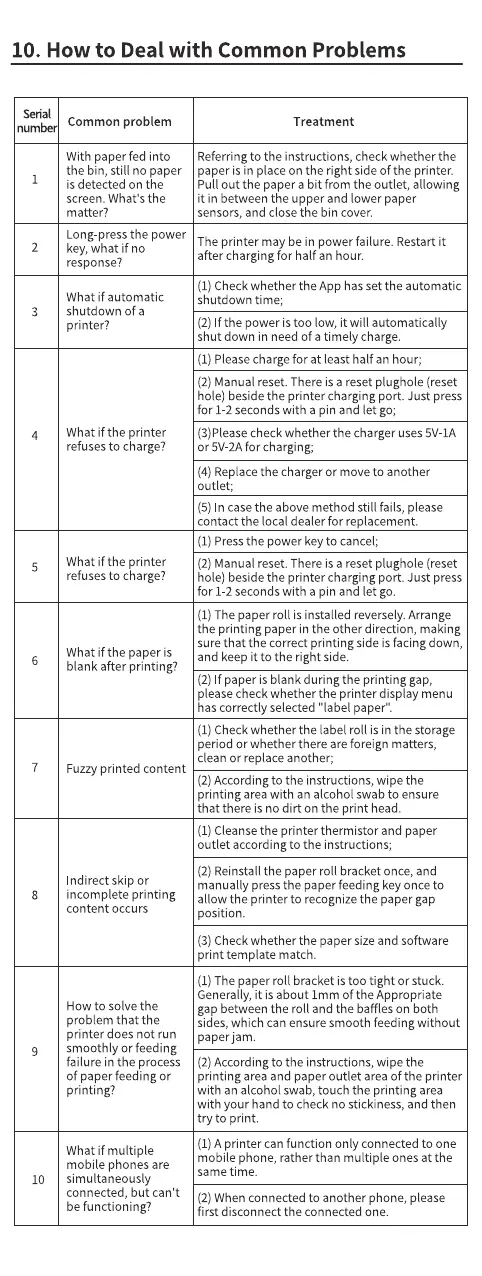
10. How to Deal with Common Problems
Serial
1
2
3
4
5
6
7
8
9
10
Common problem
With paper fed into
the bin, still no paper
is detected on the
screen. What's the
matter?
Long press the power
key, what if no
response?
What if automatic
shutdown of a
printer?
What if the printer
refuses to charge?
What if the printer
refuses to charge?
What if the paper is
blank after printing?
Fuzzyprinted content
ndirect skip or
incomplete printing
content occurs
How to solve the
problem that the
printer does not run
smoothly or feeding
failure in the process
of paper feeding or
printing?
What if multiple
mobile phones are
simultaneously
connected, but can 't
be functioning?
Treatment
Referring to the instructions, check whether the
paper is in place on the right side of the printer.
Pull out the paper a bit from the outlet, allowing
it in between the upper and lower paper
sensors, and close the bin cover.
The printer may be in power failure. Restart it
after charging for half an hour.
(1) Check whether the App has set the automatic
shutdown time;
(2) If the power is too low, it will automatically
shut down in need of a timely charge.
(1) Pleasecharge for at least half an hour;
(2) Manual reset.There is a reset plughole (reset
hole) beside the printer charging port. Just press
for 1 2 seconds with a pin and let go;
(3)Pleasecheck whether the charger uses 5V-1A
or 5V-2Afor charging;
(4) Replacethe charger or move to another
outlet;
(5) In case the above method still fails, please
contact the local dealer for replacement.
(1) Pressthe power key to cancel;
(2) Manual reset.There is a reset plughole (reset
hole) beside the printer charging port. Just press
for 1 2 seconds with a pin and let go.
(1) The paper roll is installed reversely. Arrange
the printing paper in the Other direction, making
sure that the correct printing side is facing down,
and keep it to the right side.
(2) If paper is blank during the printing gap,
please check whether the printer display menu
has correctly selected "label paper".
(1) Check whether the label roll is in the storage
period or whether there are foreign matters,
clean or replace another;
(2) According to the instructions, wipe the
printing area with an alcohol swab to ensure
that there is no dirt on the print head.
(1) Cleansethe printer thermistor and paper
outlet according to the instructions;
(2) Reinstall the paper roll bracket once, and
manually press the paper feeding key once to
allow the printer to recognize the paper gap
position.
(3) Check whether the paper sizeand software
print template match.
(1) The paper roll bracket is too tight or stuck.
Generally, it is about Imm Ofthe Appropriate
gap between the roll and the baffles on both
sides, which can ensure smooth feeding without
paper jam.
(2) According to the instructions, wipe the
printing area and paper outlet area of the printer
with an alcohol swab, touch the printing area
with your hand to check no stickiness, and then
try to print.
(1) A printer canfunction only connected to one
mobile phone, rather than multiple ones at the
same time.
(2) When connected to another phone, please
first disconnect the connected one.


 To Next Page
 Loading...