09. Printing Guide—Edit function description
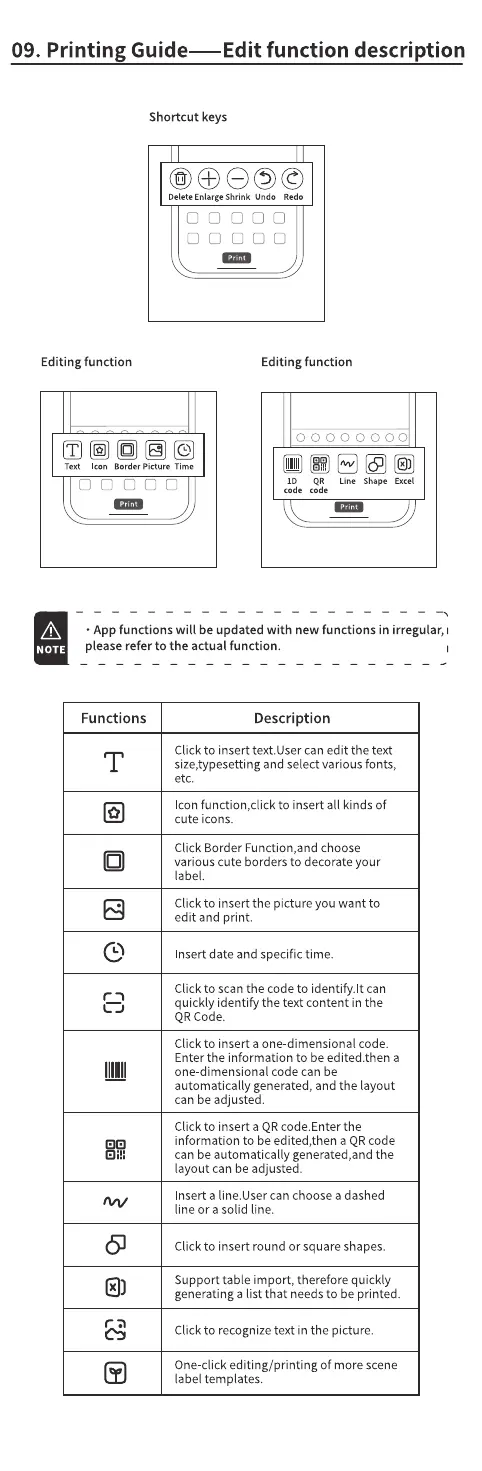
Shortcut keys
oceoe
Delete Enlarge Shrink Redo
Editing function
Text Icon Border Picture Time
ooaa o
Editing function
00000000
QR Line Shape Excel
code
NOTE
• App functions will be updated with new functions in irregular, I
please refer to the actual function.
Functions
T
6]
Description
Click to insert text.User can edit the text
size,typesetting and select various fonts,
etc.
Icon function,click to insert all kinds of
cute icons.
Click Border Function,and choose
various cute borders to decorate your
label.
Click to insert the picture you want to
edit and print.
Insert date and specific time.
Click to scan the code to identify.lt can
quickly identify the text content in the
QR Code.
Click to insert a one-dimensional code.
Enter the information to be edited.then a
one-dimensional code can be
automatically generated, and the layout
can be adjusted.
Click to insert a QR code.Enter the
information to be edited,then a QR code
can be automatically generated,and the
layout can be adjusted.
Insert a line.lJser can choose a dashed
line or a solid line.
Click to insert round or square shapes.
Support table import, therefore quickly
generating a list that needs to be printed.
Click to recognize text in the picture.
One-click editing/printing Of more scene
label templates.


 To Next Page