3) Test the connection optionally with the S5 controller with a Windows program (eg: PG2000 from
this CD)
4.) Then start the SETUP.EXE file on the installation CD for "S5VCOM for Win98"
5.) Select the installation path and click "Next"
6.) Select designation and location for the start menu and click on "Next"
7.) After completion of the installation, the system restarts
S5 VCOM was registered in the Startup folder and will be launched at every restart.
Uninstall
1.) Under “Start => Settings => Control Panel “ click on software
2.) Select "S5 VCOM for Win98" and click "Remove / Change"
3.) Respond with "Yes" to the question to remove the software
4.) When no longer needed at the same place can be also removed the "FTDI USB <-> Serial"
driver
5.) Restart system (recommended)
Settings / Start:
After the installation and followed restarting of the computer, the S5VCOM driver starts
automatically. If an error occurs while installing or starting the driver, it will be displayed.
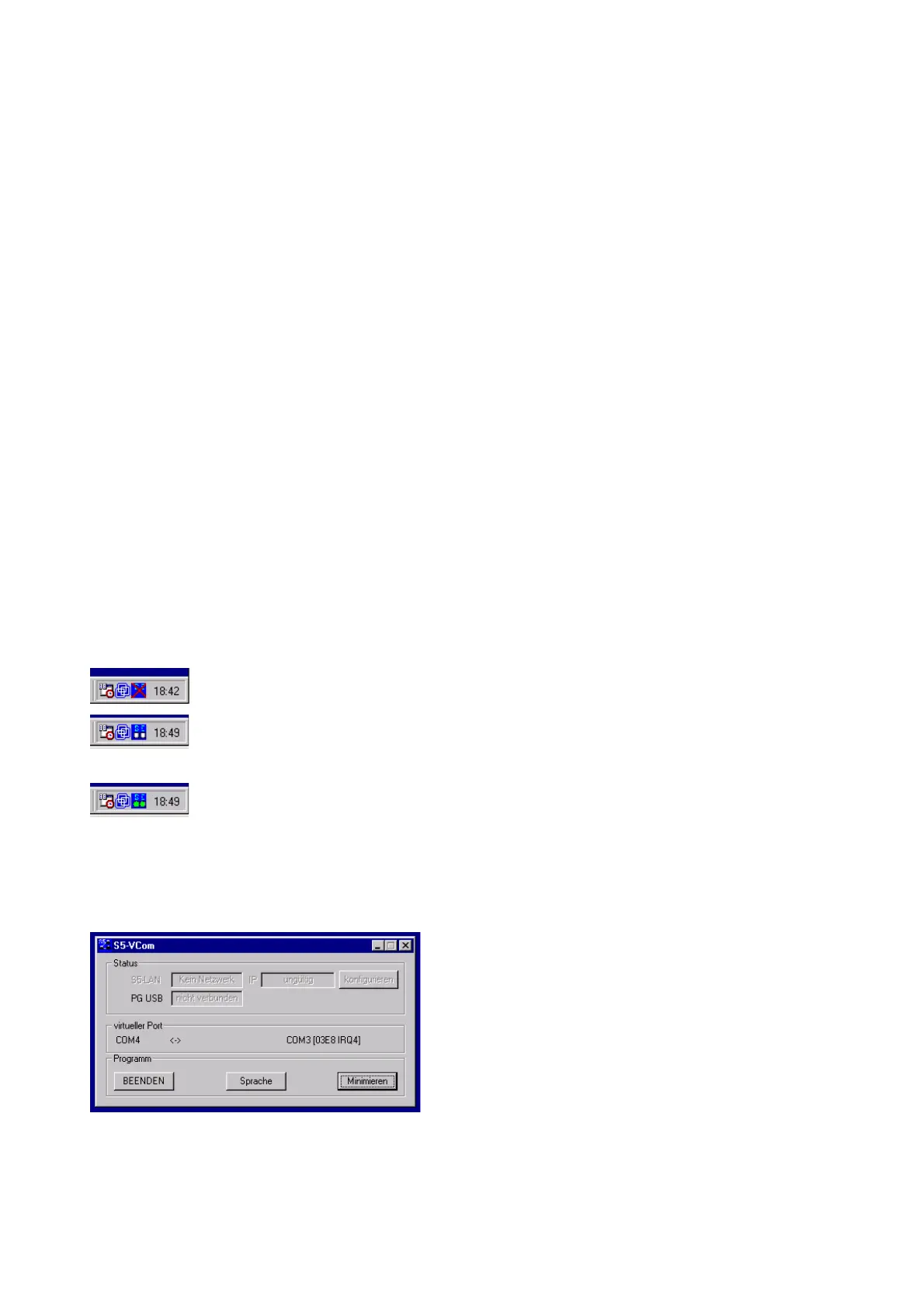
If properly installed, appears at the right bottom of the screen another tray icon.
On this icon you can see if the PG-USB-cable / USB-RS232-converter is recognized or not, and
whether the communication is currently running:
PG-USB-cable / USB-RS232-converter is not recognized or not plugged.
PG-USB-cable / USB-RS232-converter is detected, but it is currently not
communicated via this interface.
PG-USB-cable / USB-RS232-converter is detected and it is currently
communicating.
S = sender (from computer to S5)
E = receiver (from S5 to computer)
By clicking this Tray-Icon appears a new dialog:
Under the area "Status" is displayed via which cable is being communicated and whether there is
established a connection.
Under the area "Virtual port" on the left side is
displayed the COM port that can be used by the
Windows software, and on the right side the COM
port (IO port) is used by the MSDOS-box.
This must be used in the S5 software.
Depending which COM - ports are already exists, the next free COM port is used:
existing COM used by S5VCOM
Page 5 of 21 Handbook PG-USB



 To Next Page