NO COM1 [03F8h,IRQ4]
COM1 COM2 [02F8h,IRQ3]
COM2 COM1 [03F8h,IRQ4]
COM1,COM2 COM3 [03E8h,IRQ4]
COM1,COM3 COM2 [02F8h,IRQ3]
COM2,COM3 COM1 [03F8h,IRQ4]
COM1,COM2,COM3 COM4 [02E8h,IRQ3]
Under the area "Program" the virtual COM port can be closed, the language of the program can be
changed or the program can be minimized as tray icon.
3.2.3 Uninstallation of the USB driver and installation of a new version
Download the uninstallation tool from the homepage. You can find it on the side of the product PG-
USB or USB-RS232-converter in the download menu at the "Additional Downloads".
Disconnect the cable from the PC and follow the software and the USB driver and the required
entries will be deleted. Then you can download the relevant USB drivers from the download menu
at the "Necessary Downloads" and extract this file to your hard disk. Now plug in the cable and
follow the hardware installation wizard where you point into the folder where you unzipped the
"new" USB driver. Now you can continue to work with the PG-USB or USB-RS232-converter. The
possible patch of Step5 software must not be executed!
3.2.4 Installation of the Step5 © addition driver for PG-USB/S5-LAN + + / USB-
RS232-converter
In order to make the the PLC-VCOM furnished virtual COM interface available for Siemens Step ©
5 in the DOS box, must be installed this addition driver.
! Important ! PLC-VCOM must be installed before this Step © 5 addition driver. The installation
of the PLC-VCOM software is explained in the chapter „PLC-VCOM installation“ .
Before you start the installation, make sure to stop any possible still running S5 original
software, otherwise the driver can not be installed.
1. Please download from the you known web-site the "S5-patch" and extract the file on your PC.
2. Now start the application "S5USB.exe" from the previously extracted folder
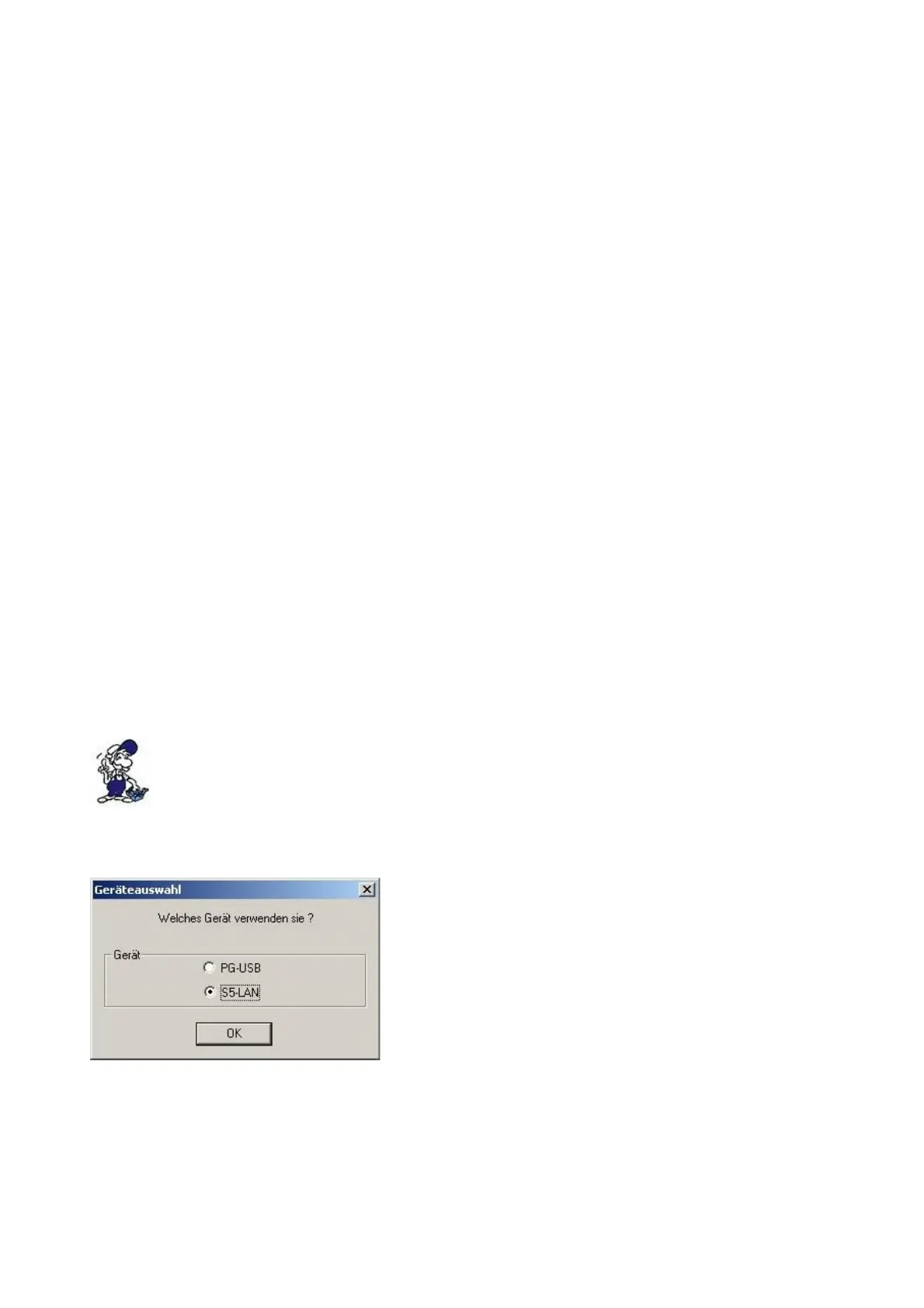
3. Device selection
Now select the type of device.
Select "S5-LAN + + / PG-USB-cable / USB-RS232-
converter" and confirm with "OK".
Handbook PG-USB Page 6 of 21



 To Next Page