Pinnacle Video Transfer
Connecting the USB Device
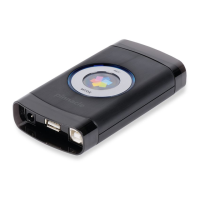
Connect the storage device you are using to the USB-A 2.0 port on Pinnacle
Video Transfer.
The device recognition process begins and the USB port LED constantly glows
red. If this process takes longer, a running light formed by the three quality
LEDs starts up in addition to the constantly glowing red light. The device
recognition process is finished as soon as the running light stops and the USB
port LED has changed to blue.
Do not disconnect the USB device from the Pinnacle Video Transfer device
whilst the device recognition process is running.
Special Features of the Various USB Devices
In order to ensure your device is able to make recordings using Pinnacle Video
Transfer, note the following features associated with the various devices:
Apple® iPod®
The device hard drive must be formatted as FAT32.
Check to make sure that the option Manually manage music and videos is
activated in the iTunes® program. Otherwise, any videos you have recorded
on your iPod® might be deleted when you connect the iPod® to the computer.
Sony® Playstation® Portable (PSP™)
The device needs to be in USB mode.
To do this, select Settings to the left, vertically scroll to the USB connection
option and then confirm with X.
USB Flash memory sticks
Suitable formats are FAT16 and FAT32.
External USB hard drives
Suitable formats are FAT16 and FAT32.
Devices using HUBs are not supported by Pinnacle Video Transfer.
10


 To Next Page